Analytics > Cognytics > Working with Dashboards
Your Implementation and Support teams complete the initial Cognytics setup for you, after you complete the Aftermarket agreement with Sales. Next, you need to provide access to the data based on the type of information each team member needs. Since the Dashboards break down the information based on the data in the application, you define the Dashboards that are appropriate for each type of user, based on their role in the business. For a list of the current Cognytics dashboards, click here.
In Cognytics, Dashboards contain information related to each aspect of the business process, broken down into a group of widgets that show snapshots of the data in both graphic and list formats.
Managing the Data that Displays in Cognytics Dashboards
For each dashboard type, there are settings that determine which data populates the widgets in that dashboard. The settings change based on the Dashboard and the user credentials each person has. Most of the settings that affect the entire dashboard display at the top of the form, but the displayed data depends on the widgets' content.
For example, these are the settings for the Purchasing Dashboard for a user with administrative credentials. There are settings for date range, vendors, product groups, and branches to make it easier to adjust the dashboard data to the view the Purchasing Manager or Inventory Manager needs.

Purchasing Dashboard > Filter Settings
The Customer Retention Dashboard has a different focus, so the settings are different, including the date range and the accounts list only:

Customer Retention Dashboard > Settings
The Dashboard icons let you apply settings to all the widgets in the dashboard, which is useful when you want to view data for a specific branch, date range, or product across all available widgets.

Dashboard Icons
Dashboard icons include:
-
 Customize
Use this icon to choose the layout and widgets that display in the Dashboard. -
 Maximize
Use this icon to maximize the Dashboard display and hide the user profile. -
 Refresh
Use this icon to refresh all the data in the Dashboard. -
 Dashboard Filter
Use this icon to filter the relevant data in the current dashboard using new settings.
When you change the Dashboard settings Branch and Date Range in the Purchasing Dashboard, the data in the local widgets updates. This is the data that displays in the Purchasing Dashboard if the Date Range setting is the current YTD and the Branches setting is All:
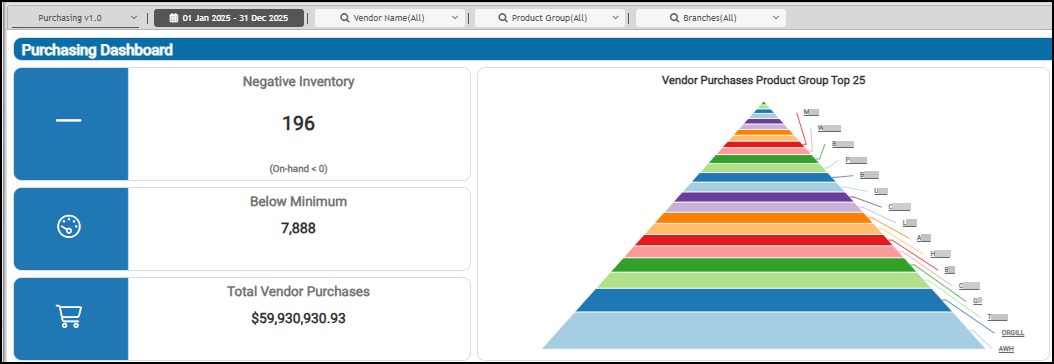
Cognytics > Date Range = Year to Date, Branches = All
When you change these settings, say, to the previous quarter and restrict the view to only two branches, this is what the data looks like:
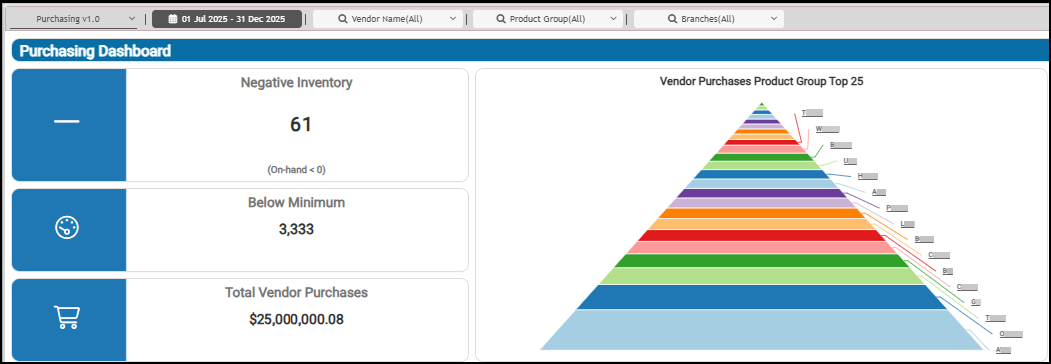
Cognytics > Date Range = Last Quarter, Branches = 2
Understanding the Data in your Cognytics Widgets
On most widgets, you can drill down into the data to gain a deeper understanding of the information you are reviewing. Depending upon the part of the application you are working in and the credentials you have as a user, you go beyond the basic chart of information to learn more. We will use the Accounts Receivable Aging widget as an example. The Accounts Receivable Aging chart shows the amounts currently past due for the 30-, 60-, 90-, and 120-day buckets.
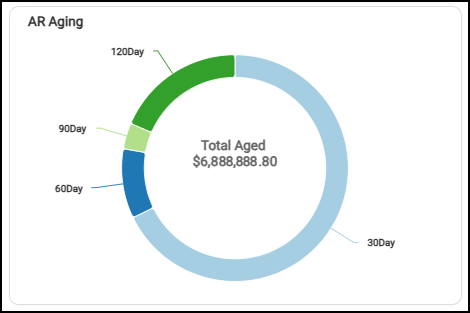
Accounts Receivable Aging Amounts (30, 60, 90, 120 Days)
By selecting the List View  icon, you can see the aged balance amounts for each date range and the total aging amount.
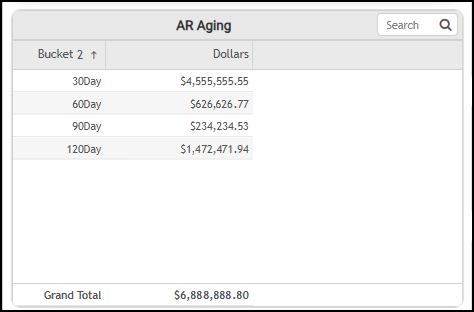
Accounts Receivable Aging Balances by Bucket with Total
Using a Widget Filter  icon, you can drill down into this list by selecting from a variety of values, including Account Name or Number, by Bucket, by Dollars, by Percent, and by Sales Representative. You can filter data in both charts and lists.
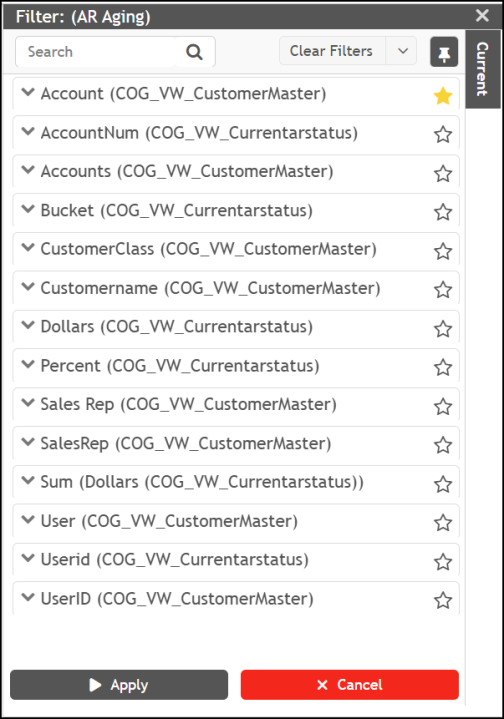
Accounts Receivable Aging Data Filters
To see more details, select the Star  icon beside one or more filters, indicating the details you want to review and choose Apply.
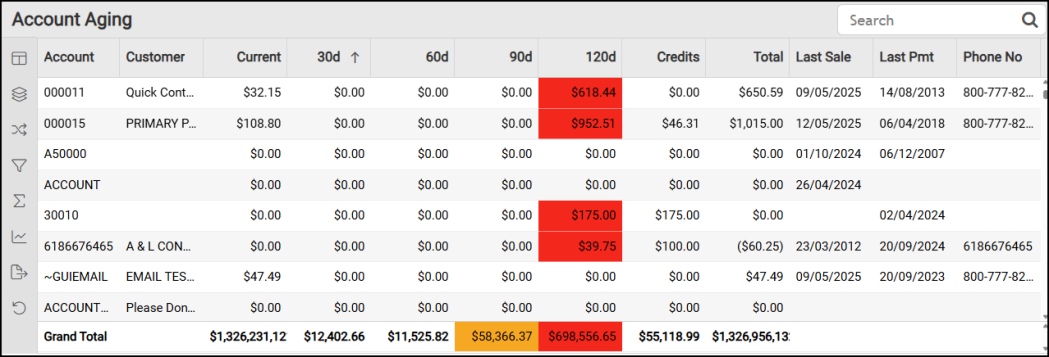
Account Aging by Account List
When you click the down arrow beside an entry in the Filter list, you can choose or enter search criteria based on the type of information you are reviewing. For some widgets, you can select new criteria that can affect the data Cognytics collects.
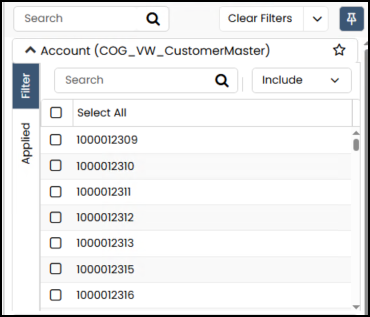
Account Widget Filter Details
This provides an unprecedented level of detail, making it useful when working with team members or customers. The data in this widget is based on receivable accounts from the system, which is updated each day as payments come in and are posted to accounts during the nightly process. You can use the Search field in the heading to find specific information listed in the widget. When you choose a filter for a widget, the Filter  icon displays in yellow.
To choose which columns to show or hide, choose the Column  icon on the left menu.
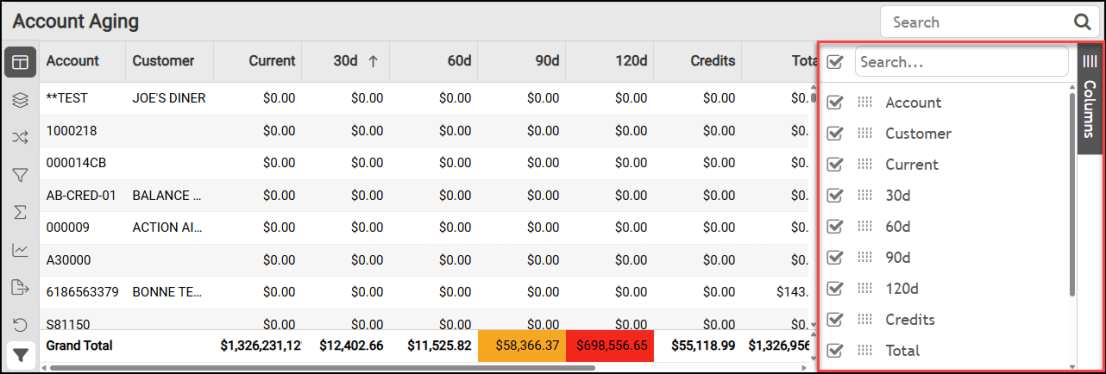
Account Aging > Columns Reselected
Click the Hide Group  icon. The Row Groups and Values options display.
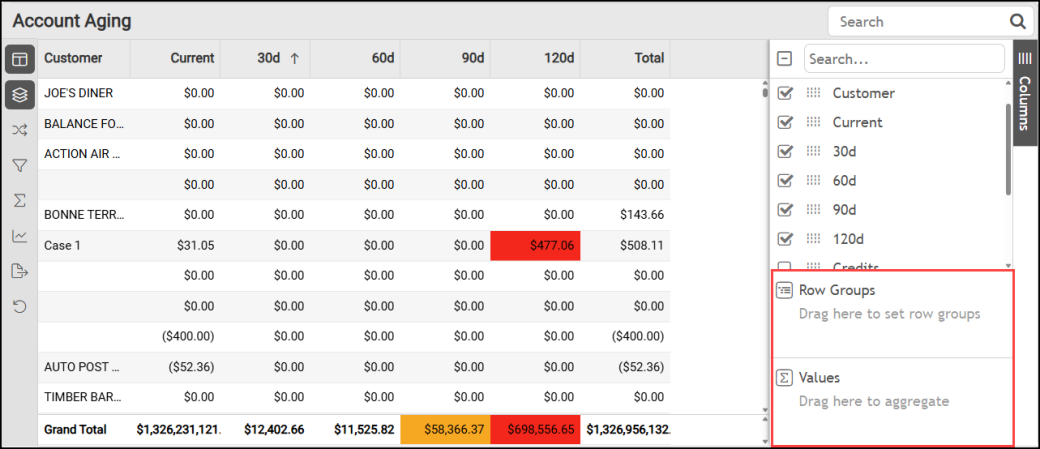
Account Aging > Row Groups and Values
For example, to see the accounts by 60-day overdue amounts in ascending order, drag the column heading 60d to the Row Groups box. The list updates to show you the 60-day overdue amounts in the left column. Click the + icon beside the amount you want to review to see the account information associated with that outstanding amount and the other related values associated with the account.
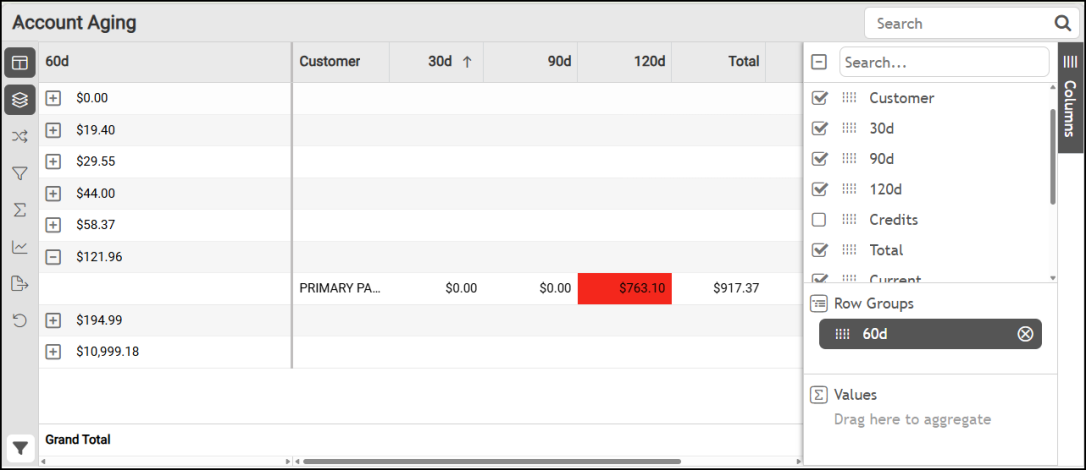
Account Aging > 60 Row Group > Amount Detail by Account
You can experiment with the icons on the left to learn how to organize the data you have access to and display the metrics you need. To return to the Dashboard from an open widget, choose the Home  icon.
icon.
When you want to create your own queries for your widgets, it may be useful to review the queries that define the existing widgets. To learn more about how a widget is built, review the query behind it by selecting the widget’s Info  icon and choosing the View Query tab:
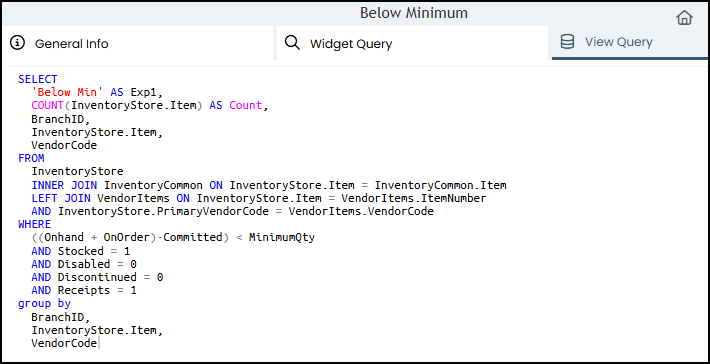
Below Minimum Widget Query
Understanding the Widget Data References
In this document, we introduce the Dashboards and Widgets you can use to review and evaluate the data your application collects.
We provide the Widget Names and the View Name so you can modify the associated queries based on your understanding of your data, but we encourage you to be careful when you make these changes.
We provide a Historical reference so you know whether changing the Dashboard date range affects the data in each widget. Widgets that are not Historical show current data only, even if you change the Dashboard date range.
-
When the Historical entry is Yes, changing the date range of a Dashboard affects the widget.
-
When the Historical entry is No, the widget is partly defined by the widget’s defined date range.
We provide a Drill-Down reference so you know when you can review the data in the charts or tables in more detail using filters.
New: AI Insights for Widget Data
The AI Insights icon is available for most widgets and provides additional coaching on the data they collect. These insights are grouped into the three tabs you see below. For example, the AI Insights options for the Customer Sales Totals by Account Age widget in the Customer Retention dashboard include these tabs and insights:
-
Business Interpretation, such as:
“Top Performing Account Age Segments: The data indicates strong sales contributions from customers in their first year of activity (column '1'), particularly in <year>, where this segment generated an impressive <dollar amount>. Similarly, new customers (column '0') consistently contribute significantly, with a peak of <dollar amount> in <year>.” -
Potential Business Decisions, such as:
“Optimize New Customer Engagement: Given the high sales from new customers (year '0') and customers in their first year (year '1'), focus on refining on-boarding processes and initial service offerings to maximize their early spend and reinforce loyalty.” -
Suggested Follow-Up Questions, such as:
“How did total sales for customers in their second year of tenure compare across all years?”
When you click one of these questions, the Cognytics AI Insights page displays so you can take a deep dive into the question you selected. The tab displays the chart and/or the table and allows you to poll the AI bot for more insight into the questions you are exploring."
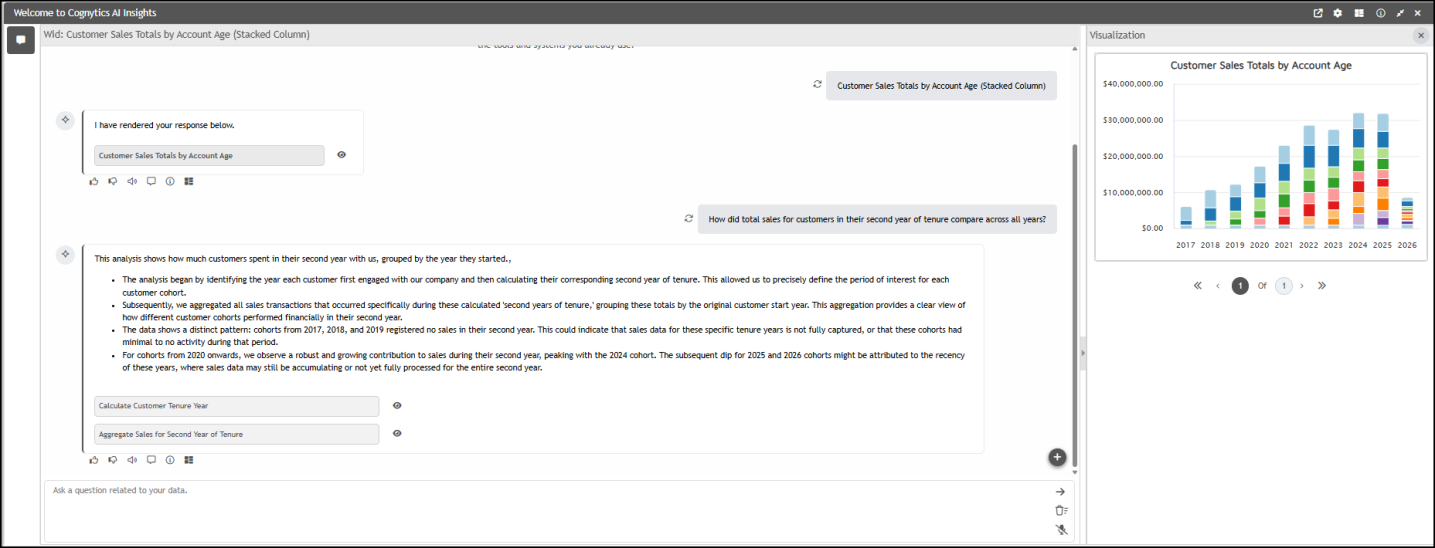
Reviewing the Cognytics Dashboards
The following list of Dashboards are currently available to your business. Click a link below to learn more about the dashboard and its widgets:
Accounts Receivable
Current Status
Customer Retention
Customer Status
DailyDashboard
Management Inventory KPI
New Business
Overview
Purchasing
Sales
Sales User
Scorecard Customer
Year End Ratios