Reviewing the Accounts Receivable Dashboard (Cognytics)
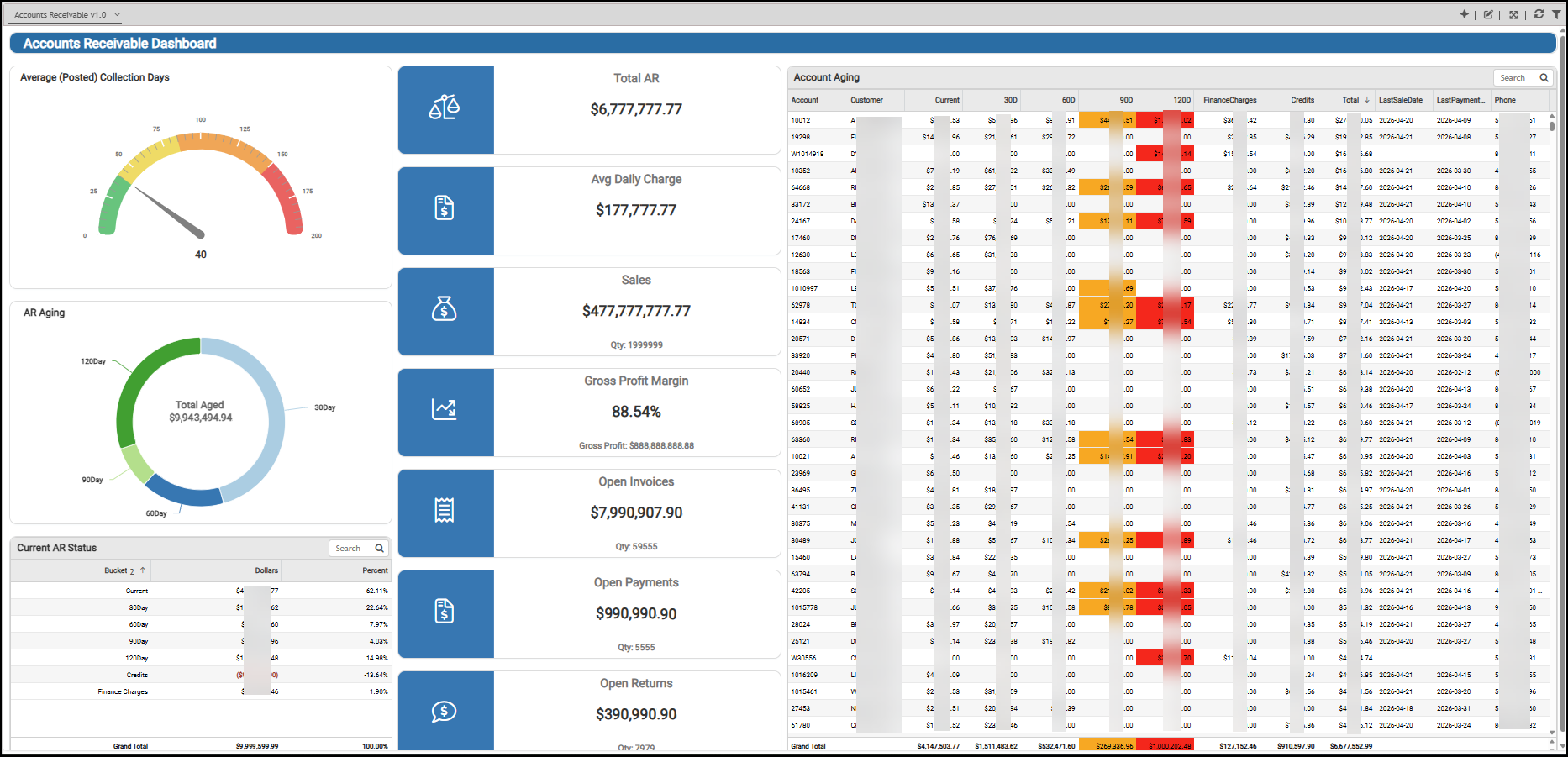
The Accounts Receivable Dashboard contains widgets with account-based payments, collections, and returns for the current year-to-date and, in some cases, the last 12 months. This data would be helpful to Back Office staff, Sales and Account Managers, and Owners.
Accounts Receivable Dashboard
From this data, Cognytics calculates the total accounts receivable amount, the average daily charge amount, the gross profit margin, and the aging information for the current accounts with balances. This is an overview of the widgets that display in this Dashboard and what they mean for your business.
Account Aging List Widget (AR Dashboard)
Widget Name: Account Aging
View Name: COG_VW_AccountAging
Historical: No
Drill-Down: None
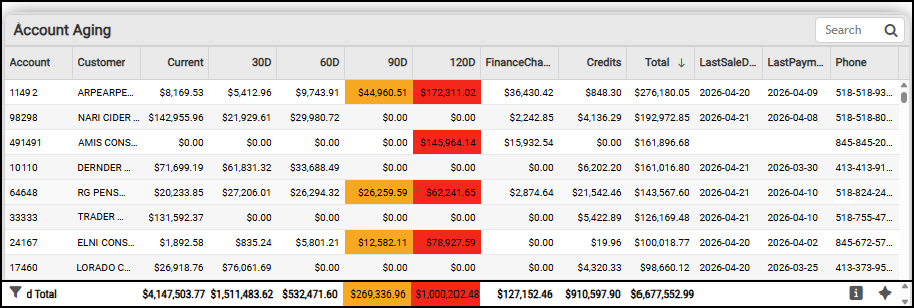
The Account Aging list widget displays your current customer list and the status of each customer's account. It is a useful tool for conversations because it contains all the relevant information to discuss the account’s status.
This list contains the account ID, name, current balance, 30, 60, 90, and 120 day balances, the outstanding finance charges, credits, and total outstanding amount. This table displays the grand totals at the bottom by aging amount.
Accounts Receivable Dashboard > Account Aging List (by Account) Widget
You can filter this information by each of the standard aging buckets, by account, by credits, by customer class, by finance charges, by last sale and last payment dates, by sales representative, by aging total, and by user ID information. This widget is not impacted by changes to the Dashboard Account settings.
Accounts Receivable Aging Widget (AR Dashboard)
Widget Name: AR Aging Donut v1.0
View Name: COG_VW_Currentarstatus
Historical: No
Drill-Down: None
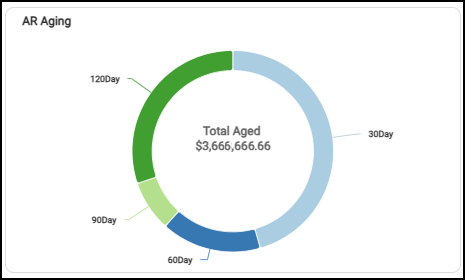
The Accounts Receivable Aging donut widget summarizes the past-due receivables balances for each aged period (30, 60, 90, and 120 days). It does not include finance charges, credit balances, or the current customer balance.
Accounts Receivable > AR Aging Widget (30, 60, 90, 120 Days)
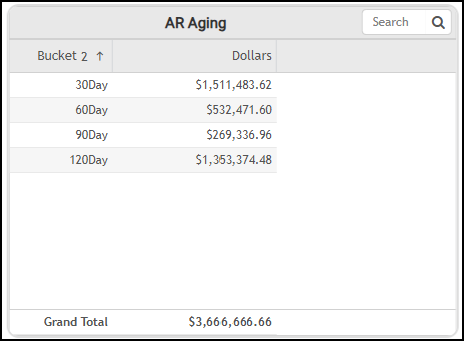
By selecting the List View  icon, you can see the aged balance amounts for each date range and the total aging amount.
Accounts Receivable > Aging Balances by Bucket with Total
The AI Insights options for this widget include:
-
Business Interpretation:
“The Accounts Receivable (AR) aging analysis reveals that the largest current outstanding balance, totaling <amount>, falls within the <bucket number> bucket. This indicates a healthy portion of recent invoices.” -
Potential Business Decisions:
“Prioritize immediate collection efforts on the accounts in the <latest bucket> overdue bucket to recover the substantial <amount> and mitigate the risk of these funds becoming uncollectible.” -
Suggested Follow-Up Questions:
“What are the individual customer accounts that constitute the <latest bucket> overdue amount, along with their respective balances?”
You can filter this data by account, bucket, amounts, percentages, sums, and user ID settings. This widget does not change based on the Dashboard Accounts filter settings.
Average Daily Charge Widget (AR Dashboard)
Widget Name: AR Avg Daily Charge v1.0
View Name: COG_VW_ARcollectionDays
Historical: No
Drill-Down: None
The Average Daily Charge headline widget quantifies the average daily charge sale for the previous year. The widget displays the total by default, but you can choose a filter to review more information.
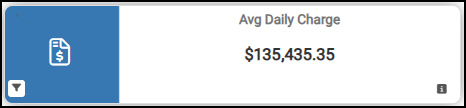
Accounts Receivable Dashboard > Average Daily Charge
You can filter this information by account, branch, customer class, sales representative, by collection days target, and by user information.
Average (Posted) Collection Days Widget (AR Dashboard)
Widget Name: Avg AR Collection Days Gauge v1.1
View Name: COG_VW_ARcollectionDays
Historical: No
Drill-Down: None
The Average Posted Collection Days gauge widget shows the average number of days required for customers to collect payments on your receivables accounts, based on an aggregate of the posted payment amounts. We calculate this value by summing the customer’s current balances and dividing by the average sale charge over the last 365 days. The number of days at the bottom of the chart updates as the application calculates the value. The target for this graph is 30 days.
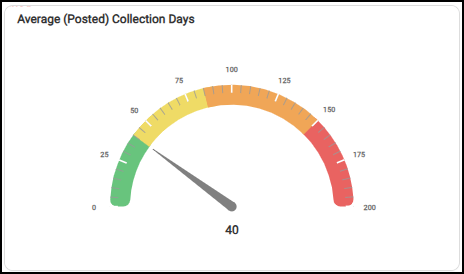
Accounts Receivable Dashboard > Average Posted Collection Days
The AI Insights options for this widget might include:
Business Interpretation:
“The average collection period for accounts receivable across the business is approximately <number of days>.”
-
Potential Business Decisions:
“*Assess Payment Terms Alignment:* Compare this <day quantity>-day average against standard credit terms offered to customers (e.g., Net 30). If significantly higher, it suggests a need to re-evaluate payment incentives or collection strategies for overdue accounts.” -
Suggested Follow-Up Questions:
“What is the average collection period for each of our Accounts Receivable branches?”
You can filter this list by account, branch details, customer class, sales representative, and actual date. This widget does not change based on the Dashboard Account settings.
Current Accounts Receivable Status Widget (AR Dashboard)
Widget Name: AR Current AR Status v1.0
View Name: COG_VW_Currentarstatus
Historical: No
Drill-Down: None
The Current Accounts Receivable Status table widget displays the aging buckets as a percentage of the total payments received. This widget includes credits and finance charges, as applicable.
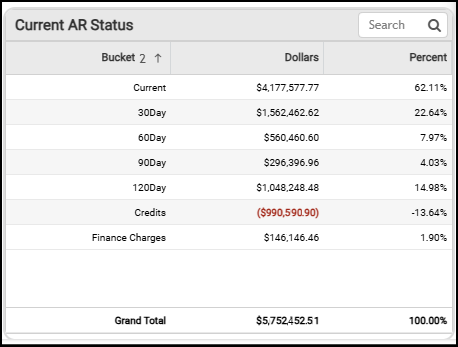
Accounts Receivable Dashboard > Current Accounts Receivable Status
The AI Insights options for this widget include:
-
Business Interpretation:
“The current accounts receivable (AR) balance stands at a robust <amount>, representing <percentage> of the total AR, which is a positive indicator of effective initial payment cycles and overall liquidity.” -
Potential Business Decisions:
“Initiate immediate, targeted collection efforts for accounts falling into the <last bucket> overdue category to mitigate further risk of bad debt and improve cash flow. This requires a focused strategy on these high-value, high-risk accounts.” -
Suggested Follow-Up Questions:
“Which specific customer accounts hold the largest overdue balances in the <last> bucket?”
You can filter this list by account, bucket, amounts, percentage (of the current AR status), sum of dollars and percentages, and user ID settings.
Gross Profit Margin (Percent and Amount) Widget (AR Dashboard)
Widget Name: Gross Profit Margin V2.0
View Name: COG_VW_GProfit
Historical: Yes
Drill-Down: None
The Gross Profit Margin headline widget shows the monthly gross profit amount and profit margin as a percentage of total sales. This calculation assumes the collection period includes the first of the month.
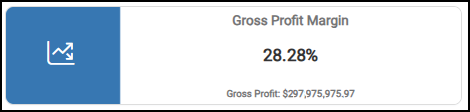
Accounts Receivable Dashboard > Gross Profit Margin (Percent and Amount)
This information can be filtered by branch ID, cash credits, cash sales, charge credits, charge sales, cost of goods sold, target amounts, and tax information.
Open Invoices (Amount and Quantity) Widget (AR Dashboard)
Widget Name: Open Invoices
View Name: COG_VW_Openinvoices
Historical: Yes
Drill-Down: None
The Open Invoices chart displays the currently remaining open (unpaid) invoices and their item quantities for the selected period. This includes installed sales invoices and does not include open tickets or charge returns.
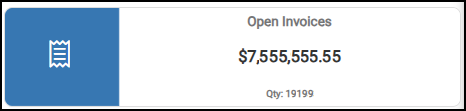
Accounts Receivable Dashboard > Open Invoices Widget
This data can be filtered by AR type, branch, cost information, entry date, invoice totals, and user information.
Open Payments Widget (AR Dashboard)
Widget Name: Open Payments v1.0
View Name: COG_VW_OpenPayments
Historical: Yes
Drill-Down: None
The Open Payments headline chart shows the currently open payment amount and the related item quantities. This widget shows the sum of open credits by payment type with an entry date within the Dashboard date range. The data is based on the open credit and payment document data and only includes invoices where the credit is a type of Payment (0), that has not been posted (Posted Flag = 0). This value does not include open credits arising from credit adjustments, charge returns (known as credit memos), or discounts.
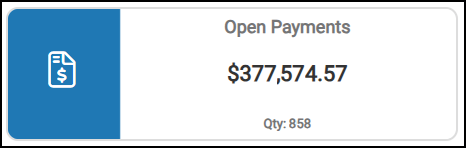
Accounts Receivable Dashboard > Open Payments Widget
You can filter this data by amount, by total, and by entry date.
Open Returns Widget (AR Dashboard)
Widget Name: Open Returns
View Name: COG_VW_OpenReturns
Historical: Yes
Drill-Down: None
The Open Returns headline widget shows the sum of the open credits (memo type 3) with an entry date within the Dashboard date range. It uses the open credit and invoice document data that includes a credit of type of Memo (3), and has not been posted (Posted Flag =0). This value does not include open credits arising from payments, credit adjustments, or discounts.
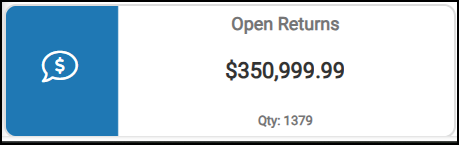
Accounts Receivable Dashboard > Open Returns Widget
The Open Returns chart displays the current returns using the dashboard date range, including the total amount and item quantity. You can filter this list by amount and entry date.
Sales (Amount and Quantity) Widget (AR Dashboard)
Widget Name: Sales v1.1 Icon Headline
View Name: COG_VW_Sales
Historical: Yes (with limits to display 29 days at once)
Drill-Down: None
The Sales Amount and Quantity headline chart shows the outstanding sales and the quantity of items associated with those sales.
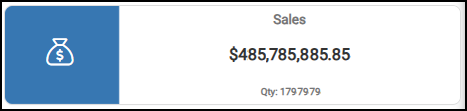
Accounts Receivable Dashboard > Sales and Quantity
You can filter this list by account, branch, cost, customer class, entry date, invoices, returns, sales representative.
Total Accounts Receivable Amount (YTD) Widget (AR Dashboard)
Widget Name: AR Total AR Value v1.0
View Name: COG_VW_ARcollectionDays
Historical: No
Drill-Down: None
The Total Accounts Receivable Amount headline chart shows the current amount customers owe your business, including current AR, total past-due amount, and finance charges, minus any open (unapplied) credits. This calculation does not include finance charges.
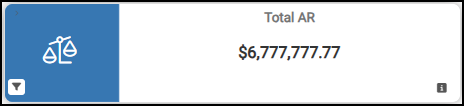
Accounts Receivable Dashboard > Total Accounts Receivable Amount
You can filter this list by the number of AR collection days, account information, branch information, customer class, daily charge sale information, sales representative, total collection amount, and user information.
See Also:
Working with Cognytics Dashboards
Current Dashboard List