Spruce Mobile Delivery (Powered by JumpTrack) FAQs
Contact your Aftermarket Sales Representative to sign up for the Spruce Mobile Delivery (Powered by JumpTrack) feature before you get started. Then work with Support to complete the following settings to prepare for the Spruce Mobile Delivery (Powered by JumpTrack) implementation!
Need Support During the Implementation Process?
For all guidance on using the JumpTrack, please refer to the MyJumpTrack video library and how-to guides under the Support tab in your MyJumpTrack Portal.
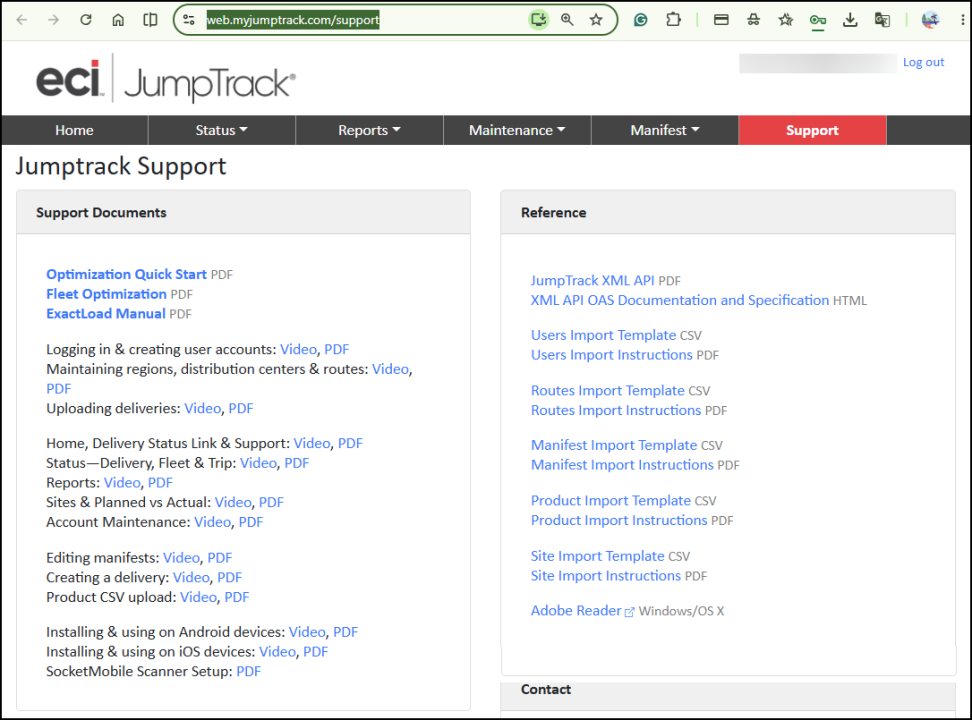
MyJumpTrack Portal > Support Tab > Support Documents and Videos
Spruce Mobile Delivery Frequently Asked Questions (FAQs)
This will become a living document that we will update as you ask questions and we answer them.
Can I still use AnyWare for Mobile Delivery?
No. You cannot use the JumpTrack app and AnyWare for delivery at the same time, because they could send conflicting delivery data to the database. When you enable the Spruce Mobile Delivery feature, the AnyWare Delivery workflow is hidden.
You can continue to use AnyWare for inventory management, physical counts, order entry, and other non-delivery workflows. Future releases will streamline this separation to prevent data conflicts and ensure accurate deliveries. If you need help turning off AnyWare delivery, please open a Support case in the Customer Portal.
When approving JumpTrack licenses, is a license tied to a truck, a logged-in user, or a location? And does the number of users who can log in depend on the license count?
A JumpTrack license/seat corresponds to a truck that can be actively in transit and reporting in parallel — for example, five seats support five trucks/logged-in users running concurrently. Users can log into the Delivery Mobile solution independently of the number of licenses purchased; licensing only gates how many trucks can be active in parallel at any one time, not how many named users can hold accounts.
What are the hardware requirements for the JumpTrack Driver app?
The Spruce Mobile Delivery (JumpTrack) app works on any smart phone device, Android or iOS. There’s no special hardware requirement beyond a standard smart phone.
How many Delivery pictures can our Driver’s take?
Drivers can take up to 9 photos for each delivery using the JumpTrack app. If the Driver is in a location without internet access, the JumpTrack app saves this data to the customer’s record and transmits it to the MyJumpTrack portal. Customers who provide their email address can receive copies of these images via email. Spruce retrieves these images from the MyJumpTrack web portal and stores them with the original transaction document.
Is the system set up to send confirmation emails to customers after the delivery is complete?
Yes. When a Driver completes a delivery in JumpTrack, the system automatically sends a confirmation email to the customer, using the email address stored on the order’s job settings (set up covered here). If certain accounts/job customers aren’t receiving email confirmations, check the setup described in this topic to correct the issue.
Can I change the delivery order in a Load (Manifest)?
Yes. Changing the delivery order for a load works the same way in this new process as it did before. You can reorder the deliveries in the list and click Send to JumpTrack to update the load and send the updated list to the Driver.

Change the Order of Deliveries in the List
Can I change an address after I click Send to JumpTrack?
Yes. Changing the address of a delivery requires that you return to the original transaction document, make the change in the address in the Delivery tab of the process document (which updates the delivery load), process the document, and then return to the Load Schedule to send the updated record using the Spruce Mobile Delivery process. When this is complete, you can choose Send to JumpTrack again to update the Driver’s Delivery information. See Changing the Address of a Delivery in a Load/Manifest.
Can I change the delivery date on a Manifest?
Yes. To change the delivery date of a scheduled delivery on a load, remove the delivery from the current load, and then choose Send to JumpTrack. Then create a new load with a new delivery date, and add the delivery to it.
Can I move deliveries from one truck to another?
Yes. Return to the Load Schedule form, find the existing load (manifest), and change the truck and driver options. Then, click the Send to JumpTrack button to transmit the load/manifest to the new Driver’s phone.
How fast is the delivery process update in Spruce?
For the first release, typically, the status data (pictures, signatures, etc.) returns to Spruce within 5-7 minutes after a delivery is completed in JumpTrack. There is near real-time sync with the JumpTrack web portal when the Driver has internet access. This is expected behavior at this stage, the team is actively working to reduce the delay as the product moves toward general availability. This delivery data then becomes visible in the Inquiry and Document subsystems.
Some item names are truncated when they display in JumpTrack. Is there a limit on the number of characters for item names?
Yes. There is a maximum of 50 characters for item names that are sent to JumpTrack.
How do I set up delivery for the remaining items after a partial delivery? Do I need a new transaction?
You do not need to add a new order, but the remaining material does need to become its own document; you can add a new Invoice or an Open Ticket, which you can send out on the next load. If this delivery finishes the order, we recommend that you create an invoice and link it to the load. If there’s still more to come after this delivery, we recommend you create an Open Ticket for just what you need to deliver now. This leaves the rest open on the order as a back order — and link that ticket to the load. Either way, the original order stays the same; nothing is re-keyed, and there’s no automatic “reopen” step — you need to create the invoice/ticket manually. Also, JumpTrack independently rejects any attempt to resend the same delivery document twice, so a second delivery always needs its own document.
To be clear, this is how partial deliveries have always worked in Spruce, with or without JumpTrack, because a delivery load can only be linked to one document at a time.
Can the Spruce Transfer/Pro document details be pushed to JumpTrack as a delivery?
Yes. This works end to end.
Do the color code (purple/pink) detail on pickups and yard transfers stay in place for JumpTrack deliveries?
No. JumpTrack shows the exact delivery/partial/refused status independently, giving more granularity than these color codes alone.
Can we automate the Send to JumpTrack button?
No. We have intentionally kept the process manual so Dispatchers retain control over the delivery scheduling. Since loads often keep changing until confirmed, we have chosen to preserve this integrity.
If a load has already been pushed to JumpTrack, and it is completely emptied out, what happens?
Can we schedule a delivery and a pickup for the same customer on the same day?
Yes. JumpTrack handles this as two separate documents under one address (one delivery, one pickup/return), so the Driver sees them distinctly. Related reminders given for this circumstance:
-
Click Send to JumpTrack again every time a delivery load changes; the button stays disabled until a delivery and a truck are both selected.
-
Don’t use AnyWare for delivery after Spruce Mobile Delivery is live on a branch. Since AnyWare and JumpTrack share the same database and AnyWare will override JumpTrack data.
-
Driver log in credentials for the mobile app are the same as the JumpTrack web portal login.
Can a Truck manage more than one Spruce Mobile Delivery per day?
Yes. For each trip, send only the load that’s going out right now, and wait until the truck returns before pushing the next load for the same truck. JumpTrack’s identifier for the mobile app is the truck, not the load or a time slot, so if a Dispatcher sends multiple loads for the same truck at the same time, the Driver’s app doesn’t separate them — it just shows one flat, combined list of every delivery across all pushed loads under that truck. There is currently no time-slot / scheduled-departure concept in JumpTrack that would let multiple loads for the same truck be distinguished if sent together; this has been logged as a product gap.
Can I assign a Driver to a load in Spruce and does that assignment carry forward into JumpTrack?
No. In JumpTrack, the Driver is tied to the route/truck and is assigned separately, and that’s what determines who actually picks up the load. Changing the Driver in Spruce and re-pushing the load has no effect on the JumpTrack side. Don’t rely on the Spruce Driver field to control who receives a load on their device, manage driver-to-truck/route assignment directly in JumpTrack.
Does the Driver need to take a photo before they can start/initiate a delivery?
No. A photo is not required to start/initiate a delivery in JumpTrack.
When a Driver takes multiple photos at a stop, are all of them visible afterward online?
Drivers commonly take more than one photo at a stop, but only one photo comes back and is visible — both in the JumpTrack return notification (which carries a single image URL) and in the MyJumpTrack portal. This was confirmed through internal testing. A workaround for retrieving additional photos was mentioned as being investigated but not confirmed working at the time.
Does Spruce know when a manifest/load Is actually Complete?
No. Marking a load/manifest as complete (the truck is back, done for the day) is a manual Dispatcher action in Spruce. Spruce does not automatically monitor or infer truck/manifest status from JumpTrack activity. Delivery-level updates (delivered/partial/refused, signature, photo) sync back to the application for each stop (internet connection permitting), but the overall manifest/truck status is not pushed back automatically. The Dispatcher still has to manually close the Manifest out in Spruce.
Can the Driver take delivery images for a specific stop before leaving the warehouse (showing what was loaded) and then again after delivery (showing what was dropped off)?
No, this can’t be done today. Drivers can only take images at the time of actual delivery, because a Driver cannot have multiple deliveries open at the same time. If a Driver tried to take “loading” photos for each stop before leaving the yard, they’d need to open each delivery individually to attach a photo to it, then close it back out without completing it, which isn’t how the flow works. Each delivery is only open while it’s actively being delivered. This is a known, requested use case (wanting to capture load condition at departure versus at drop-off) that has been logged as a backlog item for future investigation, but is not currently supported.
Can Drivers see upcoming loads or deliveries scheduled for future days in the mobile app?
No. Drivers can only see what is scheduled to go out today, plus what was delivered in the past. There is no visibility into future loads or deliveries on the Driver’s mobile device.
When a load is pushed to JumpTrack, does the Dispatcher's view show that the Driver has started?
All loads pushed from Spruce automatically show a default status of In Transit in the MyJumpTrack web site, which the Dispatcher can view. This default state doesn’t mean the Driver has started, only that JumpTrack has received the load.
When does GPS tracking begin for a delivery?
Actual GPS tracking, status updates, and reporting only become accurate once the Driver initiates the route on the mobile app; nothing is actively tracked before that.
Is there a way to update of the email addresses across a list of jobs globally, rather than adding or changing the email on each job individually?
There is no global update option for job-level emails for all accounts in Spruce, each job’s email has to be added individually. However, since emails are tied to the contact record rather than the individual job, when a group of jobs share the same contact, after the account contact email is stored, you can use the Point of Sale > Utilities > Job Global Modify tool to enable POS Doc Email across the selected jobs in one pass.
Note: This works as long as all the jobs for the same account point to the same contact; if each job needs a different email, set a separate contact for each email and assign it individually.
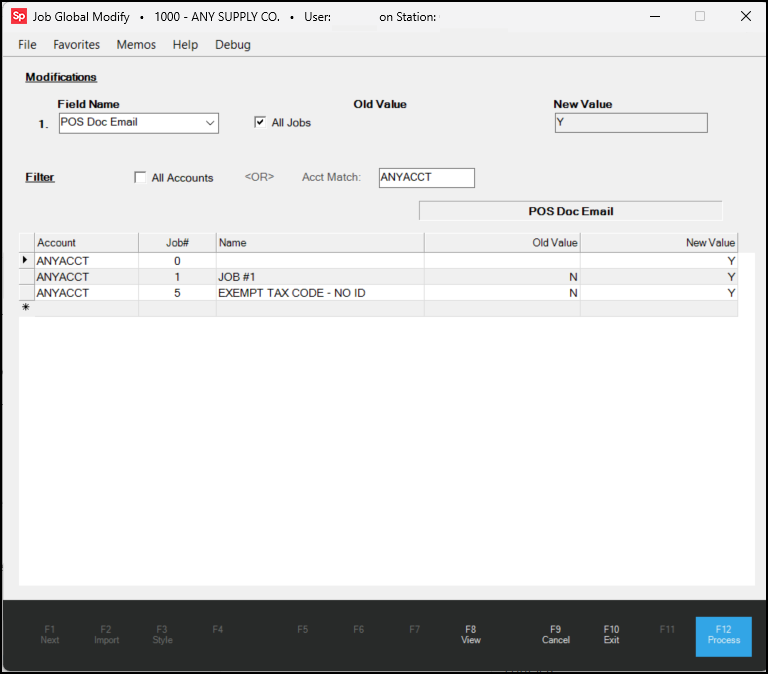
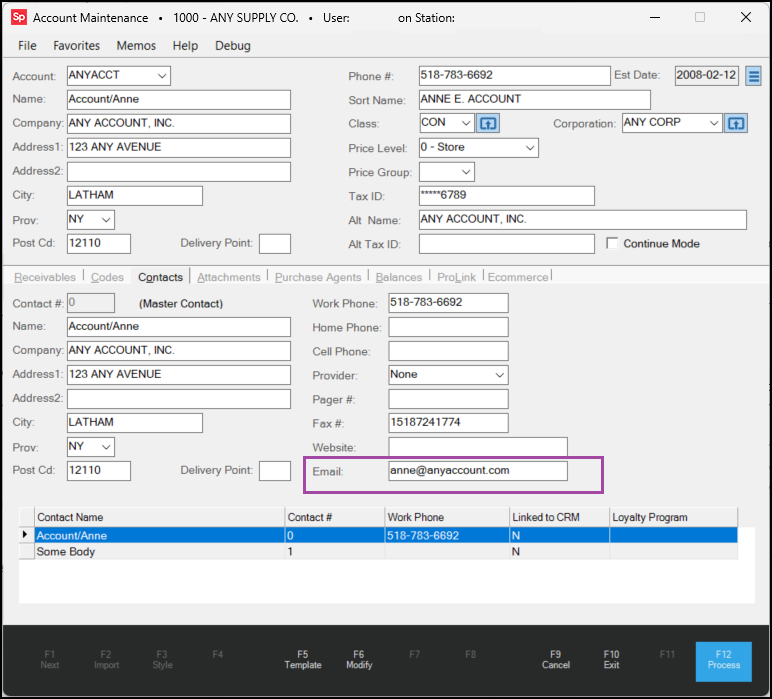
Check the account record to ensure that the Contact record is enabled and that there is a valid email address assigned to it.
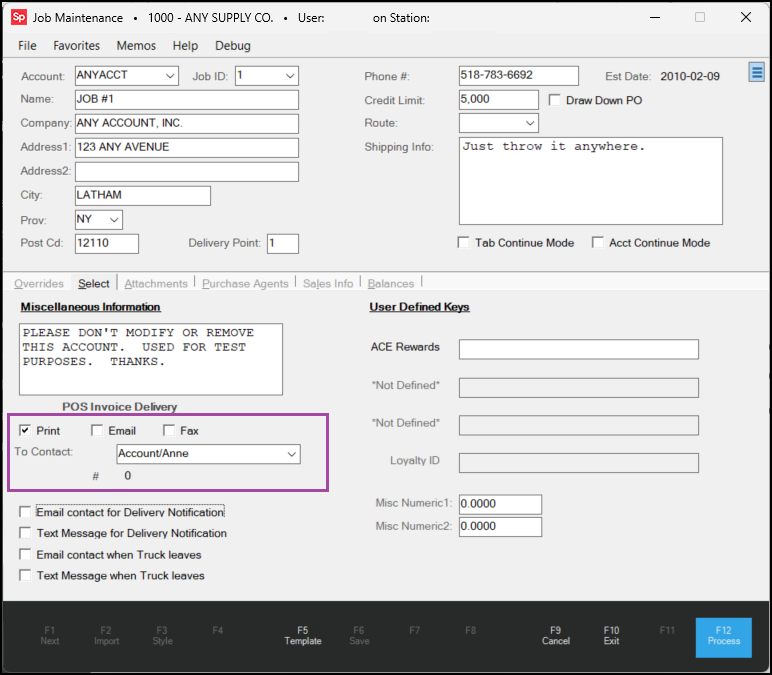
Make sure the Job Maintenance email settings for this account and these jobs are enabled.
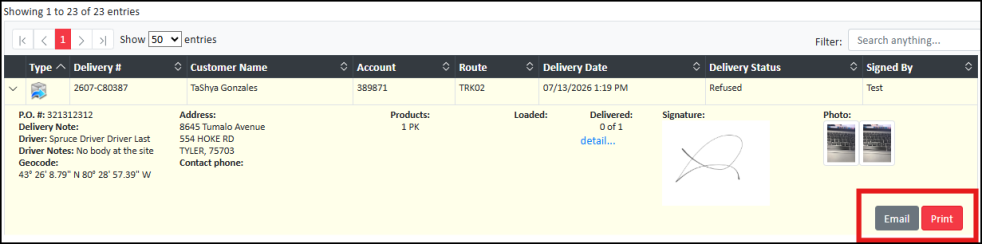
Separately, you can use the MyJumpTrack portal's email options to send a delivery email, complete with photos and signatures as a workaround, to test notifications before all jobs are updated in Spruce.
Can a second Driver (or admin) access the same route already begun by another Driver?
No. When a Driver is actively running a route, it’s locked to them. A second user, including an admin, gets blocked with an error that the route is already being driven by someone else, and cannot enter it until the original Driver exits back to the home screen.
Can I add a new stop after a Driver has already left and downloaded their deliveries?
Yes. Dispatchers can add a new stop to the same load in Spruce and click Send to JumpTrack again. The Driver will receive a notification of the change mid-route, and the new stop is appended to their existing list in real time. There is no need to restart the route or push out a separate load. See Updating a Load and Sending it to JumpTrack.
When bulk-uploading a list of users into JumpTrack (to create new accounts), the upload completes without any errors, but the system reports 0 records created and no users actually get added. Is this a known issue?
Yes. We confirmed this is a known bug. Typically this is caused by special characters in the uploaded file: any record containing a special character such as a “+” (e.g., name+admin@domain.com) fails to import during a mass upload. There’s no fix scheduled yet; in the meantime, we recommend you avoid adding special characters like “+” in bulk upload files, or add those users individually.
If a Driver has already closed out their route for the day, and a Dispatcher pushes a new unscheduled pickup to that truck, will the Driver be notified?
The Driver will only be notified if the route is still active. While a route is actively running, pushing an unscheduled pickup sends the Driver a push notification that their route has been updated. After the Driver closes out of their route, they won’t receive that notification — the truck needs to still be mid-route for it to reach them.
If I add an unscheduled pickup /delivery in the JumpTrack app or the portal rather than pushing it from Spruce, does that information flow back into Spruce?
No. Since the document originates in JumpTrack, there’s no Spruce document ID number attached to it, so it can’t sync back. Anything pushed from Spruce still syncs normally.
When creating an unscheduled pickup for an address that’s never been delivered to via a Spruce-pushed document, why doesn’t the account auto-populate in the search?
The account only auto-populates after at least one delivery to that address has been pushed from Spruce. For a brand-new address, you can manually type it in and click Create — this adds it going forward, though it won’t retroactively populate for anything prior. Search also requires a minimum of three characters to return matches.
Can the JumpTrack Status listing display the Load # from Spruce, so the Dispatcher can sort it the same way as the Spruce Delivery Status Inquiry and compare the two lists side by side?
No. This isn’t something we’re able to support today. The unique identifier in JumpTrack is the truck/route, not the load number, so deliveries are sorted first by truck and then by the order in which the Dispatcher pushed them. Spruce defaults to sorting its delivery inquiry and reports by load number, which is why the two lists don’t line up. This has been noted as a nice-to-have for a future feature request.
If the app fails to capture the delivery pictures, but the Driver still has them from the job site, can you upload those pictures to the document in JumpTrack when the delivery is complete?
Not through JumpTrack. Although this was possible in AnyWare, we cannot add these photos using Spruce Mobile Delivery. The JumpTrack app is built around offline capability so Drivers can capture photos and complete deliveries with no network access, and everything syncs once they reconnect to the internet. Because of that offline-first design, photos have to be captured live as part of completing the delivery rather than added afterward. After the signature is captured, the delivery is locked and no further photos can be attached. However, you can still add these images to the original Point of Sale document in Spruce when they return to the store/warehouse.
However, the regular workflow for attaching images and details to a Spruce document still works exactly as it did before, independent of JumpTrack. If you need to add one or more photos to the POS record after the fact, you can save the images locally and attach them to the document in Spruce by following the modify attachment instructions in this topic.
If a Driver captures the images and signatures during a delivery but does not mark it Complete, does this data still flow back to Spruce?
No. Pictures and notes are only saved and synced after the Driver selects Accept Delivery and they capture a signature. If that step doesn’t happen, that data isn’t saved — not in Spruce and not in JumpTrack. The delivery will not complete itself, so the capture step is what commits everything associated with the stop.
Can you add a second drop-down to the Job Maintenance settings so you can add a separate contact for the delivery confirmation?
We understand that the contact selected on the Job is used for both invoice delivery and the JumpTrack delivery notification. For most larger contractors, invoices go to the billing person, but the delivery notification needs to reach the contractor/owner or the job site superintendent. Adding a second, dedicated Contact field to the Job settings in Spruce isn’t something we’re able to do at this time. These changes take longer to implement, and work is already underway on a new application intended to address needs like this one. In the meantime, the workaround is to send the delivery notification directly from JumpTrack to the customer/account contact, separate from the invoice contact on the job in Spruce. Uncheck the proof-of-delivery email notification in Spruce (in the Job Maintenance form for that job), and use the MyJumpTrack portal Email feature to send that notification to any contact(s) the customer needs.
Several routes weren’t marked as Complete in JumpTrack, even though they were marked complete in Spruce. Where can I check to determine whether a route has actually been closed or updated?
In JumpTrack, the delivery status is tracked at the delivery level on the Summary screen. To confirm whether a route has been closed or updated, the best place to look is the reports, specifically Route Status and Delivery Efficiency Reports. One thing to watch: if a truck ran more than one manifest in a day, the route may still show as In Transit until all of the individual documents are complete, so it’s worth checking at the document level rather than only at the route level. Completing/closing the route or manifest itself remains a manual action in Spruce, as before.
When a Driver adjusts the quantity delivered, can they enter a decimal quantity (for example 1.87)?
No. JumpTrack only supports integer quantities in the mobile app. For a decimal quantity, ask the Driver to round to a whole number and use the Notes field to record the exact amount they actually delivered. The Note carries the detail back for the Dispatcher to reconcile manually, since JumpTrack does not automate the invoicing or back order adjustment in Spruce. To learn more about the decimal value handling in JumpTrack, see Displaying Decimal Values in JumpTrack.
Is there an order that the Driver needs to follow when capturing delivery photos and signatures at a stop?
Yes. Drivers must capture the photos BEFORE taking the customer's confirmation signature. The signature is the final, mandatory step and after it is captured, the delivery is locked, so the Driver cannot add additional pictures. Please train your Drivers in this sequence specifically, since there is no way to attach the images in JumpTrack after.
Our Driver added notes to the delivery, but they were cutoff in Spruce! Why?
Driver notes append to any notes that are already entered for the document in Spruce. If the combined text exceeds character limit for that field, the Driver’s notes get truncated. The full text is always visible in the MyJumpTrack portal, so you can check there for any Driver notes that appear incomplete in Spruce.
When a Customer replies to an automated delivery email, where does that reply go?
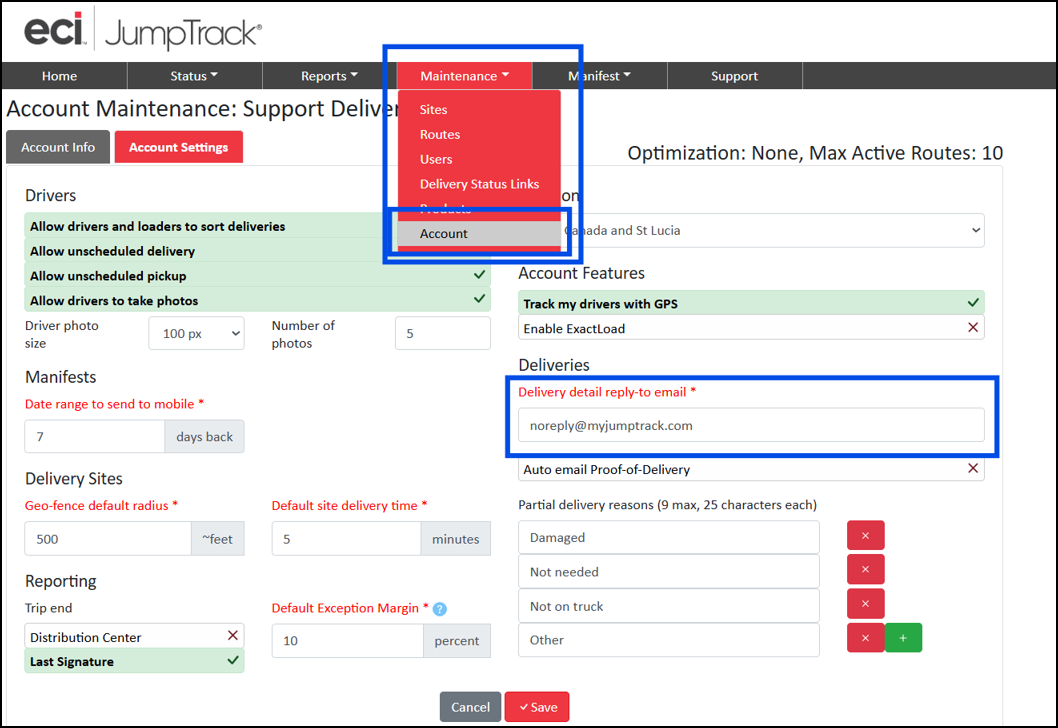
By default the email routes back to ECI rather than to the branch. We recommend that you configure the customer-facing “Reply-To” address in your MyJumpTrack settings so that replies to automated delivery emails go to the branch; set this to the branch domain email. This should be set up as part of initial configuration, before delivery notifications are turned on for live jobs.
Do MyJumpTrack reports sync back to Spruce?
No. These reports are for analysis within MyJumpTrack only and do not sync any data back to Spruce. Delivery-level updates (delivered/partial/refused, signature, photo) sync back by stop, but reporting metrics such as time between stops, time spent at each location, and planned versus actual mileage stay in MyJumpTrack.
What if I have more questions about this process?
If you have questions about the JumpTrack or the MyJumpTrack portal, we recommend that you use the resources in the MyJumpTrack Support tab. Then, if you still have questions, contact JumpTrack Support via the Support tab for help.
If have questions about the Spruce end of the process, contact ECI Support using your usual process.
See Also:
Spruce Mobile Delivery Process Overview
Setting up Spruce Mobile Delivery
Managing the Spruce Delivery Process
Setting up Cubes to Quantify Deliveries
Using Cubes to Manage the Delivery Load