Load Schedule
The Load Schedule form is the primary tool used for managing deliveries when using the Spruce Mobile Delivery feature and the Delivery using the AnyWare app, although their use is quite different.1
For both solutions, we suggest that access to this area be limited to as few users as possible because delivery changes by multiple users can potentially conflict with each other. Spruce Mobile Delivery was designed under the assumption that most companies would have one primary Dispatcher (per branch location) who is responsible for the bulk of the delivery scheduling. Despite this, we do not prevent multiple users from accessing this area at the same time. Even though we have made a modest attempt to protect against conflicts caused by multiple users, we don't guarantee that there couldn't be issues caused by multiple users updating the same deliveries and loads concurrently. The Truck Assignment and Status Update forms are provided so that other users can be given access to selected functions such as assigning a load to a truck or updating the status of deliveries.
Using the Spruce Mobile Delivery (Powered by JumpTrack) Solution
To modernize the Mobile Delivery process, Spruce, JumpTrack, and the My JumpTrack web portal together provide an integrated solution for delivering items to Customers and offer tools for Dispatchers, Drivers, Back Office team members, and Salespeople to manage deliveries and stay informed. To manage the communication of this process, we created the Delivery API, which transmits Spruce delivery loads (the stop and item data that Drivers use to organize their deliveries) to the JumpTrack app. Dispatchers use Spruce to collect delivery information, schedule work as they do today, and promptly send it to JumpTrack. Drivers use JumpTrack to manage their delivery process, take pictures of the delivery to show physical proof that the delivery was completed, and transmit the data to the My JumpTrack portal. My JumpTrack provides a platform for near real-time delivery tracking that Dispatchers, Drivers, and Salespeople can use to keep Customers informed and Management in the loop. Customers also receive an email with the delivery details from the My JumpTrack transmission. The Delivery API then transmits the delivery data back to Spruce, where we store it with the original order documents. To learn more about the Spruce Mobile Delivery solution, you see an overview of the process here and follow the instructions here to set up the Spruce Mobile Delivery infrastructure. After you complete these instructions, review the End-to-End Workflow process here.
Important Note: You cannot use JumpTrack and AnyWare for delivery in the same branch at the same time, because they would send conflicting delivery information to the database. When you enable the JumpTrack feature, the AnyWare Delivery workflow is hidden. You can still use AnyWare for other purposes, such as tracking inventory or reviewing Inventory and Point of Sale documents.
Using the AnyWare App for Delivery
To learn how to set up the AnyWare app for delivery, see the AnyWare Delivery Overview.
The Spruce Mobile Delivery process uses similar forms, but the processes are different. The version of the Clipboard and Summary described below are designed for the AnyWare implementation.
This form provides two completely independent options for managing deliveries: Clipboard and Summary. Either or both formats can be used at your discretion.
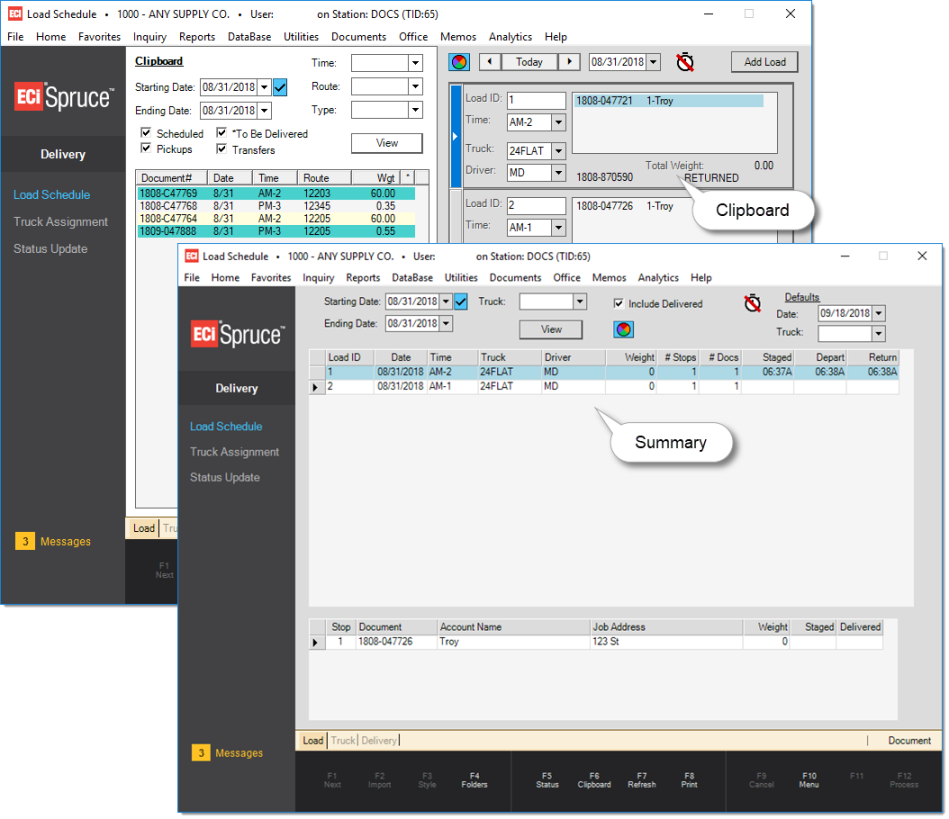
The default version, "Clipboard," may work best with smaller delivery operations. The "Summary" version may be better for larger scale delivery management and allows the dispatcher to view more deliveries at one time than the clipboard. Regardless of the size of your operation, each user can choose to use either or both at their personal preference. Switch between versions by using the Clipboard/Summary (F6) function.
The following table compares these two options:
|
Feature |
Clipboard Style |
Summary Style |
|---|---|---|
|
Supports Drag & Drop |
Yes |
No |
|
Supports Document Scanning |
Yes |
Yes |
|
Can Assign Multiple Delivery Documents to the Same Stop |
No |
Yes |
|
Automatic Refresh2 |
Yes |
Yes |
|
Queue Displays Listing of New or Unassigned Deliveries |
Yes |
No |
|
Color Coding of Delivery Status |
Yes |
Yes |
|
Can view Deliveries for Multiple Loads at one time |
Yes |
No |
|
Load Weight Warning3 |
Yes |
Yes |
|
Maximum # of Deliveries (Loads) Displayed (in visible area) |
4 |
17 |
|
Immediate Processing (no Process function needed) |
Yes |
Yes |
|
Can view Loads for Multiple Dates at the Same Time |
No |
Yes |
Since both areas provide similar functionality and do not have to be used together, we'll discuss each format separately in the following help topics.
1Spruce Mobile Delivery is not enabled by default. There is no additional charge for this feature; however, users should seek training and read the overview prior to enabling or using it. Additionally, setup by your company is required. The Spruce Mobile Delivery option is not the same as the DQ Delivery product or the AnyWare Delivery process. You cannot use these delivery tools at the same time concurrently.
2Automatic refresh can be disabled by certain user actions such as minimizing the application or selecting a row in a grid. The refresh timer defaults to one minute. The Summary form requires that the auto-refresh feature be enabled by the user (can be either "on" or "off"). When the auto-refresh is used in the Summary, the grids are changed to be "read-only."
3Accurate Load Weight warnings require the entry of a maximum weight for the truck assigned to the load as well as items with valid weight factors in the Item data. Weights can be assigned to items in Item Maintenance for goods you commonly deliver and are calculated using the item's base measure. Weight values must be entered using the same method of measurement for all items in order to ensure proper calculations (for example, you might use LB (pound) as the weight or Kg (kilogram), but not both).
See Also:
Spruce Mobile Delivery Overview
Setting up the Spruce Mobile Delivery Feature
Managing the Spruce Mobile Delivery Process
Setting up the AnyWare Delivery Feature