Analytics > Cognytics > Adding Roles and Users
Your Implementation and Support teams complete the initial Cognytics setup for you, after you complete the Aftermarket agreement with Sales. Next, you need to provide access to the Dashboard data based on the type of information each team member needs. Since the Dashboards break down the information based on the data in the application, you define the Dashboards that are appropriate for each type of user, based on their role in the business.
Cognytics is different for each user who has access to it, and that is by design. Not everyone needs access to all the information the application collects. Having the right user role and credentials is key.
Understanding the Cognytics User Roles
Existing System Admin users can create user roles in Cognytics, to ensure that the Dashboards that are most useful to each user type. It is crucial that the roles provide people with right access to the right data. This is not necessarily related to performance indicators, but the work each person is doing and the decisions they make for the business. Admin Users need to understand both the user work and the Dashboards to provide them with the information they need. Users should have only appropriate role-based access and no more. Here are the user roles to define:
-
Owners need high-level profitability, inventory trends, and branch-based performance information so they can assess the overall health and success of the business. The dashboards they need to focus on involve gross margin and cash flow to provide an executive summary of the overall business. This helps them create strategies to steer the business and make sound investments. Admin Users should limit sensitive information about forecasts and profitability to Owners and Store/Branch Managers.
-
Store/Branch Managers need to understand daily sales, inventory, and customer activity at their own location. Dashboards that focus on their location sales, inventory turns, and order information are key. These users require real-time data on inventory movement, business costs, and an overview of sales that drive business growth.
-
Sales/Account Managers need information that is customer-focused to understand the needs of their customers, their product preferences, and the margin the company is making on each account. Dashboards should be based on sales by customer and open quotes vs. closed sales. This helps them upsell and cross-sell to their customers. Salespeople should see their own customer accounts data only, not accounts that are assigned to others. Sales Managers should drill down into the Sales team’s work to monitor their accomplishments.
-
Purchasing and Inventory Managers need stock-based data, including sales vs. purchase order history, and item turns, over time. Dashboards with inventory turnover, reorder information, dead item lists, and vendor analysis are most helpful to these users. This allows them to manage the expense of the items the business needs to stock, so they can balance what they are buying against what customers are purchasing.
-
Back Office Users require accounts receivable and accounts payable (for Spruce) information, including costs vs. sales by product, to help them assess how much money is tied up in inventory. Dashboards for these users should contain profitability information, payment statuses, and expense vs. revenue data. This helps them assess and prevent credit risk and ensures that sales growth improves cash flow.
Understanding the Dashboards before Assigning Roles
Restricting Cognytics data access ensures better data security, compliance, and better decision-making for the users who access that data. When you create roles, you define the Dashboards, Widgets, Views, and Reports that each user has access to, along with their view and edit permissions for accessing that data.
Here is a list of the current Dashboards and the Dashboards we are still working on. We describe the contents of each Dashboard and provide an assessment of the roles (as listed above) they are appropriate for. You know your team better than we do, so your own assessment is more important.
To learn more about these Dashboards, see Reviewing the Cognytics Dashboards. It makes sense for admin users to thoroughly understand the Dashboards and their settings before creating roles, ensuring that the permissions they create are appropriate for each user. This is not just for security reasons, but also to ensure that users see only the data they need to focus on to complete their work.
| Dashboard Name | Description | User Roles (Recommended) |
|---|---|---|
| Accounts Receivable | Provides details of incoming customer payment data, the aged balances, and profit margin information for the business. Filters can break down the statistics by Account and by Branch. |
Back Office Managers Owners |
| Current Status | Provides a high-level overview of the inventory, accounts receivable, point of sale by branch, and purchasing data for the current month or YTD. |
Back Office Managers Store/Branch Managers Owners |
| Customer Activity (New) | Provides an overview of the current account transactions and posting for current customers. | Sales/Account Managers |
| Customer Retention | Provides metrics for new accounts and an assessment of current account activity, including gains and losses. |
Sales/Account Managers Owners |
| DailyDashboard | Provides metrics on sales, inventory, and accounts receivable, including profitability and cost of goods, for the current period, month-to-date, and year-to-date. Not broken down by branch. |
Store/Branch Managers Sales/Account Managers Purchasing/Inventory Managers Back Office Managers Owners |
| New Business | Provides several very detailed breakdowns of data regarding new accounts, including new sales by product group and by salesperson. |
Sales/Account Managers Purchasing/Inventory Managers Owners |
| Purchasing | Provides an overview of the inventory purchasing by vendor and by product group | Purchasing/Inventory Managers |
| Sales | Provides an overview of sales and gross margin for the current period and year-to-date. Also provides information about quote conversion. | Sales/Account Managers |
| Scorecard Customer | Provides a listing of the top 20% of accounts driving sales, new business sales totals, gross margin of the sales, yearly sales results, and return information |
Sales /Account Managers Owners |
| Year End Ratio | Provides an overview of sales, costs of goods sold, and profit, allowing you to drill down into total sales, total accounts receivable, profit margins, returns on investment, inventory returns, and average daily charges. |
Branch/Store Managers Owners |
Considerations when Adding User Roles
System Administrators can create user roles required to access the Cognytics data. It is important to create these user roles based on the relevance of the data to the role to ensure that each person has what they need to make meaningful decisions. It is also important to protect your company's proprietary and financial information. Admin users should consider restricting permissions to the branch locations users are responsible for, and the business should restrict salespeople’s access to their relevant accounts. Consider these needs of the user when you are creating the roles:
-
Should users (they) have permission to manage the information in the datasets, or just review it?
-
Do they need to export the data from Cognytics into another format?
-
Should they be able to build new Dashboards and Widgets or should they just use the materials already defined?
-
Should they be able to manage the layout of the Dashboards or should the Widgets be fixed as they are?
-
Should all the filters be available to users in this role?
-
Should these users be able to modify reports?
-
Should the AI features be accessible to the users in this role?
-
What fields should be restricted for users in this role?
Administrators can assign users to a role during the role creation process or add the role to the user's record afterward. The key is to build secure roles with appropriate permissions for each type of user. Setting up these roles and user records successfully enables them to review and/or manage the data that is relevant to them.
After assigning roles to individual users using the instructions below, it is a good idea to train them to use the data they see and ensure they have a shared understanding of what the data means for the business.
Creating User Roles in Cognytics
User roles can only be created by users who have Administration  menu access in Cognytics.
To create a user role in Cognytics:
1. From the left menu, choose the Administration icon to display the menu options.
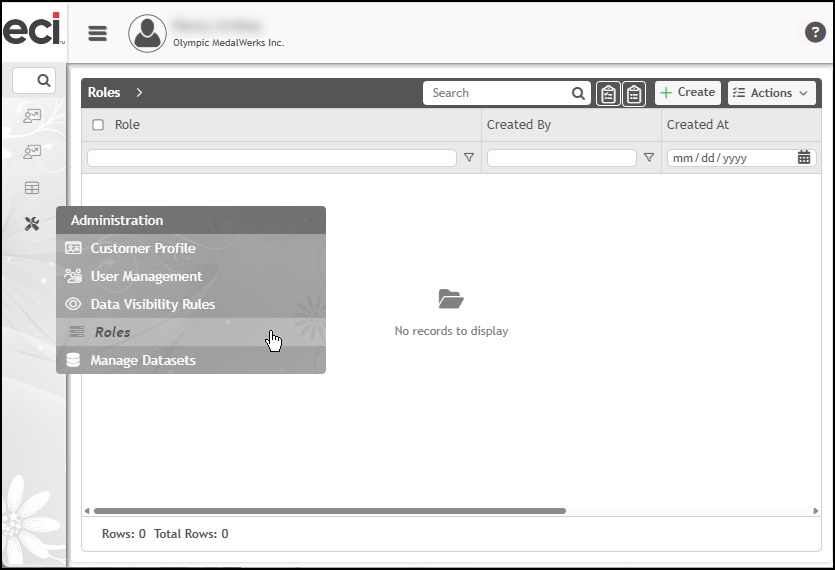
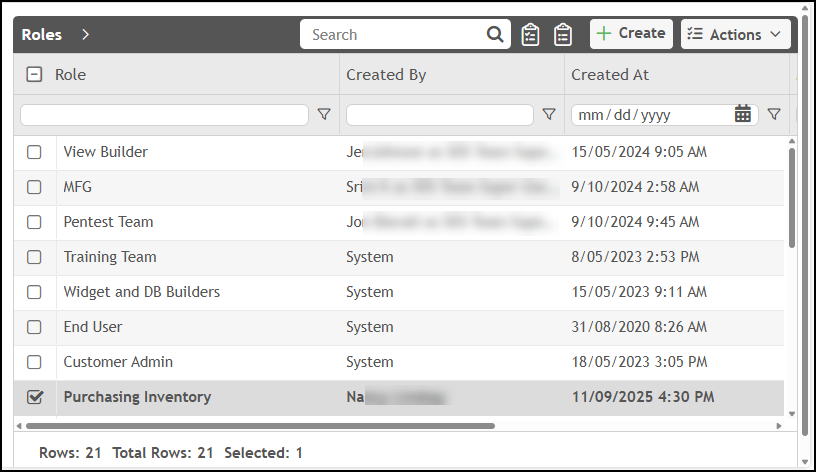
2. Choose the Roles option in the list to display the Roles form.
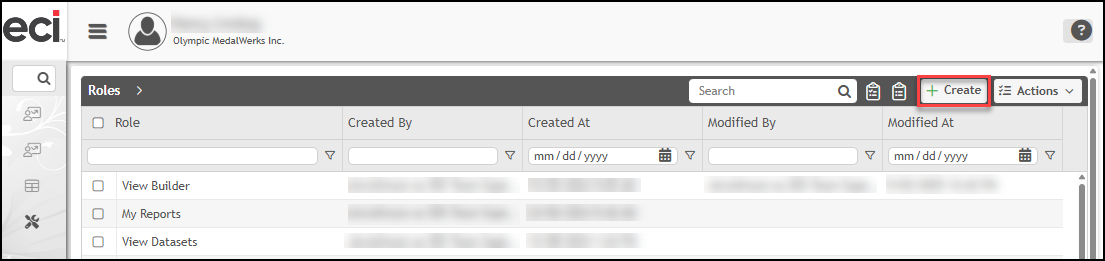
3. To add a new role, click Create. The Role Group options display.
Note: Because the role of the Admin user is already established, we are only showing the permissions that pertain to other user groups in these instructions.
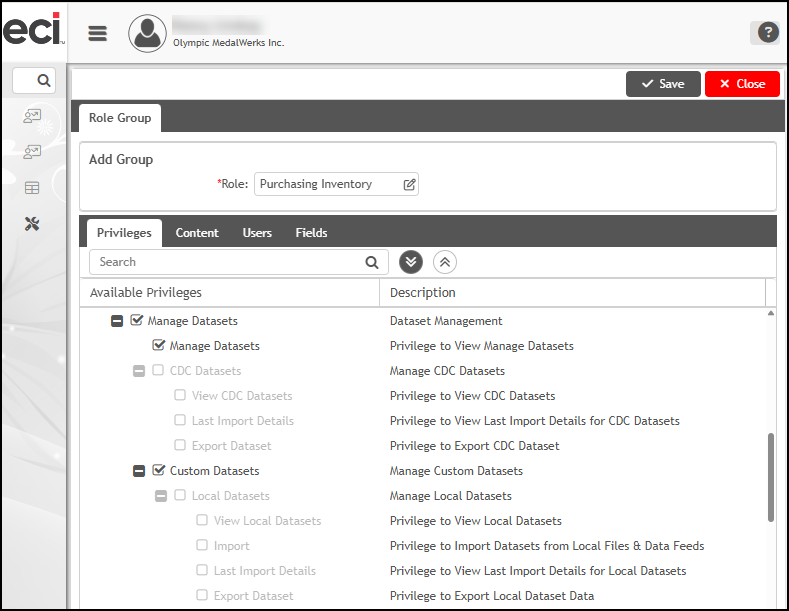
4. In the Role field, enter the name of the new role you are adding.
5. In the Privileges tab, review the options and select the check box beside the permissions you want to enable for this user role.
-
Manage Datasets
Select this check box to allow users to review standard and custom data sets associated with their role. -
Export
Select this check box and related check boxes to allow users to export the report data as an Excel or PowerPoint formatted file. -
Builder
Select this check box and consider subsequent check boxes to define whether users in this role can build their own Dashboards, Views, Widgets, and Queries. There are significant permission options that permit users to view, add, edit, copy, and delete information using these data building blocks. -
User Dashboard
Select this check box to allow users in this role to manage user dashboards. This includes the ability to customize Dashboard layouts, filter Widgets associated with those Dashboards, and explore data to include in Dashboards and Widgets. -
My Reports
Select this check box to allow these users to manage the reports associated with the data they are working with and add new Widgets to their reports. -
AI Features
Select this check box to allow the users in this role to add Artificial Intelligence features using Copilot.
6. When you have completed the Privileges permissions, click the Content tab.
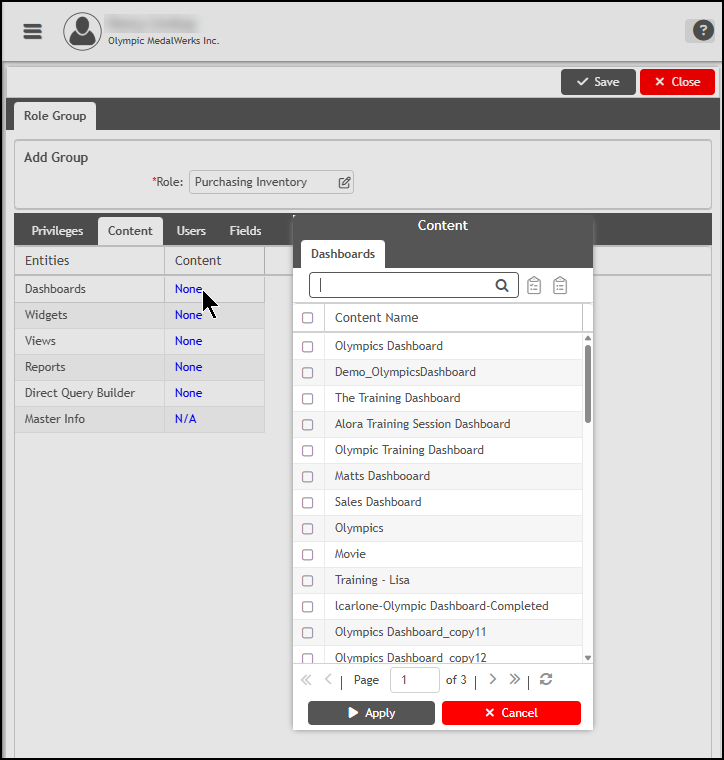
Here, choose the Dashboards, Widgets, Views, and Reports you want the users in this role to access.
The process for selecting the Dashboards, Widgets, Views and Reports works the same way, so follow the instructions below for each entity.
Note: To enable these users to create their own queries to search for specific data, use the Direct Query Builder as well.
-
Click the None entry in the Content column to display the list of options for the selected entity.
-
Do one of the following to search for an entry in the list:
-
If you know the name of an entity content (Dashboard, Widget, View, or Report), type it in the field at the top of the list. The list updates as you type to restrict the number of entries.
-
Scroll through the list until you find the content item(s) you want to add.
-
-
Select the check box beside each content name (Dashboard, Widget, View, or Report) you want to be accessible to the users in this role.
-
When you have added check marks beside each content name you want to add to the role, click the Show Selected
 button to display the list of content entries you selected.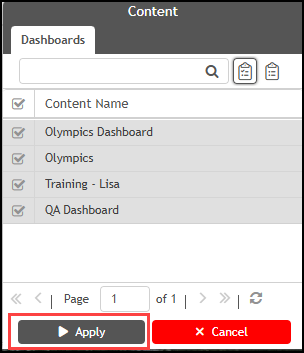
-
Review the list to ensure you have selected all the content you want, and click Apply to save the list.
-
Repeat steps a – e for all Dashboards, Widgets, Views, and Reports you want to add for this role. As you complete these selections, the Content list updates.
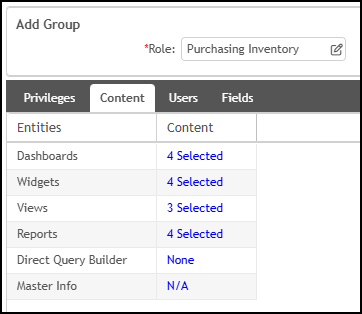
7. When you are ready to add users to this role, choose the Users tab.
The list of the current Cognytics users displays.
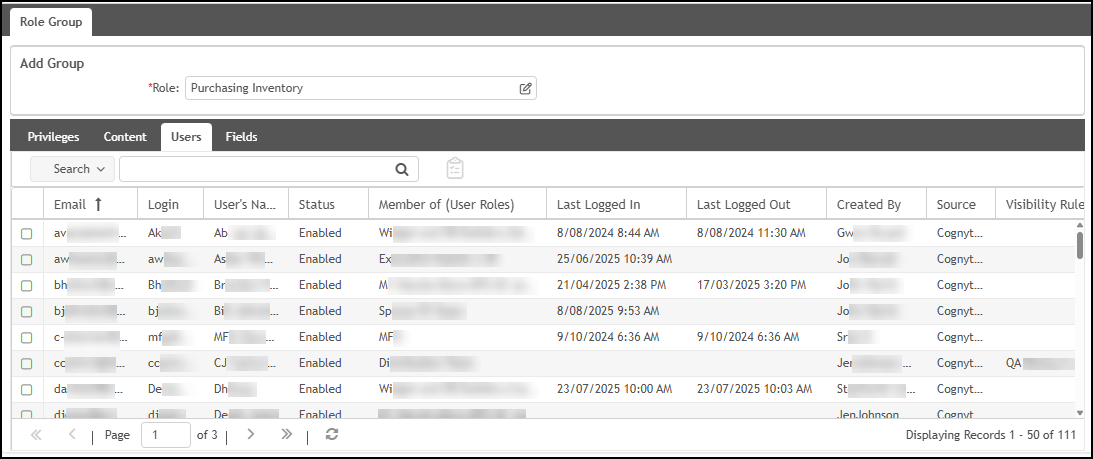
8. Select the check mark beside each user who should have this role. When you have selected all the users you want to add, click the Show Selected button to show the list.

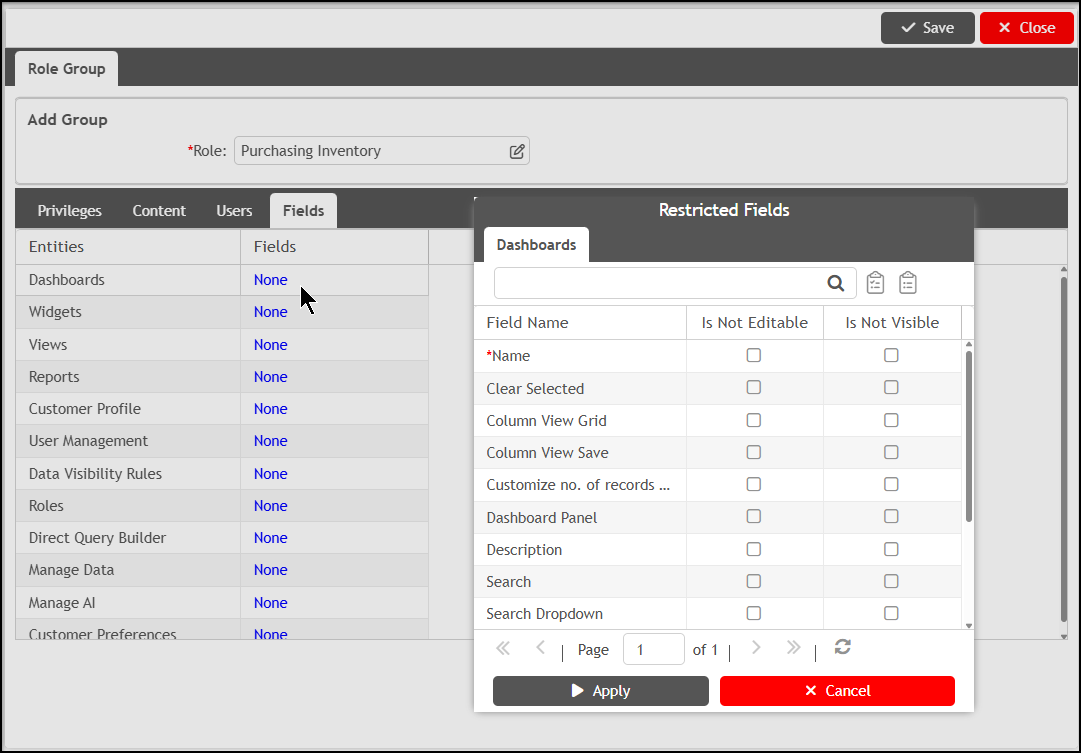
9. Click the Fields tab. The Fields list displays.
Not all fields in every Dashboard, Widget, View, (etc.) is needed for all users in the role you are creating. You use these settings to restrict the fields users in this role can see (Is Not Visible) and edit (Is Not Editable). You can manage these settings for:
-
Dashboards, Widgets, Views, and Reports,
-
Customer Profiles,
-
User Management,
-
Data Visibility Rules, Roles,
-
Direct Query Builder,
-
Manage Data, Manage AI, and
-
Customer Preferences
-
For each entity you want to restrict field access to, click None in the Fields column. The Restricted Fields box displays the field names so you can choose whether these fields display and/or are editable for each entity.
-
For each field that users in this role should not edit, check the Is Not Editable check box.
-
For each field that users in this role should not see, check the Is Not Visible check box.
-
-
When you have completed your review, choose Apply.
When you apply the field update, the Fields list indicates the number of restrictions you added to the entity. -
Repeat steps a - b for each entity and list of fields you want to modify for this role.
10. When you have completed the Field settings, click the Save button to save the Role settings you added. The message Updated Successfully displays. The role you added displays in the Roles list.
Giving Users Access to Analytics > Cognytics
We are looking forward to working with you as you begin your Cognytics Journey! These instructions help you enable users to use it effectively.
Keep in mind the number of concurrent licenses and license types you have when enabling new users. After the Implementation team has enabled Cognytics in your system, you can complete the process below to add access to the Analytics toolbar option and the Cognytics platform.
To add the Analytics Toolbar menu item and the Cognytics option to a user's permissions
1. Log in to the application with your Systems Administrator credentials.
2. After discussing the Cognytics user roles with the user and management, follow the appropriate steps:
-
If all your team members have access to the Analytics tab and Cognytics, you have completed this process.
-
If you need to add the Analytics tab and Cognytics access to one or more users, continue to the next step.
3. From the Main Menu, choose Maintenance > Database > User IDs.
The User IDs form displays.
4. For each user who requires access to Cognytics, follow these steps to display the Analytics toolbar menu and the Cognytics menu option:
a. In the User ID field, choose the user ID of the person who requires the Analytics tab and Cognytics access.
b. On the Security Options tab, beside the Permissions list, choose the Settings  icon to display the Permissions List Code Maintenance box.
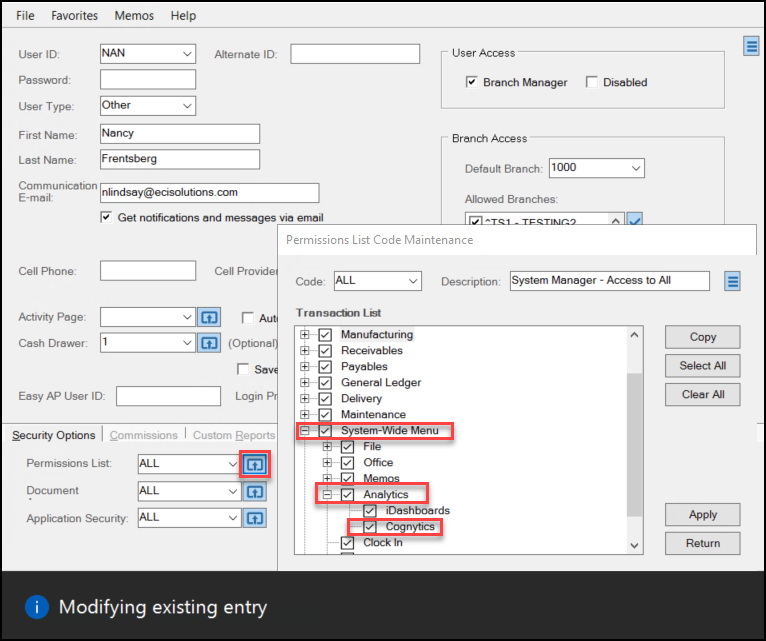
User IDs > Security Options > Settings > Permissions List Code Maintenance
c. Scroll down to the System-Wide Menu and enable these check boxes:
-
Analytics
Select this check box to ensure the Analytics menu displays for this user. -
Cognytics
Select this check box to ensure the user has access to Cognytics.
For businesses that use Spruce, you may want to uncheck the iDashboards check box if it was previously enabled for this user. Support for this platform ends on June 1, 2026.
d. When you have completed these settings, choose Apply and then Return.
e. Choose Process (F12) to save these user credentials to the database.
f. Repeat steps a – e for each user that requires access to Cognytics.
5. Choose Process (F12) to save the final changes.
Enabling and Assigning Roles to Cognytics Users
System Administrators can use these instructions to update the user records in the User Information form, assign relevant roles to users, and enable their access to Cognytics. New employees are added to the User Management form list by default within three hours of their entry. Make sure you are clear about the roles each user should have based on their work responsibilities. Keep in mind that users you enable should be within the number and types of licenses your company has requested.
IMPORTANT: When setting user credentials, keep the Dashboard settings in mind. You might want to restrict a Branch Manager's view to only their branch, or a Salesperson's view to only the accounts they are responsible for. It is useful to keep these Dashboard-specific settings in mind when you set up user roles. These are business decisions that management should make on behalf of the whole team.
To update the credentials of a currently disabled user in Cognytics:
1. Log in to the application as a system administrator and choose Analytics > Cognytics. The Cognytics landing page displays.
2. From the left menu, choose the Administration icon and choose User Management from the list. The User Management form displays.
3. Find the user record you want to update in the list and double-click it.
The User Information form displays.
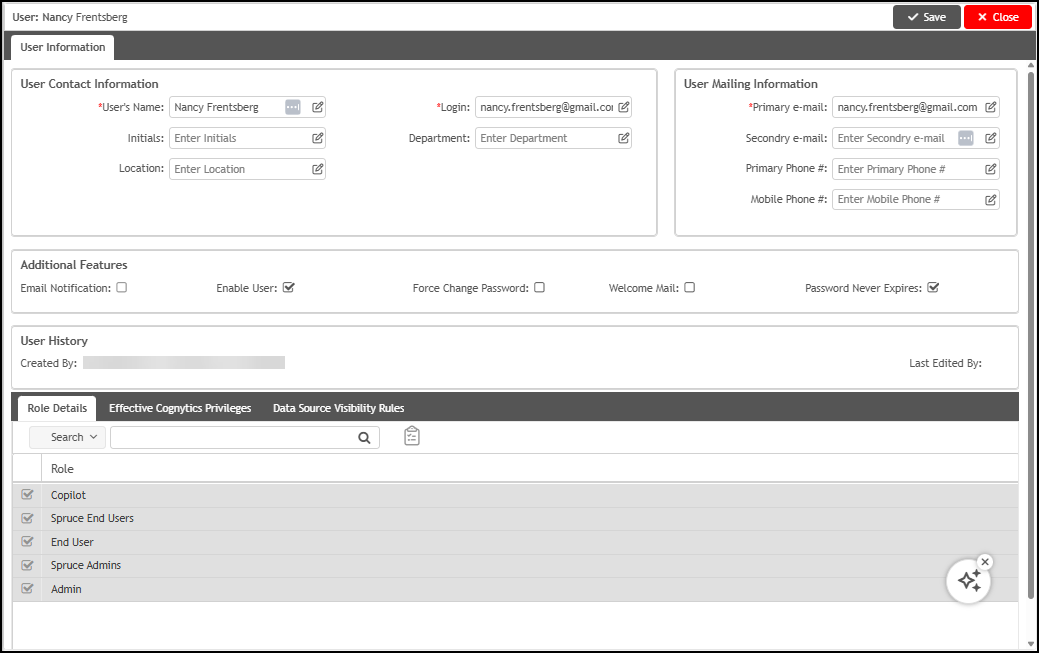
User Information > Role Details
4. Check the User Contact Information and the User Mailing Information sections and add any additional information the user requires.
5. In the Additional Features list, click the Enable User check box.
This enables the user to access the Cognytics system.
6. Based on your company’s password rules, review the other check boxes and select them as needed.
7. In the Role Details tab, select the check mark beside each role you want this user to have. This grants them access to specific dashboards and configures their rights to use and possibly modify that data.
8. In the Effective Cognytics Privileges tab, review the entries to ensure the user has the permissions they require.
9. Choose the Save button.
See Also
Analytics > Cognytics > Working with Dashboards
Building Custom Dashboards