What's New: Rapid Entry
Remote Client (Custom) Pairing provides automated Remote Client packaging and automates application version registration for your stations. This prepares you for Rapid Entry, a new, streamlined way for hosted Spruce users to sign in to the application.
Using Rapid Entry, you double-click the ECI icon on your desktop, enter your log in credentials, and click Sign On to log in. It is quick and secure. No more entering two sets of credentials!
This process replaces the workstation’s RDP shortcut on the desktop with a new ECI Sign-In icon, which is turned on one branch at a time. Each station must have a default branch setting, and the Rapid Entry settings must be enabled for that branch. Users must have the Remote Client icon enabled.
When your team has completed the Remote Client (Custom) Pairing settings for all the workstations in a branch and you want to test Rapid Entry, work with your Implementation and Support team to ensure all of the infrastructure is in place so you are ready for testing. See Using the Rapid Entry Process to learn more. The Rapid Entry FAQs page may answer questions you have about this process too.
Validating the Rapid Entry Process
Before you move on, check with the other users in the same branch and check the following for each user:
-
The Rapid Entry process completes successfully.
-
Check to see that the Download Manager delivers the correct Remote Client version.
-
Confirm that the local application launches and authenticates the user without a second prompt.
This validation step typically takes less than one business day with ECI's assistance. When this is working for all of the users in the first branch, you are ready to expand this to the other branches.
Enabling the Rapid Entry Settings for the Branch
System Administrators can enable these Rapid Entry setting. Leave the Local Launch setting disabled for now.
1. From the Main Menu, choose Maintenance > Database > Branches. The Branch Setup form displays.
2. From the Branch ID list, choose the branch that you will test the Rapid Entry settings for and press Enter.
3. Choose the Misc tab and the Rapid Entry subtab. The Rapid Entry options display.
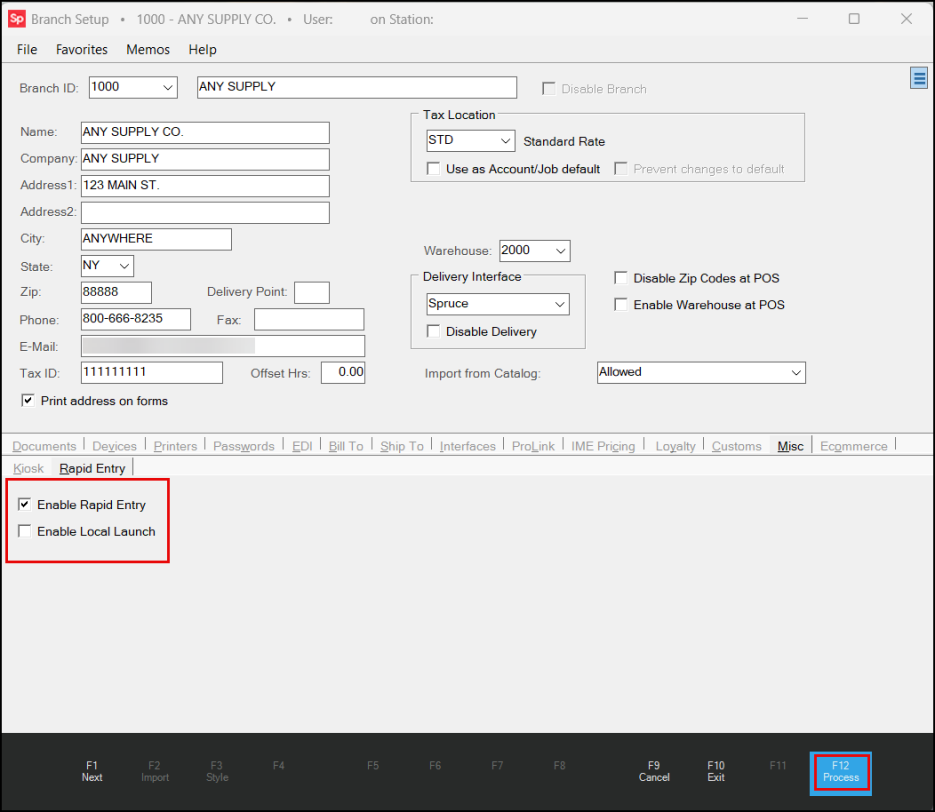
Branch Setup > Rapid Entry Features Enabled
4. Check the Enable Rapid Entry box.
5. Choose Process (F12) to save the setting for the branch.