What's New: Remote Client (Custom) Pairing for Hosted Stations
The new Remote Client (Custom) Pairing process is a streamlined self-service feature that makes it easy to connect your local workstations to the application in the hosted environment using the Remote Client Utility — without requiring technical expertise or manual configuration steps.
The Remote Client Utility, when paired with a workstation and the station’s devices, uniquely identifies the station to the hosted application and ensures that the user has the appropriate access to their enabled features in Spruce. The Remote Client Utility must access the correct version of the application to provide the best user support. This utility updates automatically every evening, but you can prompt it for an update at any time:
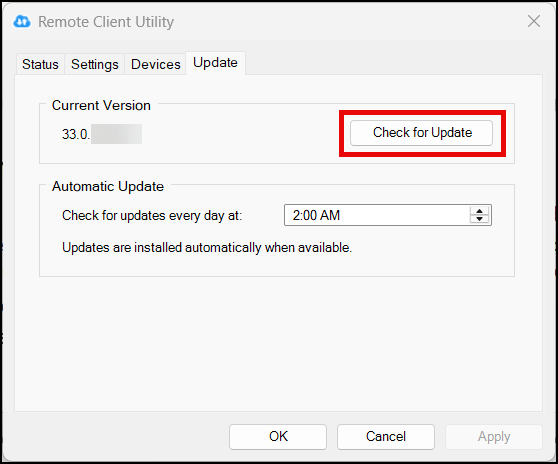
Remote Client Utility > Update Tab
Overview of the Remote Client (Custom) Pairing Process
We have simplified the Remote Client Pairing process to connect each workstation to your cloud instance quickly and easily to the current version of the application. A user at each station double-clicks the Remote Client Utility icon to start the process. Behind the scenes, the application creates a pairing ID and downloads the correct msi file for that workstation. The user then double-clicks the msi file to install it locally and walks through the installer process by following the installer's prompts until the installation is complete. After this initial installation, the updates to the software happen in the background, each night as needed.
Each user can see the status of this process by reviewing the Left Menu of the application.
In the Left Menu, there is a new icon that shows you the status of the Remote Client Pairing process. The Remote Client Utility icon displays the current pairing status.
| Status | Description | Icon |
|---|---|---|
| Not Configured |
The workstation has not begun the pairing process with the hosted system. |

|
| Configured, Not Paired |
The workstation’s PIN displays, but it has not yet paired with the hosted system. |
|
| Paired |
The workstation is paired with the hosted system. |

|
You can click the Remote Client Utility icon in the Left Menu or click Pair Now in the station’s Device Maintenance form to receive a ready-to-use installer link. You can then double-click the installer and the system handles everything else — enabling the station, generating a PIN, building a secure download link, and defaulting to a safe configuration that won't disrupt existing workflows.
New pairings created through Remote Client Pairing process, establish a default for a station type called Pair Only (No Devices). This means:
-
The Remote Client is connected and available for updates, portal access, and future capabilities.
-
No devices (printers, bank card readers, cash drawers, scanners, signature pads, etc.) are routed through the Remote Client initially.
-
Existing VPN or locally connected devices continue to work as before.
This safe default process allows us to roll out Remote Client connections across the entire organization without disrupting the current device’s workflows. You can upgrade stations later to full device routing when that feature is ready.
Note: The previous default station type has been renamed from Standard Station (Default) to Paired (with devices) for clarity.
The Remote Client Utility  icon is in the Left Menu from every application form — including during active transactions. You do not need to leave your current workflow to start the pairing process.
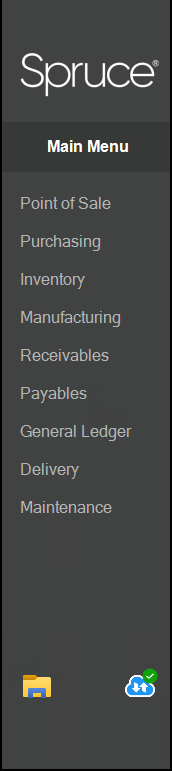
A subtle red badge on the Remote Client Utility icon indicates when the station is not yet paired. Clicking this icon opens a clean, customer-friendly popup — not a technical troubleshooting console. You use this process to download the appropriate Remote Client msi file to the Downloads folder. Then you can double-click it to start the installation process.
Note: If you close the application before completing the pairing process, you can return later and pick up where you left off — the process preserves the PIN and you can recopy the installer link at any time.
Station One Note: You cannot use the Remote Client (Custom) Pairing process for Station One workstations because they have different configuration requirements.
To learn more about the Remote Client (Custom) Pairing process, see Using Custom Pairing to Set Up the Remote Client Utility on a Station.
To review the Frequently Asked Questions about this process and the other modernization projects we are working on, see Spruce Up (Remote Client (Custom) Pairing) FAQs.