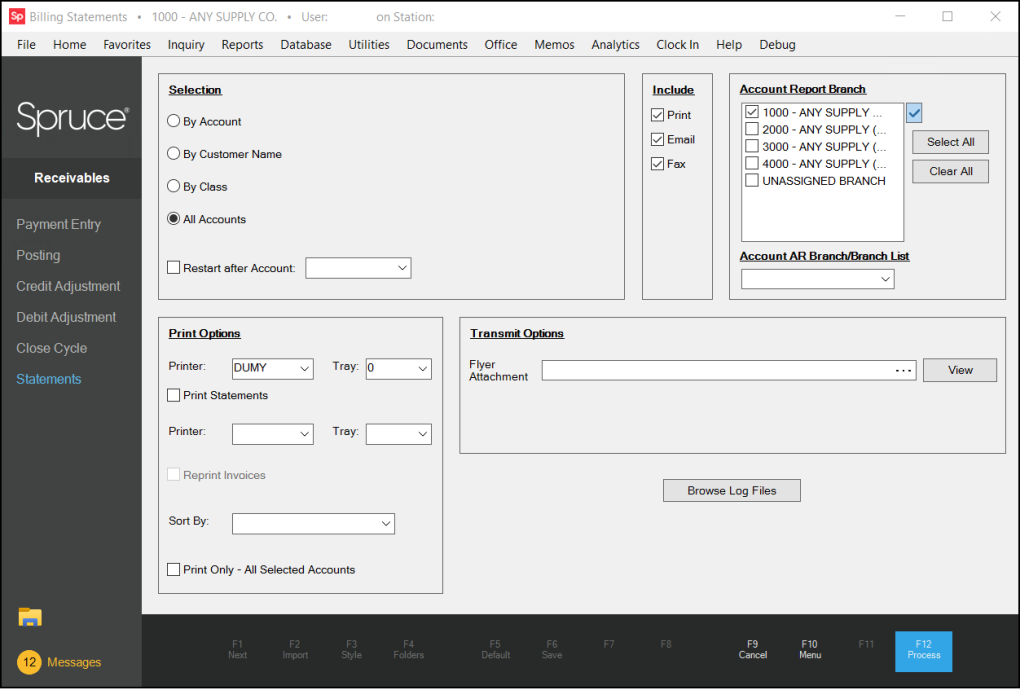
Billing Statements
Use this form to specify the delivery processing for statements by printing, faxing, and/or email. Delivery methods are based on each account's delivery preferences as well as your selections in this form. Mailed statements are formatted for standard #10 single window envelopes. All statements are created by an automated Billing Cycle process, not this program which is only used for delivering the documents. Statements cannot be delivered until after the documents have been created by this scheduled process. Your company's billing cycle (AR checklist) is scheduled to occur monthly on a specific day of the month (such as the 1st, 25th, or 30th, for example). This schedule is established prior to your go-live date by your software trainer based on your company's billing practices.
Email and faxing does not occur automatically. You must process statement delivery, using this form, for your customers to receive their statements. This includes printed copies as well as email and fax copies of their statements and/or invoices.
Both fax and email processing is dependent on external software, hardware, and services. Email and to a lesser degree fax processing, are commonly integrated with the application; however, they are both still optional and operate independently from the application. The software simply submits a file to either your company's designated fax server or SMTP (Simple Mail Transfer Protocol) server (for email processing). It is your company's responsibility to configure, support, and monitor these operations should you choose to use them.
|
Branch Information and Statement Processing Statement logos and addresses utilize the statement document's branch unless an account has an AR Branch specified (the document's branch is either the master branch, or if none is set, the branch which the user who scheduled the billing process was accessing at the time is used). Statement documents are generated by application services prior to any delivery using the Statements transaction. This form is only responsible for delivering those documents as well as any invoice reprints/files to the customer. All statements will have the same "document" branch regardless of the customer's branch assignment. For customers with an AR Branch that is not a branch list, that branch will be used for the logo (if a branch logo exists and logos are enabled for the AR Statement document type) and branch billing address as long as the branch setting "Print Address on Forms" is checked (true). When any address is printed, only non-empty lines are printed. The address will include the branch phone and fax number as long as they are not blank. Addresses are formatted differently for companies with a culture setting of "en-GB" (United Kingdom) vs. addresses in North America and elsewhere. The AR Branch account setting has other functionality beyond the statement branch logo and address. Please review the documentation on this feature prior to using. |
In addition to delivery preferences, an account's status and activity can determine whether a statement generates and/or is processed for delivery. Review the special topic Billing & Customer Settings to learn more about creating statements and the billing process overall.
Only an account's most recent statement document can be delivered using this form. This form does not produce a "current" statement (a statement that includes new activity since the last billing). Statements from past billing periods can be individually viewed, printed, or transmitted from the Documents form only.
|
You can print or view a current statement from the Status Inquiry form (Receivables > Inquiry > Status) using the Print (F8) key and Statement option. This "summary statement" is temporary and doesn't use the normal statement format.Furthermore, the statement produced is not retained as a document in the library. "Current" statements are produced real-time and won't necessarily reflect the same information as the next actual statement since they may be affected by account activity, new finance charges, etc. There is also an interim statement feature, which you can provide to your Receivables customer upon request, that does not affect the creation of the statements discussed here. See the Working with Interim Statements topic to learn more about this feature. |
If printing both invoices and statements together, the documents are printed together so that they can more easily be mailed. To make this work, we suggest using the same printer with two different trays (one for the invoices and another for statements). In addition, it might make sense to use different colors of paper or tray alignments for statements and invoices to make it easier to tell them apart and to separate each customer's billing for mailing preparation. Options vary by printer model.
Customer Status and Statement Processing/Delivery
Accounts can be assigned one of five different status codes: Active, Inactive, Hold, Disabled, and Closed.
Some status codes affect statement delivery and statement document generation.
Please refer to the sub-topic on Customer Status for further information.
See Also:
Processing and Delivering Statements
Filtering Statements by Branch
Selection
In this box, you can choose All Accounts to print (or transmit) statements for all customer accounts (charge only) or specify a range using By Account, By Customer Name, or By Class. You cannot choose more than one option in this box.
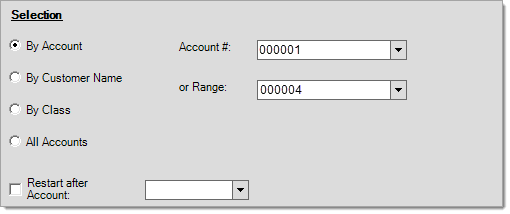
Restart after Account
The Restart after Account setting is useful when you need to restart statement processing from a specific point; however, use this option carefully! When using the Restart option, be sure to select the exact same (1) Selection criteria and (2) Sort by (under Print Options) options as you chose in the original run. For example, if you processed the previous run using By Name, but you restart after account N51678 using By Account, some statements may not be delivered and some customers may receive duplicates. If this option is not used properly, you can either miss processing statements or create duplicate statements for accounts.
When you specify the Restart after Account option, a set of statements is first selected and ordered based on the other form fields. The accounts are then examined in the specified Sort By order, but actual processing is on hold until the statement specified in the Restart after Account list is generated. The account specified in the Restart after Account list is not processed again.
Include
Each account has statement delivery preference settings. Accounts can receive a mailed copy (printed statement), a fax of their statement, an email of their statement, or a combination of these options, based on the check boxes that they select in their Account Maintenance form.
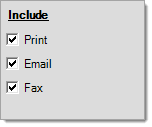
Delivery methods under the Include panel identify the statement delivery requirements on an account basis. An account that meets any single delivery selection will be included during statement delivery processing as long as they also meet the Selection criteria specified (account range, class, etc.).
We strongly suggest that you limit your accounts to one delivery method to make processing simpler, faster, and easier to manage.
If you think about your own personal accounts, it's relatively rare that you are given more than one delivery option. Usually, it's a choice of either select electronic delivery of bills (email) or mail (print) delivery, not both. Even though the software allows multiple methods, the more options you select or allow accounts to use, the longer it will take to process your statements (particularly when printing or faxing).
Tip: Typically, emails that are more than 10 MB (due to the length or to attachments) can either fail to send or fail to be received due to restrictions of the email provider. It makes sense to evaluate the size of your emails prior to sending them. This includes statements.
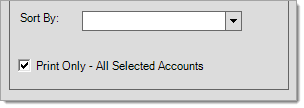
If the account is included due to any selection matching their preference and they have more than one delivery method specified, all of the account's selected delivery methods are processed at the same time, unless you select the Print Only - All Selected Accounts check box on the Print Options panel. For example, if an account setting indicates statement delivery by both Print and Email, but you select only Print under the Include panel, the application prints a copy of the account's statement and transmits their PDF copy at the same time.
Include options always use the current account settings to determine the delivery preferences (not the settings in place at the time the statement documents were created). This allows you to modify a customer's preference after statement documents are created and any time prior to delivery.
Print Options
There are two printer selections: one for statements, one for invoice reprints. The top printer selection determines the device and tray where statement documents will be printed. The bottom selection is where you indicate the printer and tray to use for invoice reprints. Both may indicate the same printer (and/or tray) or not. Statements and invoices are processed as separate print jobs consecutively for each customer being included (or customer and job, in some cases). The list of customers, and the order in which they are processed, is determined by your selections in this form.
Use the fields provided to select the printer and tray # for the type shown. Tray numbering varies by printer manufacturer and model. Consult your printer's manufacturer or documentation to determine how a specific printer's trays are numbered. Tray options must be installed identically at all stations to avoid printing problems. Shared network printers must use the exact same naming on all PC workstations. Printing issues, beyond those caused by a application error, are not covered by support. Consult your company's network or IT professional for assistance with these matters.
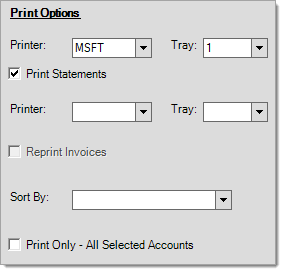
The Reprint Invoices check box only prints invoice copies for accounts that have chosen to receive reprints in the account database. If you do not check the Reprint check box, even the accounts that are designated to receive reprints will not receive a printed copy.
Note: This check box doesn't affect whether the customer receives email or faxed copies of their invoices, however.
|
Including Adjustments with Reprints It's possible for copies of any credit or debit adjustments that were made to the account to be included when reprinting invoices. These adjustments are printed using a special Invoice Document style (InvoiceCustOpen). Whether or not adjustments are reprinted is determined by a parameter setting. Finance charges are not adjustments and are not included as a separate document. |
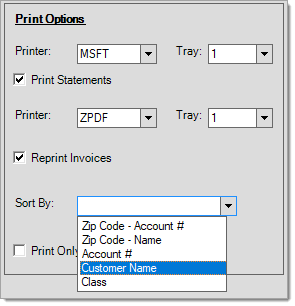
Use the Sort by list to choose the order in which statements (and invoices) should be printed.
Sorting choices include:
-
Zip Code then Account ID,
-
Zip Code then (Customer) Name,
-
Account ID, Customer Name, or
-
Class
Sorting depends on the account selection options you chose in the Selection box.
Place a check  in the box next to Print Only - All Selected Accounts to force a printed copy of ALL statements in the account selection designated regardless of each account's delivery option. This also prevents any email or fax processing, even if it's selected for the account. Even those accounts which are not designated for Print delivery will have a statement printed... this includes those requiring invoice re-print. If this check box is left clear
  (unselected), Statements and Invoices only print for those accounts with Print delivery enabled.
Transmit Options
Use this panel to include one optional email attachment with statements.
Flyer Attachment Option
You can specify a file that will be added as an attachment to statement emails. The intended use of this function was to provide a way to associate a "sale flyer" or other announcement type document with the customer's statement. To avoid unnecessary duplication, the application sends flyer attachments when emailing a Summary statement. This prevents the same attachment from being emailed with every individual job statement in the case of job-level accounts, for example. If your company has disabled the Summary for this type of account, they will not receive the flyer.
Specific file types have been designated as valid "flyer type" files. This is done to minimize the attachment of files that might be considered dangerous or that would normally be rejected by most mail servers. Common document formats (PDF, DOC, RTF, TXT, etc.) as well as image files (JPG, BMP, GIF, PNG, etc.) are considered allowed. If you don't see a particular file type in the browse window, it is not supported.
Even though we do limit the types of files, there is no guarantee that your customers will have the needed software to open a particular file type. The safest to use is probably the PDF (Portable Document Format) format since it is also the format of the statement and invoice files being transmitted. Microsoft® Windows® computers are provided with some default programs that can open RTF (Rich Text Format) and TXT (text-only) files.
Processing
Once all selections have been made, choose Process (F12) to print and/or transmit statements.
Both faxing and email processing are beyond the control of the application. For faxing, a fax server, modem, and phone line are required. Other requirements for faxing exist, so please check our website's Customer Portal for more information. A user account and password are required for web site access. Email also has specific network requirements such as a high-speed Internet connection, SMTP server, etc. Consult your company's selected network or IT professional for assistance with these matters.
When statements are emailed, a PDF (Portable Document Format) file-type is used and the file is named using the following scheme:
STATEMENT[DocumentID].pdf
-- or --
JOB-[#]-STATEMENT[DocumentID].pdf
Invoice reprints create a file named in a similar fashion. In the case of multiple invoices, the document id used will be the statement's, not any of the invoice documents. The number of invoices in the file appears in parentheses prior to the document number.
Reprints([#])[DocumentID].pdf
The check boxes for E-mail Invoices and Fax Invoices will never cause invoice reprints to be done for an account that is not flagged to reprint invoices. However, if these check boxes are cleared when statements are run, accounts that normally do receive reprints of their invoices will not. If either of the "adjustments" options are checked, the invoice PDF will also include both debit and credit adjustment documents. Finance charges are not associated with a document and are not included. Charge order deposits (or deposit refunds) are linked to payment and payout type documents and are also not included.
For job-level billing accounts, a separate E-mail is generated for each job. File names for job billing statements and invoice reprints include the job id before the word "statement" or "InvReprint" (see below).
JOB-#-STATEMENT[DocumentID].pdf
Job-#-Reprints([#])[DocumentID].pdf
|
Error Handling and Log Files
Recognizing the importance of statement processing and delivery, we provide special error handling and log files. We attempt to prevent overall processing failures due to individual errors or problems processing single accounts or invoices or with delivery using printer, fax, or email integration.
Individual errors are reported in a log file and all processing results are summarized in a processing log. Currently, log files are simple text files that are saved locally or on a terminal server for on whichever station is performing the processing. These files default to the application data directory for the application (where the software is installed). This directory's location can vary based upon the Microsoft Windows operating system version, but often it's found under the following path (folder):
\Documents and Settings\<user name>\Application Data\{ApplicationName}
A button is provided on the Statements form that allows you to browse location. Other files, besides statement logs, may exist in this location. Three files are now created regarding statements; these are named: StatementRunInfo(#).txt, StatementExceptionLog(#).txt, and StatementLog(#).txt. The preceding file names typically include a number (#) in parentheses as part of the file name.
Statement Run Info
This file contains the settings that were in place at the time the statement run was processed. This can be helpful in problem determination and reproduction when a particular setting or set of circumstances is involved.
Statement Log
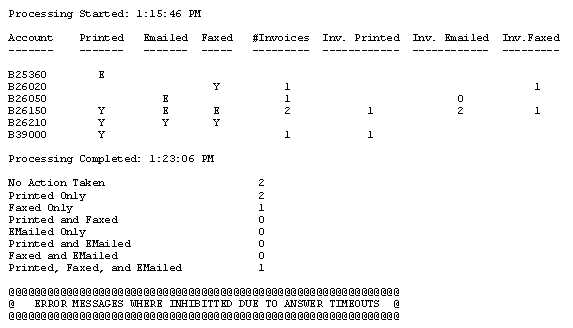
The Statement Log provides a listing and summary of statement delivery and processing and includes information such as the number of statements printed, faxed, and emailed as well as information regarding invoices, etc.
Statement Exception Log
The Exception log is a report of problems encountered during statement processing. This file will appear with a zero size when no errors were recorded during normal processing.
|
Note: copies of prior log files are kept so that in the event statements are re-run, users can still access a prior log file; however, only a limited number of these copies are kept. For this reason, if any problems are reported, it's a good idea to look at or re-save the log file before processing too many additional runs of statements (log files are saved under an 'Application Data' folder for the application in your PC's Documents & Settings directory under the PC's user name who ran the statements -- application data folders are set as hidden by default, so it may be necessary to change your folder options in Windows Explorer software before they will appear). You can type "%AppData%" in the Windows Explorer address bar as a shortcut to this directory. In the event of a software problem, all log files should be emailed to Support for analysis to help us reproduce and resolve any issues. |
Statement Completion and Log Information
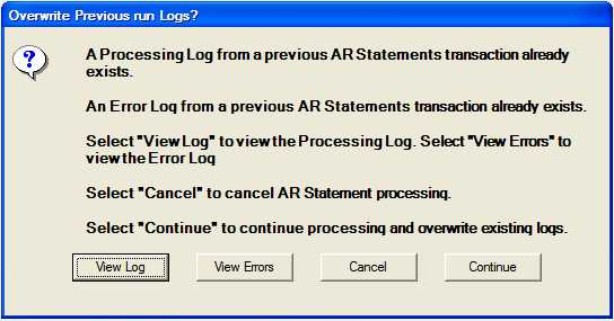
When processing statements, a warning message will prompt that user that either or both log files exist giving the user an opportunity to view the logs before overwriting them with the next statement processing. Clicking continue does create a back-up copy of any existing log files for future reference; however, a limited number of these backup files are kept.
There are four types of error classifications:
1. Errors that prevent statement document processing from completing for an account.
2. Errors that prevent print processing of a statement or any invoices.
3. Errors that prevent email processing of a statement or any invoices.
4. Errors that prevent fax processing of a statement or any invoices.
Here are some conditions applied to statement and invoice processing when errors occur:
•If an error occurs with statement document processing, no further processing for that account will be done.
•If a statement cannot be printed for the account, no invoices will be printed for that account.
•If a statement is being faxed or emailed and an error in delivery occurs, an attempt to transmit invoices will still be made (if reprints are designated).
Errors that occur during statement processing are reported to the user processing statements.
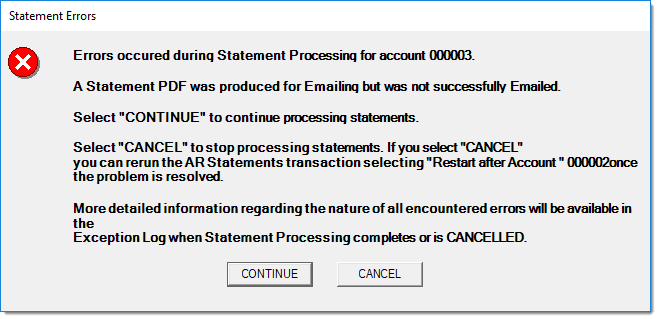
When choosing CONTINUE, you are prompted to either view (SHOW) or suppress (HIDE) future errors of the same type. Statement processing will attempt to continue after selecting continue and responding to the "Inhibit Error Messages?" prompt (shown below). If you choose CANCEL, all statement processing will be stopped at that point. In this case you should note the account where processing was canceled so that you can re-start processing from that point later.
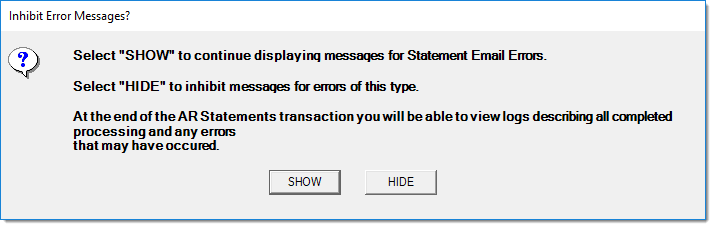
Error messages have a one minute timer associated with them. If the user fails to respond within the minute time period, the default response is used (either CONTINUE or SHOW). If more than 10 consecutive errors occur with automatic response, future errors will be hidden (suppressed) until all selected accounts are processed. Although, it's possible to leave statement processing unattended, we don't suggest that users do so.
Upon completion and if all selected accounts are processed without errors, the user will receive the following message:
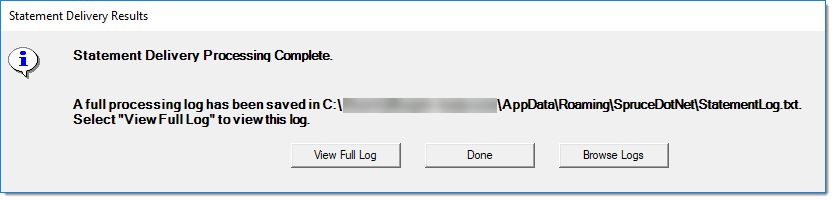
Choose View Full Log to open the text file log using your PC's default text editor program.
Click Done to close the message window (log files may still be viewed in the directory path listed until the next statement processing by this user). The processing log includes a listing of each account and delivery method(s) as well as a summary total at the end based on various delivery methods.
When any errors are encountered during processing, the user will receive the following message instead:
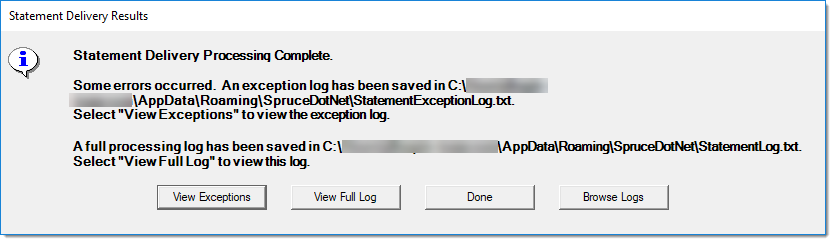
*Pathnames for error and summary logs vary by user and won't match the example exactly.
You can click:
-
View Log, to open a summary list of the processed accounts and the process results (StatementLot.txt)
-
View Exceptions, to open the log that contains the errors the process recorded (StatementExceptionLog.txt)
-
View Full Log, to open the log of the entire statement process (StatementRunInfo.txt)
-
Done and review the results you have printed, sent via email or fax manually
-
Browse Logs, to go to the folder that contains the exceptions and process log and review them manually.
If you close the message window, you can still view the log files in the directory path until the next statement processing by this user. This data is stored in the
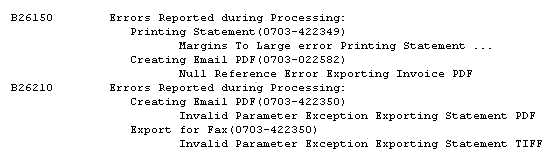
Below is an example of some text from an error log.