Spruce Mobile Delivery (Powered by JumpTrack) Overview
To modernize the Mobile Delivery process, Spruce, JumpTrack, and the My JumpTrack web portal together provide an integrated solution for delivering items to Customers and offer tools for Dispatchers, Drivers, Back Office team members, and Salespeople to manage deliveries and stay informed. To manage the communication of this process, we created the Delivery API, which transmits Spruce delivery loads (the stop and item data that Drivers use to organize their deliveries) to the JumpTrack app. Dispatchers use Spruce to collect delivery information, schedule work as they do today, and promptly send it to JumpTrack. Drivers use JumpTrack to manage their delivery process, take pictures of the delivery to show physical proof that the delivery was completed, and transmit the data to the My JumpTrack portal. My JumpTrack provides a platform for near real-time delivery tracking that Dispatchers, Drivers, and Salespeople can use to keep Customers informed and Management in the loop. Customers also receive an email with the delivery details from the My JumpTrack transmission. The Delivery API then transmits the delivery data back to Spruce, where we store it with the original order documents.
Important Note: You cannot use JumpTrack and AnyWare for delivery in the same branch at the same time, because they would send conflicting delivery information to the database. When you enable the JumpTrack feature, the AnyWare Delivery workflow is hidden. You can still use AnyWare for other purposes, such as tracking inventory or reviewing Inventory and Point of Sale documents.
Process Overview
This process uses the current delivery tools (Load Schedules, Route, Truck, and Driver data) as it did in the past and incorporates the security and confirmation data you requested to support your business.
This process begins (as it did in the past) in the Transaction Process Document, where the Salesperson collects item delivery information in the Delivery tab.
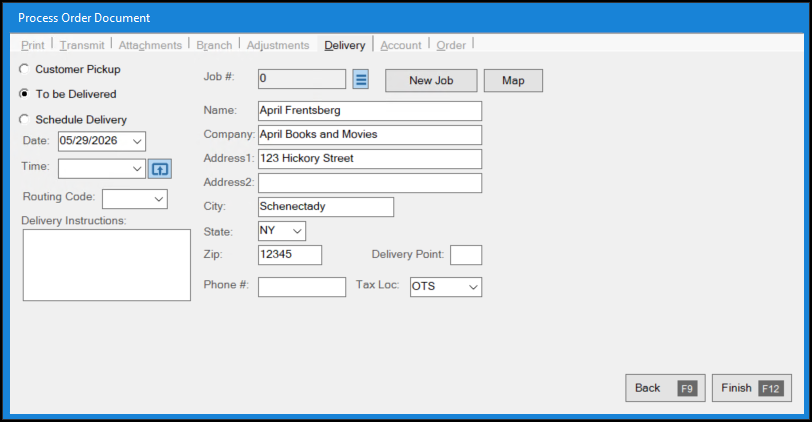
Point of Sale > Delivery Tab
Dispatchers continue to use the Load Schedule form to organize the delivery data and assign loads to routes, trucks, and drivers. But now, when you select Delivery > Load Schedule, the application retrieves and authenticates an authorization token for the JumpTrack session. Dispatchers assign delivery loads to drivers, routes, and trucks as usual. There is a new Send to JumpTrack button, which sends the delivery information to the Driver’s JumpTrack app.
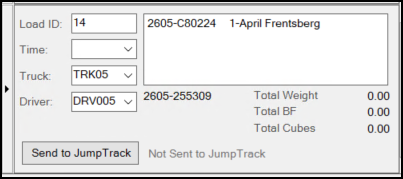
Delivery > Load Schedule > Ready for Send to JumpTrack
The Truck and Driver entries are required to enable the Send to JumpTrack button. When you click Send to JumpTrack, the date and time of the transmission displays.
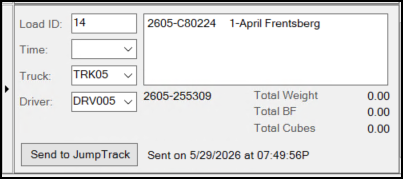
Delivery > Load Schedule > Deliver Load Sent to JumpTrack
The Delivery API sends this transmission to the Driver’s JumpTrack app on their phone and to the My JumpTrack web portal, where Dispatchers can monitor the delivery status.
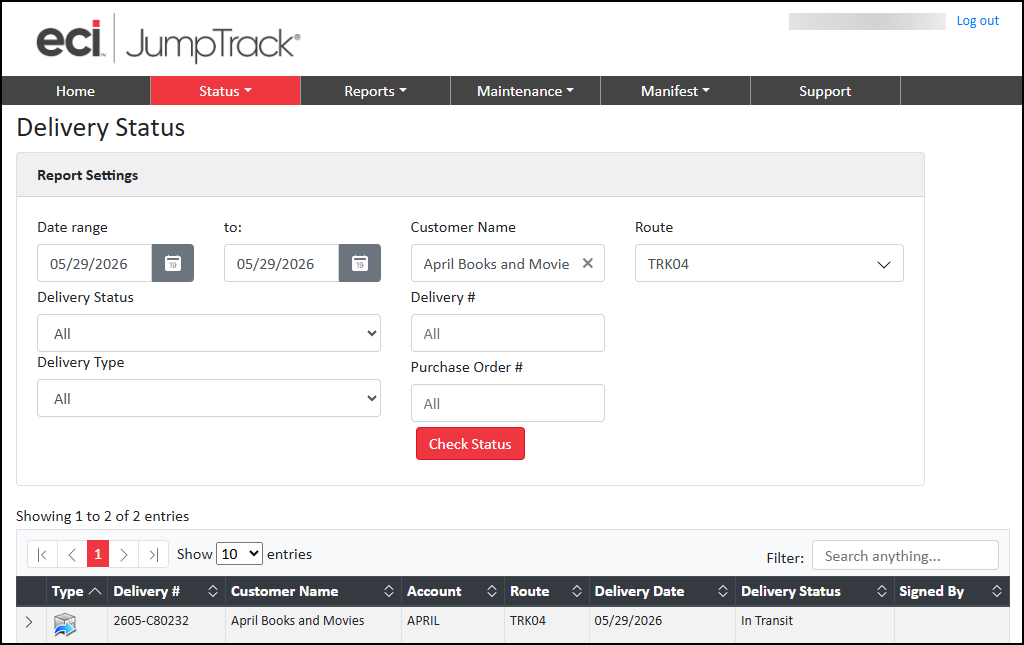
My JumpTrack > Delivery Status > In Transit
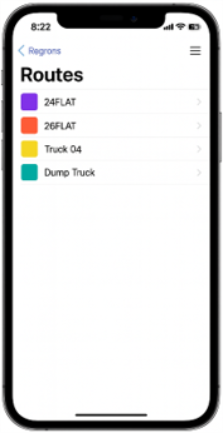
Drivers open the JumpTrack application on their phones, select their truck from the list and the load displays:
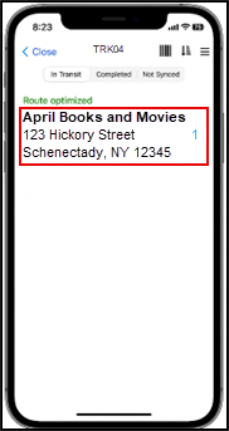
JumpTrack > Delivery Details
When the Driver arrives at the delivery site, the Driver can collect the Customer’s name and signature and add their own notes to the load record.
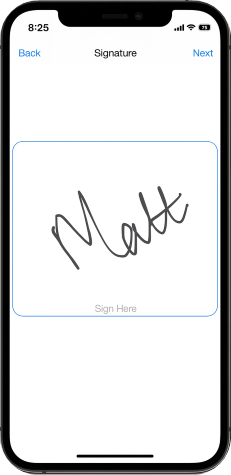
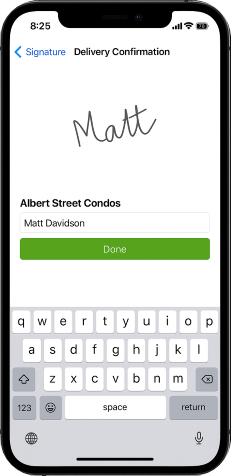
JumpTrack > Capturing Customer Signature and Name upon Delivery
The Driver can take pictures of the delivered items, verify that the delivery was accepted, and save this information in JumpTrack on their phone. Drivers add the delivery status, including Delivered, Partial, or Rejected.
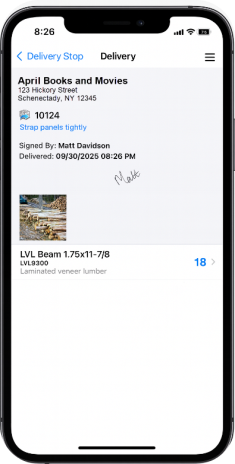
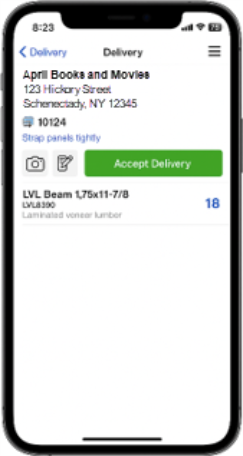
JumpTrack > Delivery Completed
If an internet connection is available, JumpTrack sends the stored data right away.
If not, JumpTrack sends delivery information when an internet connection is available. This information provides definitive proof of delivery (POD).
The delivery data is sent to My JumpTrack, a web portal that displays the delivery status within 15 minutes of the Driver’s transmission, including the Proof of Delivery artifacts (photos, signature images, and notes). Dispatchers can look up delivery status using My JumpTrack. This platform ensures that all the saved delivery information is accessible to both Dispatchers and authorized team members.
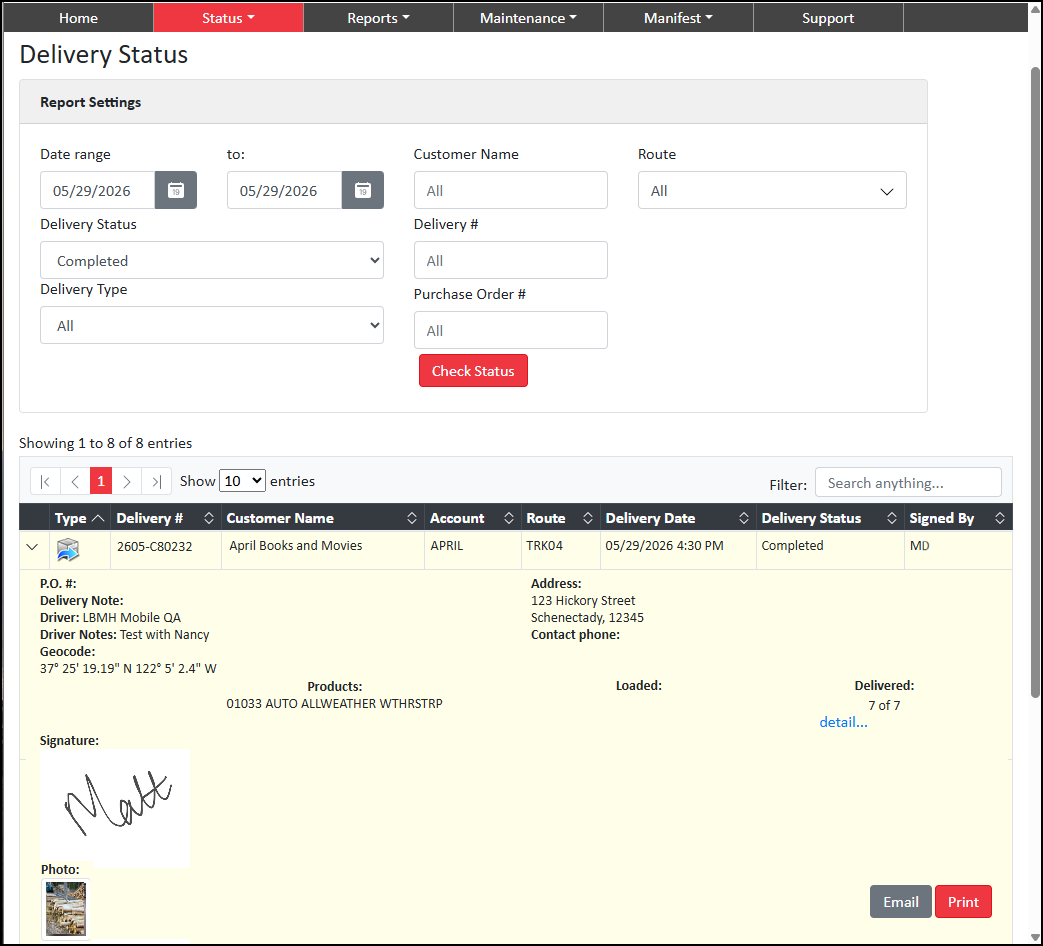
My JumpTrack > Completed Delivery
The Delivery API then transmits the delivery status and related artifacts to Spruce, where they are added to the documentation record and attached to the existing transaction documentation. The delivery photos appear as attachments.
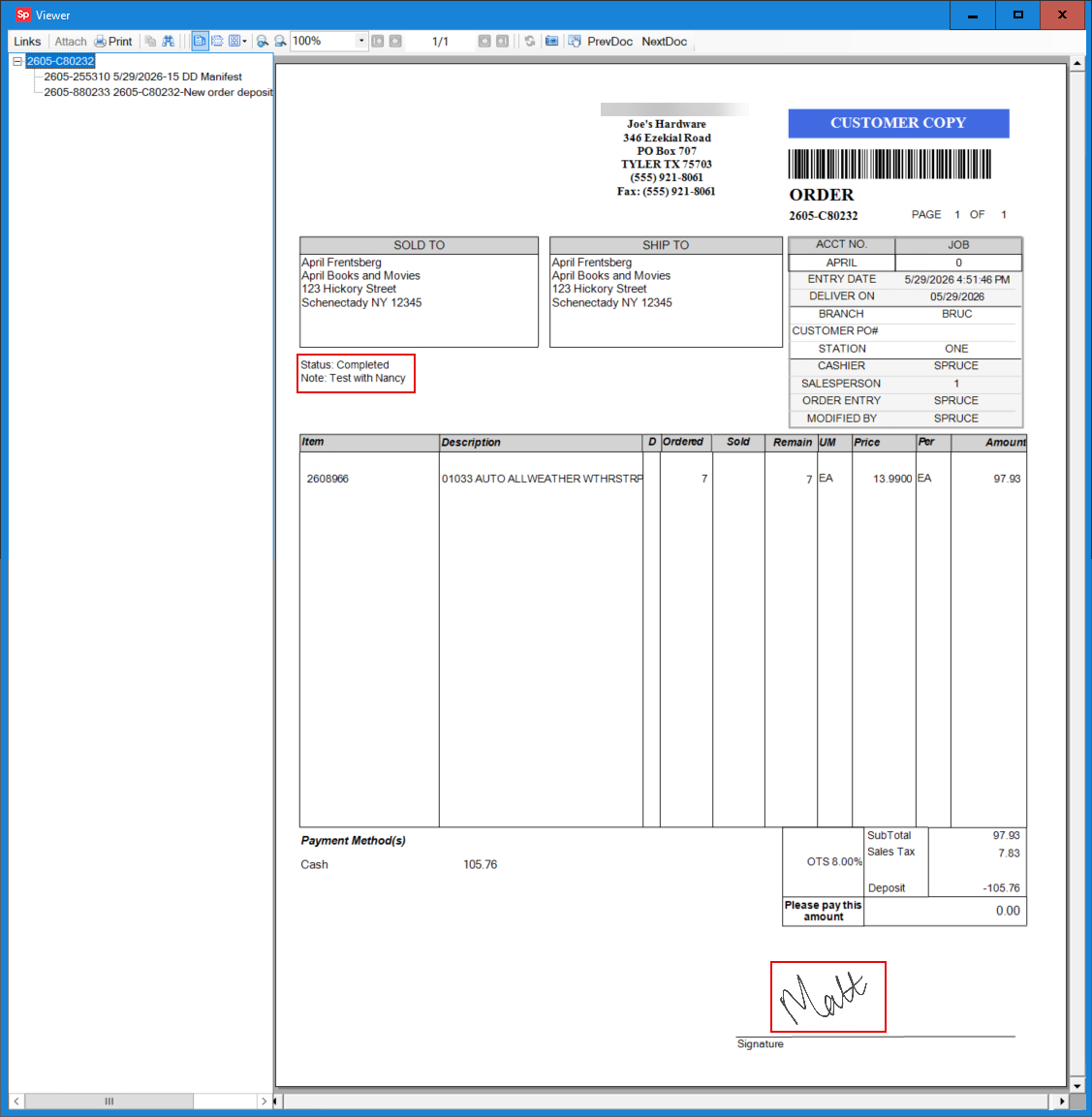
Documents > Customer Order Complete with Delivery Artifacts
After the delivery and transmission to My JumpTrack are complete, JumpTrack sends an email to the customer's primary email address confirming the delivery. The email process is tied to transmitting information to My JumpTrack, so this email may be delayed if there is no internet connection. For businesses that receive multiple deliveries on a given day, the system sends the email to the address associated with the last processed delivery document for the day. The Customer can download the images (authorized signatures and photos of the delivered materials) from the email.
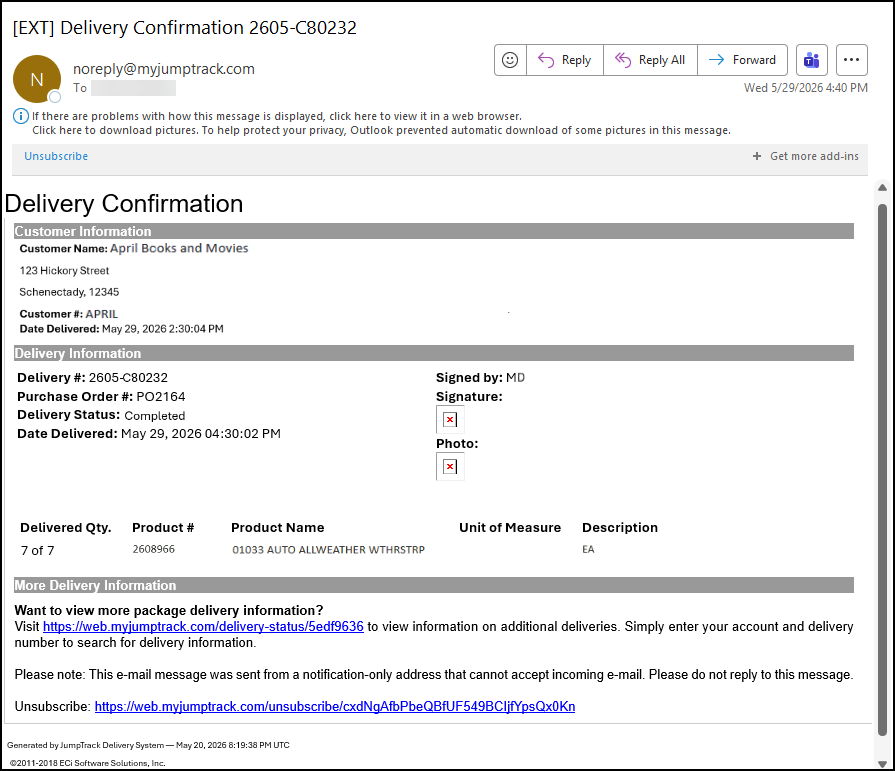
Email with Proof of Delivery
Dispatchers can make changes to the load if the truck has not yet returned to the branch and send the updated delivery load using the Send to JumpTrack process.