Printers (Alt-P)
The Printers tab is used to set optional branch defaults for particular types of print jobs.
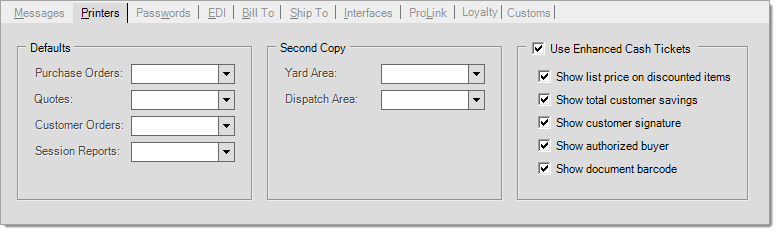
The five printers listed under the heading Defaults are for the primary print copy for the listed areas. Many process forms also allow selection of a secondary printer. The defaults for 2nd copy printers are listed under the Second Copy heading.
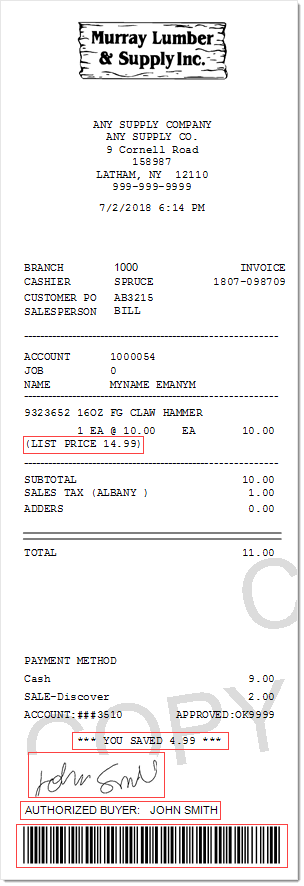
The "Use Enhanced Cash Tickets" settings enable the customization of the Cash Ticket. The selected options will print on the Cash Ticket. Below is an example of a Cash Ticket with all the options selected.
Selecting the Default Email Style Printer for a Branch
Use this option to set the default email style printer (and the related document styles associated with it as chosen above) for each branch.
To select the default email style printer (with the corresponding default document style selections) for the Branch:
1. From the Main Menu, choose Maintenance > Database > Branches.
The Branch Setup form displays.
2. From the Branch ID list, choose the branch you want to set the default email style for and press Enter.
The branch details display.
3. Choose the Printers tab.
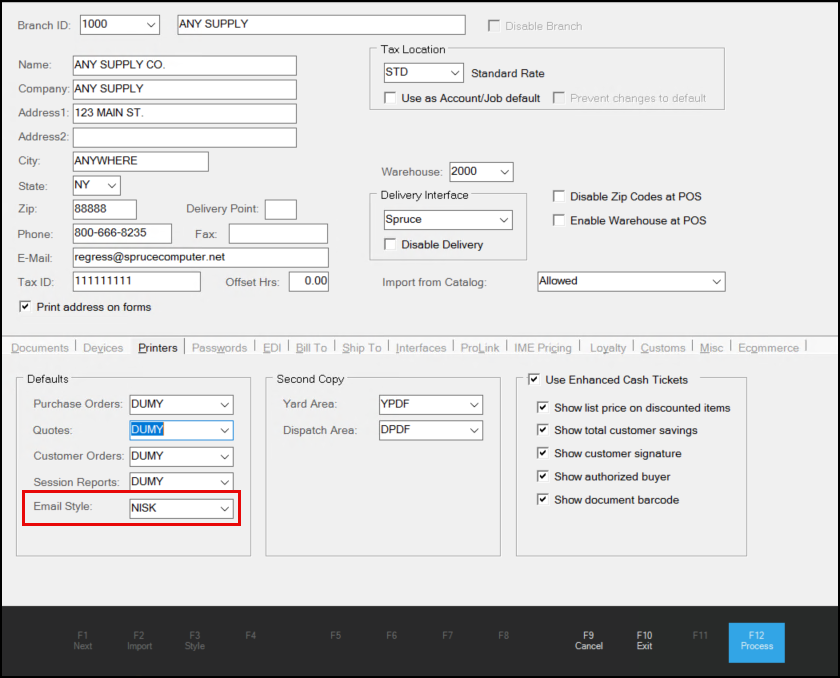
Branch Setup > Printers > Defaults > Email Style
4. From the Email Style list, choose the printer that uses the styles you want to use for email transmissions to customers.
5. When you complete this setting, choose Process (F12) to save this setting.