Point of Sale > Installed Sales
The Installed Sales feature provides a way to track the cost and progress of any installations managed by your company. Before using this area, we strongly suggest reading the overview in the Special Topics section. Related ledger mapping is required before processing any installed sales contracts.
This will help you gain an understanding of how Installed Sales is designed to be used. To begin a new installed sales contract, choose a customer account, job (if any), and assign a contract ID and optionally, choose a user. The User field is provided in case you want to use it for reporting or other reasons (commissions, etc.), but has no other function beyond this.
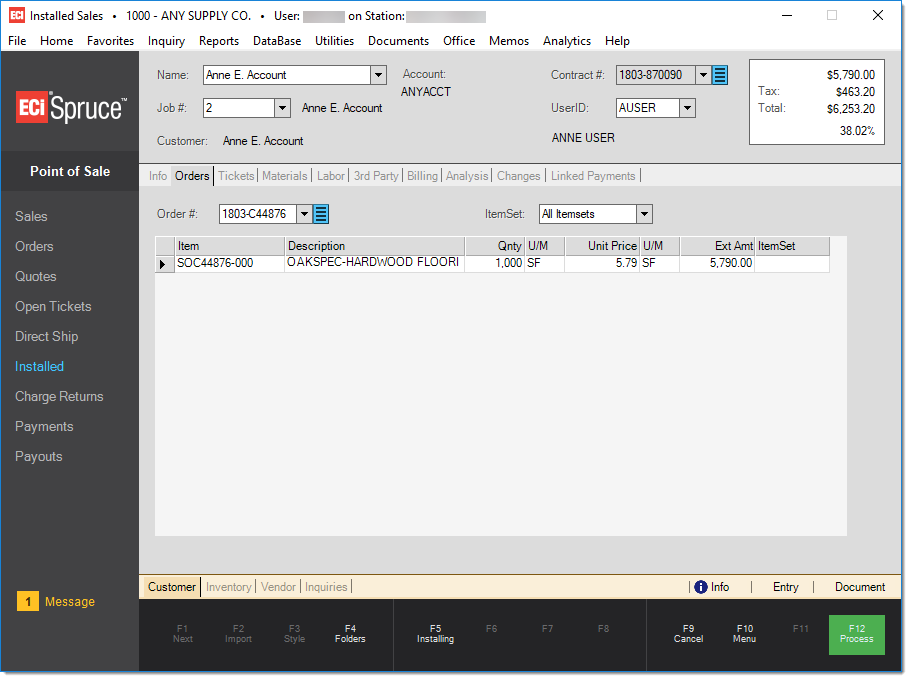
Installed Sales begin with at least one Customer Order. For customers who don't have their own account, you can use the Installed Sale account. Even if an order is not originally designated for installation, you can associate it with a contract later. If done, system account CASH orders are automatically changed to the designated Installed Sale Account (however, this does not happen for account customers).
The first step is usually associating the customer's order(s) with an Installed Sale Contract and determining an overall price for the installation. Each contract is associated with a customer, contract document, and user. One or more orders are linked with the installed contract from the "Order" tab. One difference between this and most other Point of Sale transactions is that the Installed form doesn't have the standard item grid. Materials are not added directly. Materials are only added by associating orders and tickets with the contract.
Orders are processed as tickets when the ordered materials are removed from your inventory. A ticket is similar to an invoice because it reduces stock on-hand, but it is different in that it does not involve immediate payment. Payments are recorded as deposits on the contract until the final billing and the contract is marked as complete.
There are ten tabs that make up the Installed Sales Contract, which are described below. These are static folders and you cannot minimize them. The standard Folder (F4) feature is also provided and can be hidden and displayed using the F4 function key.
Info
This tab shows the customer's name and location regarding the original order and offers a Reference field that shows any related installed sales contracts for this account.
Orders
Use this tab to add one or more orders to the contract. After adding orders, you can view the items (except for labor) on any associated order from this tab.
Tickets
You use ticket to remove goods from inventory during the installation process. You can use this tab to associate tickets with the contract and list any tickets previously associated with the contract. After you add tickets, you can view the item details for any associated ticket from this tab.
Materials
This tab lists all of the materials associated with the contract. Materials are associated when an order or ticket is linked with the installed sale. This tab does not include "labor" type items which are included under the Labor tab.
Labor
This tab lists your company's labor charges associated with the contract. Labor items on orders and tickets are automatically added when they are associated with the contract. Labor can also be added manually from this tab.
3rd Party
Use this tab to record labor charges resulting from third-party installers. Third-party services are linked with one or more Payables invoices which are used to pay any third-party providers. You must set up the third-party contractor as an Installed Sale vendor.
Billing
This tab tracks the contract amount and defines how and when the customer will be billed. It also shows the sales tax that is applied and the initial deposit amount. Any payments and the total amount previously billed are also listed for reference.
Analysis
This tab shows the profit analysis for the contract. It compares the original contract's estimated amounts for materials, adjustments, labor, and other third-party services with what was actually billed.
Changes
This tab shows any changes that are made, which are billed independently from the contract so that invoices that are related to the contract, but billed separately, can be linked to the contract for reference. The application does not include these change invoices in the analysis figures or other information regarding the contract.
Linked Payments
This tab lists any payments currently linked with the installed sale and also allows other payments to be linked with or removed from an installed sale contract. This provides a solution to two problem scenarios that can occur with installed sales:
(1) payments applied to the wrong contract, and
(2) payments applied to the account (ROA) rather than the contract.
Folders
For information regarding folders in the Point of Sale areas, click here.
Voiding a Contract
You can void (remove) an Installed Sale contract as long as no payments have been made. Use the Menu Marker  to the right of the Document # selection box to do this. Access to menu marker functions can be limited by user security. Contact your manager or company's administrator for questions regarding security access.
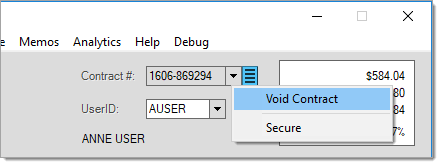
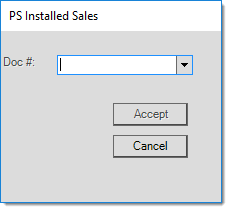
Enter or select the contract (document) that you want to void (remove).
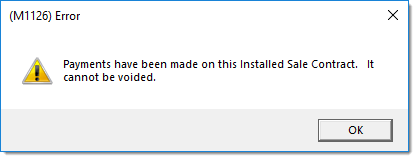
You cannot remove (void) contract that the customer has made payments on.
Instead, either mark the contract as complete or remove any linked payments and then void the contract.
If you are crediting the customer for payments they have made, this must be done manually (no automatic refunds are processed). You can remove order deposits by removing the corresponding customer order (and refunding the deposit from the order). Regular payments are not automatically handled, so cash payments should be refunded through Payables and any receivables payments or adjustments from billing must be handled using adjustments.
Customer orders previously associated with the contract will no longer reference the installed sale and will function as any other customer order would. If the orders originally held a deposit, the deposit is now automatically returned to the customer order. This must be done manually if necessary.
Resolving Other Issues with an Installed Sale Contract
The following listing provides some procedural issues customers have encountered using Installed Sales along with the steps to remedy them:
Handling Overpayments
The Linked Payments tab in the Installed transaction offers a Delete check box, which allows you to remove any payments linked to an open contract. It's a good idea to record the document ID of the payment prior to deleting since you'll likely need to take further action. Then choose Process (F12) to save the change and the payment will no longer be linked to the contract; however, this does not undo the payment transaction itself. You may need to issue a debit adjustment to a Receivables account or process a Payout to correct for cash-customer contracts.
If the payment you are removing should have been linked to another contract, you can link it manually to the proper contract in the Linked Payments tab.
Handling when the Wrong Third-Party Labor was Billed
If a third-party labor charge is wrong or billed incorrectly, you can select the row in in the 3rd Party tab, press the Delete key, and re-save the contract by choosing Process (F12). Just as with payments you remove, doing so does not undo the payable associated with the payment; however, that payable can now be reversed, linked to another contract, etc. based on the situation. If appropriate, you can then associate the proper third-party payable with the contract.
Handling Payments that weren't Linked to the Original Contract
There may be cases where a payment was processed but the user forgot to select the IS contract at the time. Payments can be linked with a contract later as long as the contract hasn't been marked complete. Do this from the "Linked Payments" tab in the Installed transaction after selecting the contract in question. You'll need the document identifier for the payment to link it.