Branch Lists
You can use Branch Lists (Maintenance > Database > Branch Lists) if you have three or more branch locations to group certain branch locations together for reporting or other purposes.
For example, if a customer's account is assigned to a Branch List for Point of Sale, and the customer does business at more than one branch location, the account will be available for Point of Sale selection/entry in each of the branches in the list.
If Salespeople earn commissions at more than one branch, you can use the Branch List to keep track of the commissions they earned.
All additions, deletions, or modifications of Branch Lists are completed in this form.
Branch lists can be used from the Account database to designate a specific branch list for determining Point of Sale or Receivables access, for example.
Adding a Branch List
To add a new Branch List:
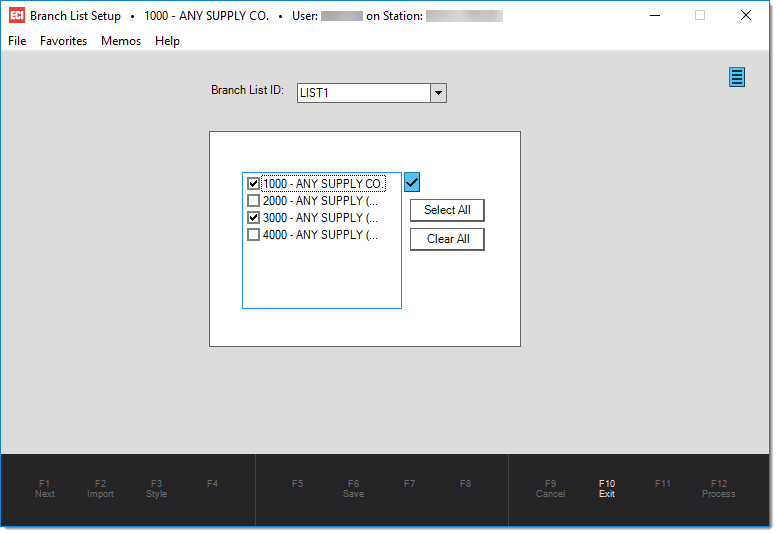
1. From the Main Menu, choose Maintenance > Database > Branch Lists. The Branch List Setup form displays.
2. In the Branch List ID field, enter the name for the branch list.
3. Select the check boxes beside each branch location you want to include in this list.
4. When all of the branches have been selected, choose the Save (F6) function key to add the list to the database.
After the Branch List is on file, you can change it in the same form.
Deleting a Branch List
You can delete a Branch List as long as it is not in use.
In the Branch List Setup form, you can delete a Branch List by displaying the list in the Branch List ID field, selecting the Menu Marker  , and choosing the Delete List option.
Modifying a Branch List
To modify an existing list, enter the Branch List name in the Branch List ID field, and select different branch ID check boxes in the list.
Then, choose the Save (F6) key.
Note: The Save (F6) key won't become active (enabled) until you make a change to the existing list's branch selections.
Selecting a Branch List in Account Selections or Reports
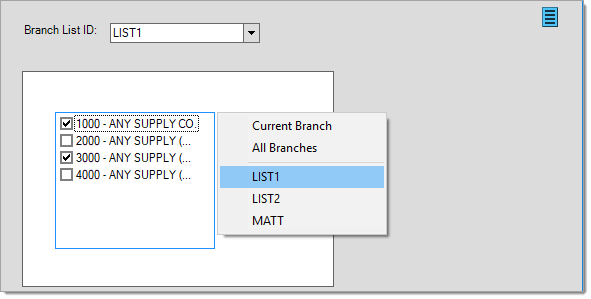
Branch Lists are available in some Branch selection lists, such as those found on reports, by clicking the Alternate Menu  icon beside the Branches list.