Find in the App
When you know you have used a feature before and you know what it is called, but you cannot remember where it is, you can use the Global Find feature to find it.
You can access this feature by selecting File > Find from any where in the application or you can use the instructions below.
To use the Global Find feature:
1. Wherever you are in the application, hold down the Ctrl key and press F at the same time. <Ctrl F>. When you do a box displays.
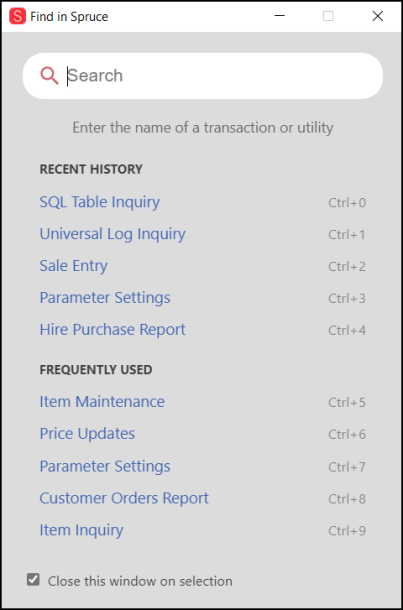
Global Find Options
To ensure that the Find box closes when you choose a form from the list, leave the Close this window on selection box checked. If you are not sure you are choosing the right form, uncheck this box to return to it quickly.
2. To narrow down your search, in the Search box, type the words that describe the form you are looking for. As you do you see a list of forms that may contain that feature.
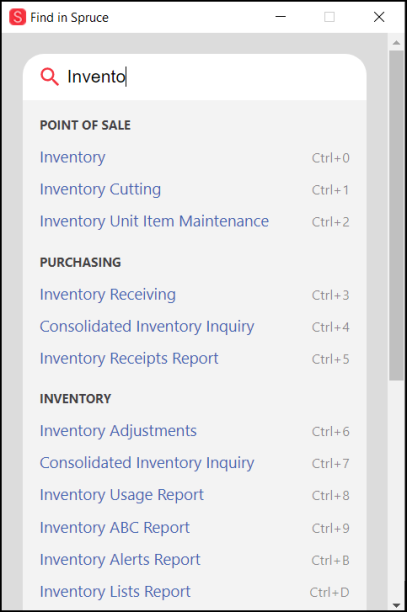
Global Find Boxes with Entries
3. When you find the form you want to open, do one of the following:
-
Press the key combination that is specified for the form such as <Ctrl 0>, <Ctrl 1>
-
Click the name of the form in the list
Finding Parameter Settings
The Parameter Settings have a big impact on the features you have access to and how the application runs. It is easy to lose track of the settings there because there are so many of them. To help with that, we have added a Parameter Settings Search feature. You must have system admin permissions to review the Parameter Settings to use this feature. Not all settings can be changed.
To search for a parameter setting in the application:
1. From the Main Menu, choose Maintenance > Database > Parameters. The Parameter Settings form displays.

Parameter Settings > Search Field Highlighted
2. In the Search field, enter the name of the feature you are looking for and click Search or press Enter. The results display and the application shows the field you requested.
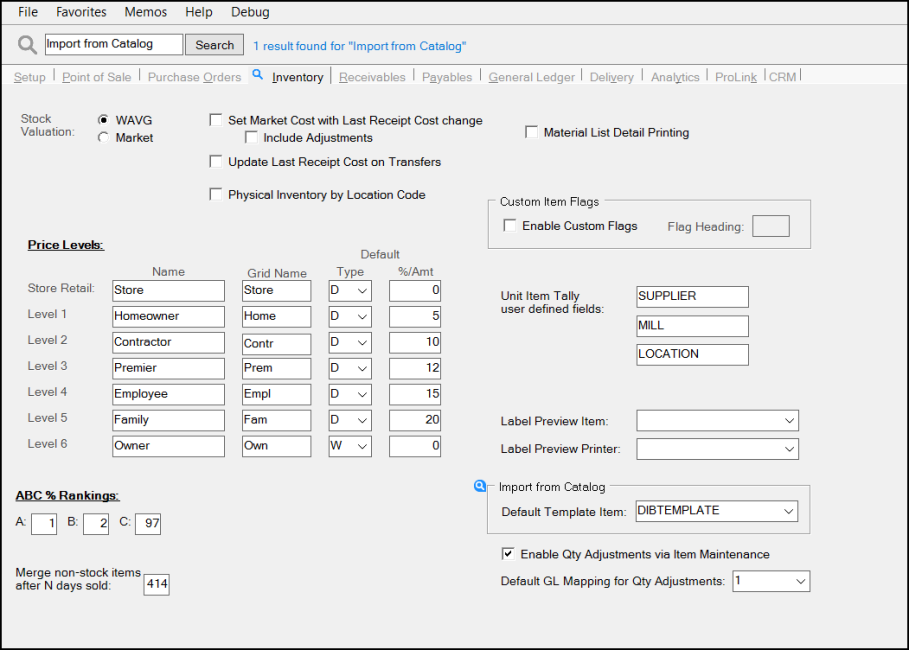
Parameter Search with Entry and Results
3. When you enter a search that has more than one result, the application displays the first option, and provides instructions for seeing the others. Choose F1 to go to the next matching parameter or <Shift F1> to return to the previous matching parameter setting.
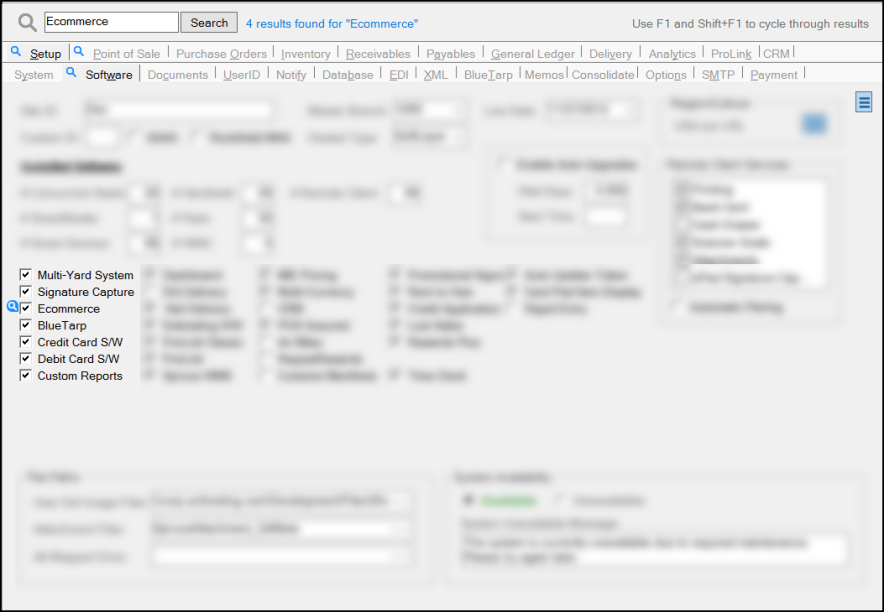
Parameter Search with Four Results - #1
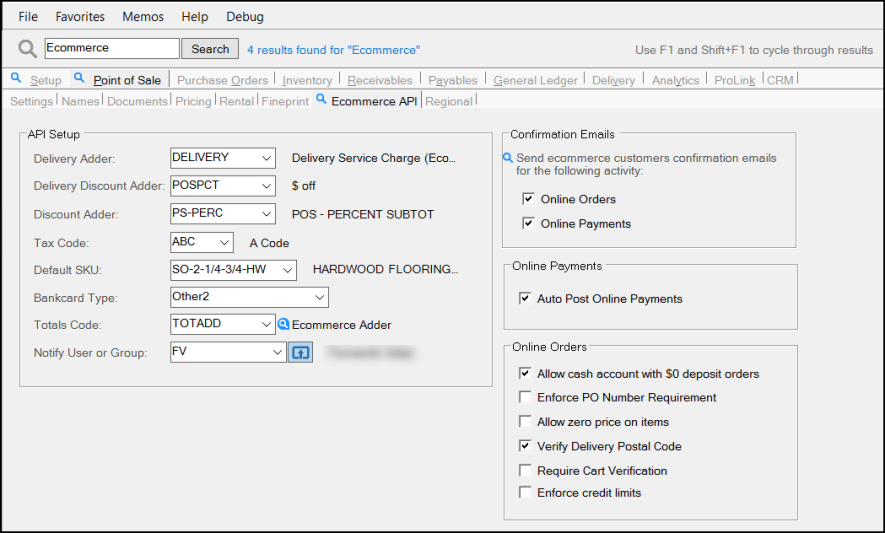
Parameter Search with Four Results - #2, #3, #4