Your Ally for the Future
Ally is your Artificial Intelligence Assistant that saves you time and builds your confidence in using the application. Instead of switching between forms and referencing help, calling a colleague, or contacting Support, you get answers right away from within the application — answers that respect your security credentials and are based on your business’s real data, not guesswork.
For it's first Spruce release, ECI is targeting four specific use cases:
-
Expert Q&A — Answers product, workflow, and troubleshooting questions grounded in the Help documentation
-
Buying Group Price Comparison — Compares pricing across buying groups (such as Orgill, Do it Best) for a SKU or purchase order and returns a buyer-ready recommendation
-
Open PO Status by Vendor — Surfaces open purchase orders by vendor, expected delivery dates, and flags overdue orders.
-
Creating a Draft Purchase Order — Using this feature, you can prepare Purchase Order drafts that are up to 500 items (lines) long. The buyer can build a new PO from prior received POs, spreadsheets, or any other type of conversation about the product in their system, including F7 build forecasting, which can pasted in to review and provide recommendations. You can see a sample of this feature here.
Looking further ahead, the road map includes capabilities such as converting a customer document directly into a quote or order (planned Q1 2027) and Inventory Administration support (planned Q2 2027 and beyond).
Ally Knows the Work and Helps Get it Done
ECI Ally is the AI built into the software customers already run, helping their team get more work done without adding more people or systems to manage. When you ask a question, Ally finds what it needs, spots what needs attention, takes the next step, and keeps work moving. When a task needs your judgment or approval, it brings you back in. Existing ECI customers can use Ally in the latest version of Spruce and RockSolid MAX. When ECI builds the next generation ERP, which is currently in progress, Ally will be built in from the start.
When you type a question into Ally, more is happening behind the scenes than it may appear. Ally is currently made up of three parts that work together to get you the right answer as quickly as it can: the Orchestrator, the Knowledge Expert, and the Buyer. You talk to one Ally, but it automatically routes your question to the right specialist.
The Orchestrator — Ally's "Front Desk" listens to your request and determines which tool can provide the best answer.
The Knowledge Expert checks for instructions in the Help System and Knowledge Base articles in the Customer Portal. If your question is about how to do something in Spruce or RockSolid MAX, or you need help troubleshooting a problem, the Orchestrator sends your question to the Knowledge Expert.
The Buyer is your Purchasing Specialist. If your question is about purchase orders, vendors, your catalog, stock availability, or creating a draft order, the Orchestrator sends it to the Buyer instead.
Over time, we will build additional tools that contribute area-specific expertise to the questions you ask in Ally. We are just getting started, and we look forward to a brilliant tomorrow!
Adding Ally Permissions to a User ID
Ally is not turned on for all users by default, but a System Administrator can add Ally to a user’s permissions in the User ID Maintenance form. As your permissions change, the application updates the Ally access to match the new credentials.
To enable access to Ally:
1. From the Main Menu, choose Maintenance > Database > User IDs. The User ID Maintenance form displays.
2. From the User ID list, choose the user ID of the person or the group you want to add Ally permissions to and press Tab. The existing credentials for that person or group display.
3. In the Security Options tab, beside the Permissions List, choose the Settings  icon.
The Permissions List for the current ID displays.
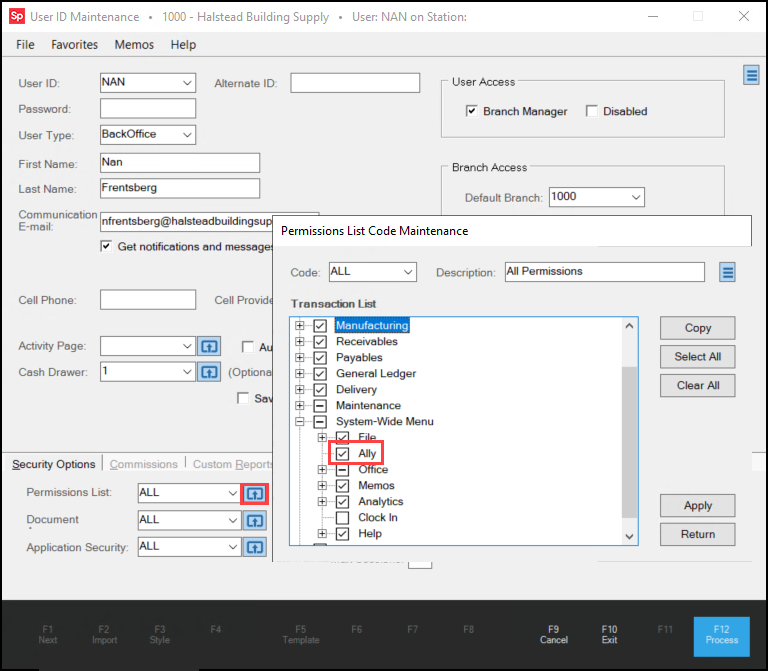
4. Scroll down to the System-Wide Menu option and expand the list.
5. Select the check box beside the Ally option and choose Apply.
6. Choose Return to redisplay the User ID Maintenance form.
7. Choose Process (F12).
8. If the user is already working in the application, ask them to log out and log back in to access Ally.
Ally respects each user’s existing permissions set throughout this form when responding to the user’s inquiries.
Accessing Ally
When an authorized user logs into the application, you have three ways to access Ally:
-
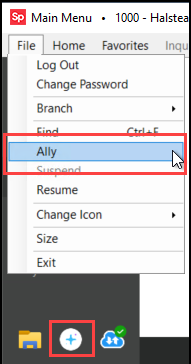
Choose the Ally
 icon at the bottom of the left menu, or
-
From the File menu, choose Ally, or
-
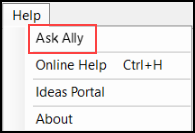
From the Help menu, choose Ask Ally.
When you choose any of these options, the application displays a new chat window:
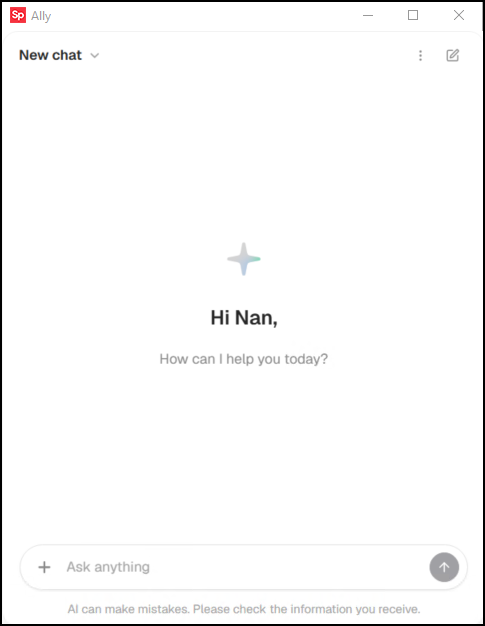
The greeting uses the First Name entry in your User ID Maintenance form to address you.
Prompting Ally for Assistance
In the Ask anything field, enter the question (prompt) you have for Ally and choose the Up Arrow to send it to Ally.

Ally searches the application data and displays a series of responses.
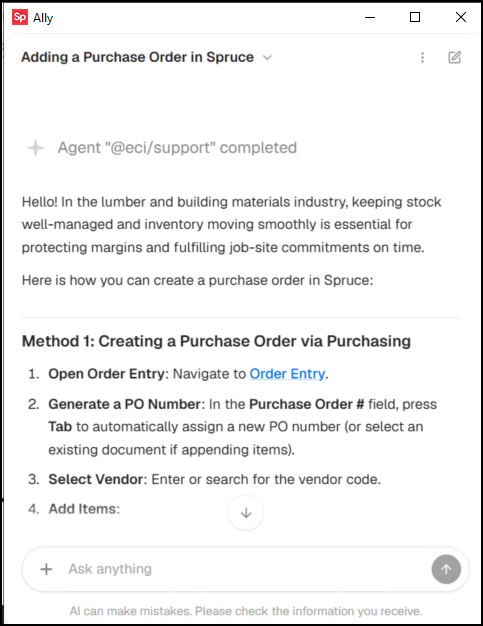
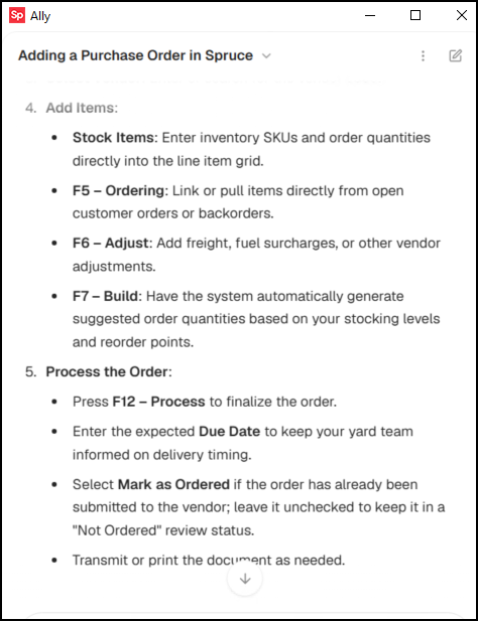
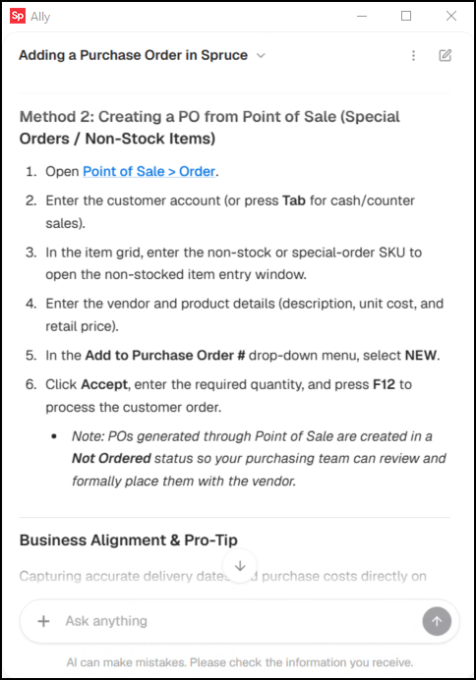
Since Ally has access to all of the content in the application, there may be more than one method in the response:
Ally may also respond with a Pro Tip, based on your inquiry:
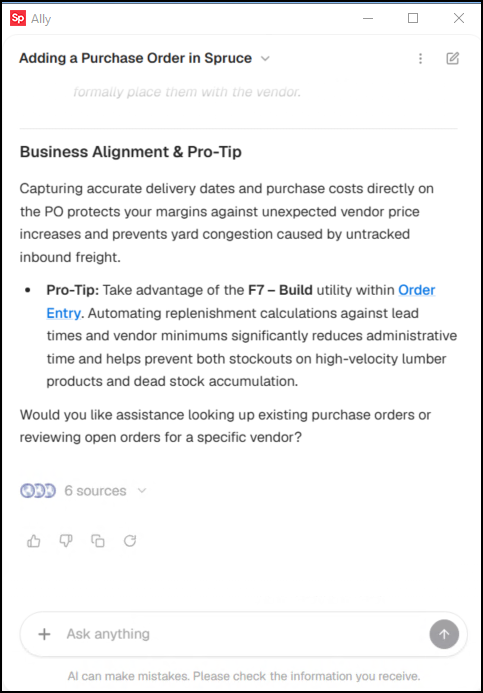
From here, you can close the form or ask a follow-up question.
To close the form, click the X in the upper-right corner.
To ask a follow-up question, enter the question in the Ask anything field.
To start a new chat, click the New Chat  icon.
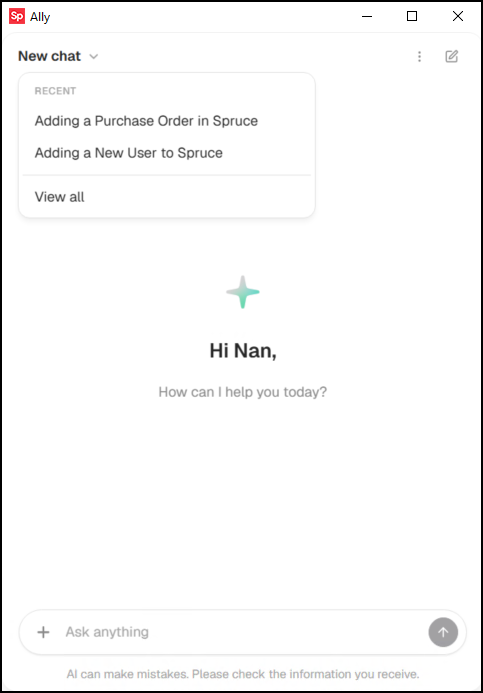
If you want to look up the chat later, open ally again and click the down arrow beside the New Chat prompt:
Creating your own Prompt Library
In Ally, you use Prompts to learn more about how to use the application and the meaning behind the data it stores for you. A Prompt Library provides suggestions to help you build effective prompts when you are learning how to work with Ally. The results you see will be based on your own data and your own use of the application… it is a great way to try out Ally and learn how it can work for you. You may want to use this prompt again over time as we build more features and capabilities into Ally.
To build your own Prompt Library, copy the following text into the Ask anything field and click Process  :
"Take a thorough review of your capabilities and create a Prompt Library, using local data as examples, that I can download and use going forward for asking questions that you can answer and provide value on"
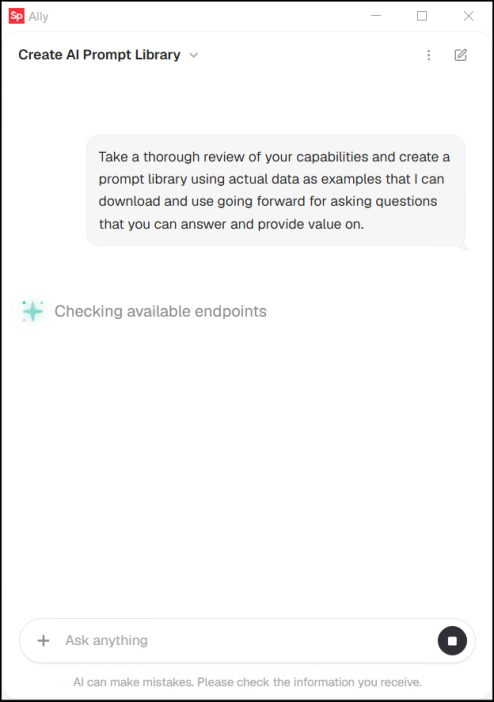
Here is a comprehensive overview of the Prompt Library capabilities, when populated with live data from your own system. You can copy and save the library below as a Markdown (.md) reference sheet for your team.
Prompt Library Guide
| Functional Area | What Ally Can Do | Data Returned / Action Taken |
|---|---|---|
| Purchase Order Tracking | Search, filter, and inspect PO headers and line items | PO #, Branch, Vendor, Status, Ordered flag, Entry/Expected dates, Total cost, Line quantities, and Costs |
| Inventory and Stock Status | Check stock levels and availability for SKUs at your signed-in branch |
Live On Hand, Committed, On Order, and Available counts, suggested retail, and cost metrics |
| Vendor / Catalog Analysis | Search vendor items, verify vendor offerings, and compare costs | Vendor details, cross-referenced SKUs, catalog pricing, and receipt history |
| PO Draft Preparation | Prepare new PO drafts from item lists or replenishment needs |
Generates pre-populated drafts ready to review and save directly in Purchase Order Entry |
| Workflow Guidance | Provide step-by-step ERP how-tos and best practice guidance | Process walk-throughs aligned with business goals (waste reduction, margin protection, stockout prevention) |
| Direct Navigation | Deep-link to forms, items, vendors, orders, and tools |
Clickable links opening forms in the application(such as, Item Inquiry, Catalog Inquiry, Help) |
Out of Scope in Ally (Must be performed in the application): Customer order listing queries without a document ID, voiding documents, branch switching, system maintenance, rebate management, file attachments,
NOTE: You can copy and paste the prompts in quotes below into your own Ask anything fields to get results!
Purchase Order Inquiries and Follow-up
Use these prompts to track purchasing pipelines, monitor overdue freight, and review recent activity.
Prompt 1: View Recent Purchase Orders
"Show me the last 5 purchase orders for branch 1000."
-
What Ally Delivers: A view of recent POs (such as, 2611-P07811, 2611-P07812) including vendor name, open/closed status, ordered flag, expected receipt date, and total costs.
Pro Tip: Always specify your branch or vendor to isolate specific purchasing channels.
Prompt 2: Overdue / Past Due PO Search
"What purchase orders are late or past due for arrival?"
-
What Ally Delivers: Open POs where the expected delivery date was yesterday or earlier, helping buyers expedite deliveries.
Prompt 3: Vendor-Specific PO Lookup
"Show me all open purchase orders for vendor OR100."
-
What Ally Delivers: A targeted list filtered to Orgill, Inc. (OR100), highlighting unreleased vs. ordered status.
Prompt 4: PO Detail Drill-down
"Show me the line details for purchase order 2611-P07808."
-
What Ally Delivers: Item-level breakdown with SKU links (Item Inquiry), item description, order quantities, unit costs, received quantities, and backorder flags.
Live Inventory & Stock Status
Use these prompts to evaluate stock posture before writing customer quotes or issuing Purchase Orders.
Prompt 1: Stock Status for a Specific SKU
"What is the stock status for SKU 000001058?"
-
What Ally Delivers: Live counts for Branch 1000: On Hand, Committed, On Order, and Available quantities, along with unit of measure and cost/retail indicators.
Prompt 2: Checking Multi-Branch Availability
"Show me the availability and on-hand quantities for item 000000051 across branches."
-
What Ally Delivers: Stock distribution for the Lessman Cup Brush across branches (such as, 1000, 2000, 3000) to support inter-branch transfers.
Prompt 3: Item Substitution and Cross-Reference
"Are there any substitutes or alternate SKUs configured for 000001059?"
-
What Ally Delivers: Configured alternate SKUs and system cross-references to satisfy customer demand when primary inventory is depleted.
Vendor Catalog and Purchasing Intelligence
Use these prompts to evaluate vendor options, replenishment costs, or verify part numbers.
Prompt 1: Items Available from a Vendor
"What items do we regularly purchase from vendor OR100?"
-
What Ally Delivers: Primary catalog assignments for Orgill, Inc., including prevailing market cost and last receipt cost.
Prompt 2: Receipt History for an Item
"Show me the recent receipt history and purchase costs for SKU 000001058."
-
What Ally Delivers: Historical PO receipt dates, vendor codes, and unit costs to analyze cost drift over time.
Purchase Order Drafting and Entry
Use these prompts to have Ally build staged drafts you can launch directly into the application.
Prompt 1: Draft a New Vendor Purchase Order
"Draft a new purchase order for vendor OR100 with 10 of SKU 000001058 and 5 of SKU 000001059."
-
What Ally Delivers: Validates station capability, checks line counts, and provides a direct staging link to Purchase Order Entry with the draft ready for review and saving.
Prompt 2: Quick Staging from Reorder Quantities
"Create a PO draft for vendor EMERY for item 000000051 with quantity 24."
-
What Ally Delivers: Staged PO link ready for buyer verification.
ERP Navigation and Document Lookup
Use these prompts to jump to related documents and transaction entry screens quickly.
Prompt 1: Direct Document Jump
"Open customer order CO-10042."
-
What Ally Delivers: Direct navigation link to load the order in Point of Sale > Orders.
Prompt 2: Form Navigation
"Take me to Catalog Inquiry for vendor OR100."
-
What Ally Delivers: A pre-filtered link to Catalog Inquiry.
Prompt 3: Payment Session Jump
"Where do I enter a Receive on Account payment?"
-
What Ally Delivers: A direct link to Point of Sale > Payments with Receive on Account pre-selected.
Operational How-Tos and Business Best Practices
Use these prompts for guidance on configurations, margin protection, and inventory workflows.
Prompt 1: Customer Order Management Workflow
"How do I review open customer orders and release them for delivery?"
-
What Ally Delivers: Step-by-step guidance under Point of Sale > Order, tying the workflow to reducing yard congestion and delivery bottlenecks.
Prompt 2: Cost & Margin Optimization
"Walk me through how prevailing market costs affect our POs and pricing tiers."
-
What Ally Delivers: Clear walk-through explaining the distinction between average cost, last receipt cost, and market replacement cost to safeguard gross margins.
Best Practices When Prompting Ally
1. Be Specific with Identifiers: Providing exact SKU numbers (such as, 000001058), PO Document IDs (such as, 2611-P07808), or Vendor codes (such as, OR100) yields precise results without round-trip clarifications.
2. Specify "How-To" vs. "Lookup":
-
If you need steps: Say "How do I..." or "Walk me through...".
-
If you need live data: Say "Show me...", "What is the stock status of...", or "List the open POs for...".
3. Save PO Drafts Promptly:
Launch drafts created through Ally are staging mechanisms. Always click the generated Purchase Order Entry link to review totals and terms, then click Save/Process.
Copying/Pasting an Ally Conversation
To share what you have learned from Ally, you can copy and paste the conversation text from the application into a local email or another text-based platform.
To copy an Ally conversation:
1. At the top of the Ally form, click the More  icon. The term Copy Conversation displays.
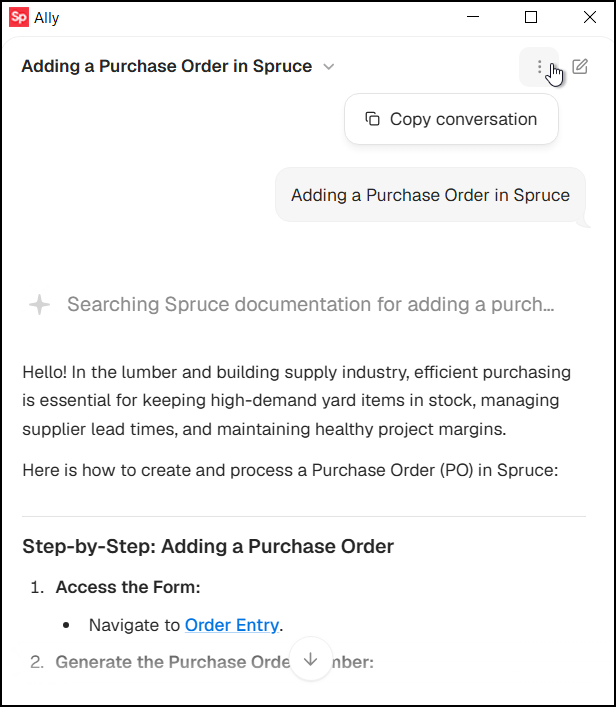
2. Click the Copy Conversation term.
3. Go to the platform you want to paste the information to, such as email, or another text-based app (Word, notetaker, etc.).
4. Right-click the mouse and choose Paste.
The content from the Ally conversation pastes into the platform you selected:
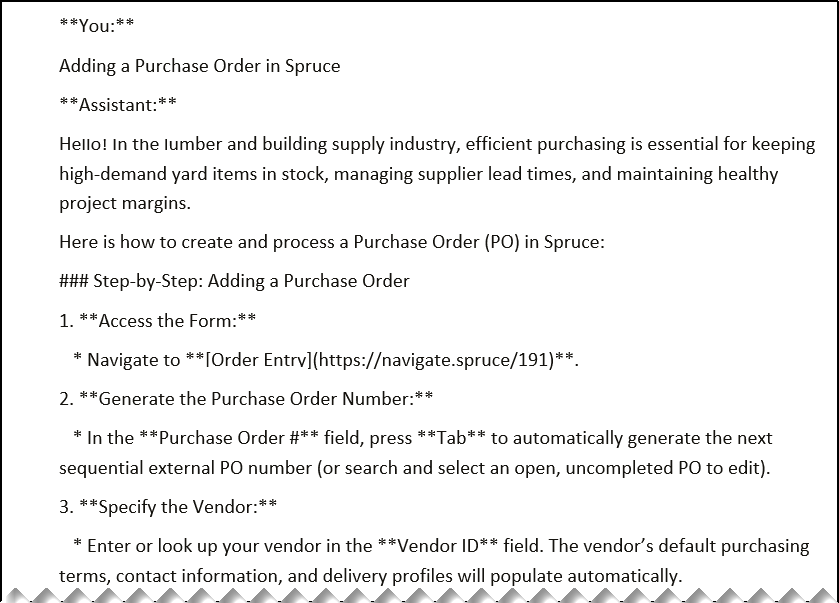
Building Purchase Order Drafts with Ally
You can use Ally to build draft Purchase Orders with up to 500 line items. Then you can ask Ally to build the draft for you. When the draft is ready, Ally gives you a link you can use to apply the draft PO right to the application. You do not need to type in the items by hand. Below is a recommended path for using Ally to draft a Purchase Order as an example.
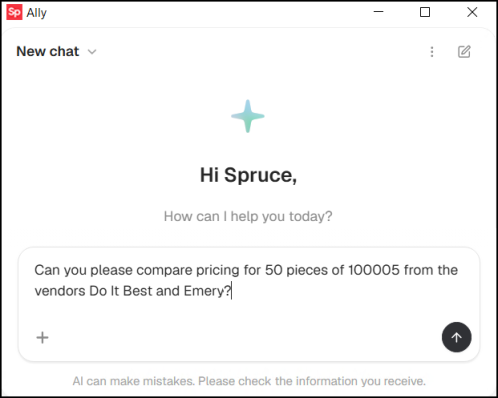
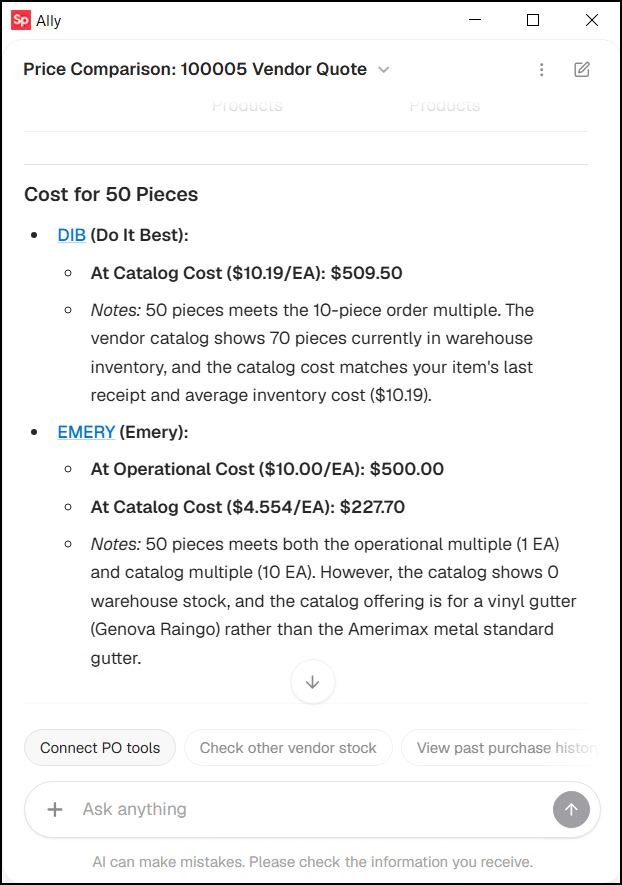
Start by comparing vendor prices for the items you are buying by asking Ally to research vendor pricing. That way, you are sure you are getting the best price before drafting the purchase order.
1. Click the Ally icon to open the Ally prompt.
2. Type in your request, such as the example below, and click Process  :
Ally responds with something like:
3. In the Ask anything field, follow up with "Draft a PO for the better-priced vendor" and click Process .
Ally considers your request, chooses the correct vendor, and displays a response:
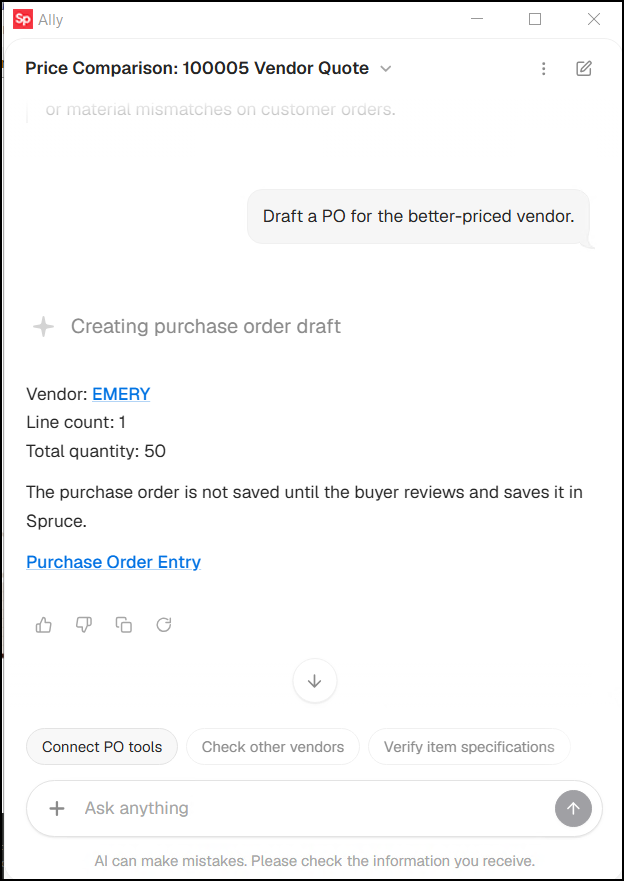
4. Click the Purchase Order Entry link to display the Purchase Order already in progress:
Note: Ally does not submit purchase orders for you; you must confirm the purchase order details are right.
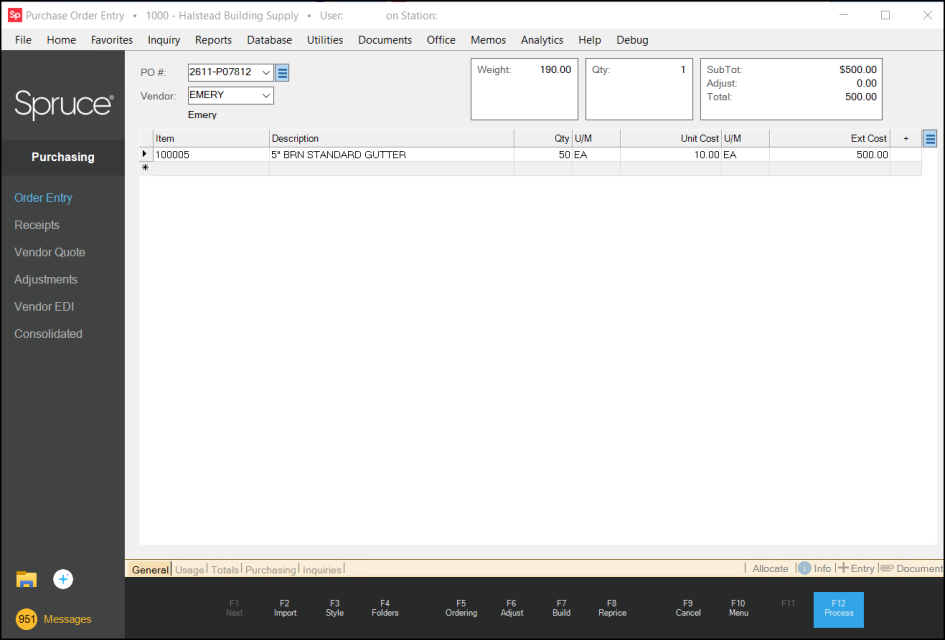
5. From here, you can modify the Purchase Order information, add additional items to the purchase order, and choose Process (F12) to generate the PO, or choose to Cancel (F9) to continue.
Ally Remembers Your Conversation
When you ask Ally a follow-up question in the same chat, Ally remembers what you talked about earlier, including the vendor, items, quantities, and any savings from earlier in the chat. You do not need to repeat yourself. For example, here are some follow-up questions you can ask after a draft is created without starting over:
-
"How much did we save compared to our last order?"
-
"What was the vendor we used?"
-
"Can you show me the status of that purchase order?"
-
"What items are on negative on hand?"
Keep your questions in the same chat window to get the best results. If you start a new chat, Ally will not have the context from your previous conversation.
Understanding what Ally Can Tell You and Cannot Tell You
Ally uses your existing application credential settings to qualify its responses to your questions. For example, if your user permissions do not allow access to inventory costs or item quantities in other branches, or you cannot access a specific form in the application, Ally respects those boundaries. Ally communicates these restrictions clearly rather than returning incomplete or inaccurate results.