True Value > Promotions (Bargains of the Month)
The True Value Bargains of the Month Promotion offers special pricing for a set time. Promotions can be linked to a conference or trade show, or may consist of seasonal specials, advertised sales, etc. for RockSolid MAX users. This topic describes:
-
The process for retrieving the promotional pricing from True Value
-
Selecting the promotional items (and quantities) you want to include in your inventory
-
Ordering the promotional items from True Value
-
Updating the received items with the promotional pricing for the duration of the sale
We recommend that you download the promotional data every couple of weeks to see whether it applies to your customers.
Downloading the Promotion Information
To download the Bargains of the Month promotion from True Value:
1. From the Main Menu, go to Purchasing > Vendor EDI. The Vendor EDI Communications form displays.
2. From the EDI Interface list, choose the True Value interface, and from the Vendor list, choose the vendor ID.
3. Choose the Extras button.
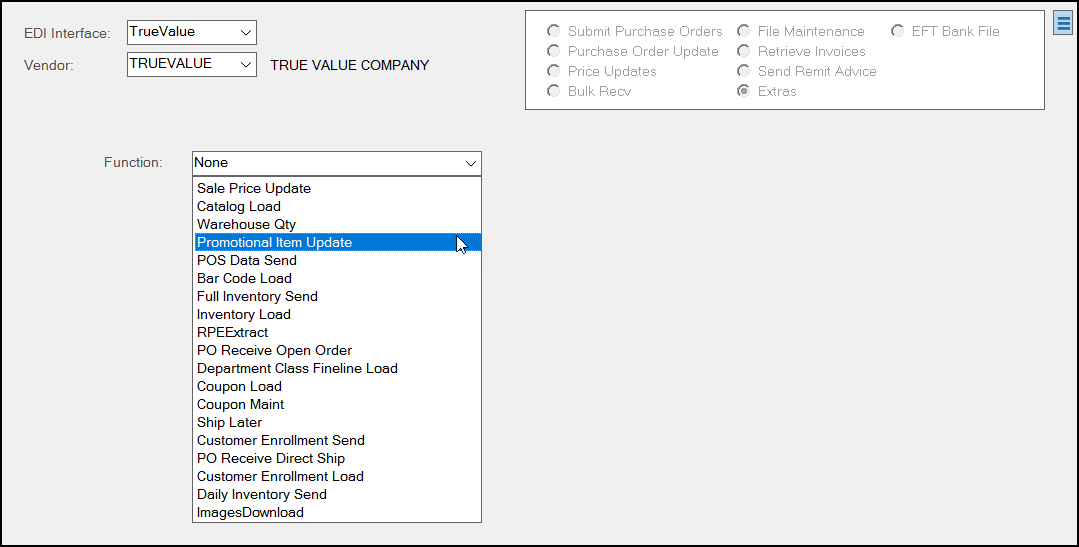
4. From the Function list, choose the Promotional Item Update entry.
5. Choose Retrieve (F5). The Scripting message displays.
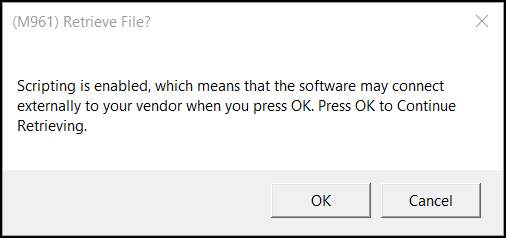
6. Click OK.
You may need to select an existing file to update, but the application will prompt you to do so.
Choosing the Items from the Promotion List
Next you need to choose the items you want to order from the downloaded promotion list.
1. After the file is downloaded, go to Inventory > Utilities > EDI Promotions. The Vendor EDI Promotions form displays.
2. From the Promotion list, choose the promotion you want to update:
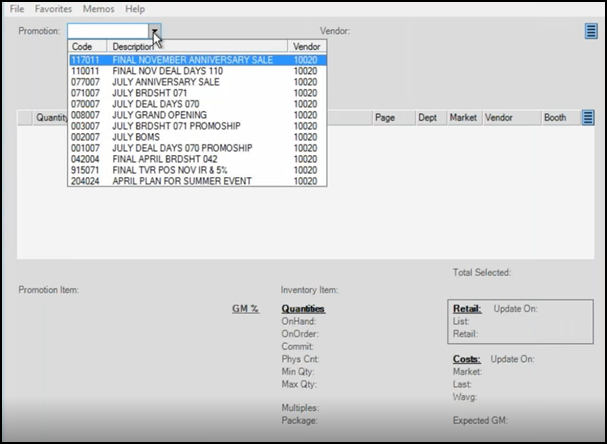
Note: If you see the word Final in the promotion description, that is the best choice, as everything has been added and finalized by True Value for that promotion. Make sure to check the Dates to confirm the promotion is active.
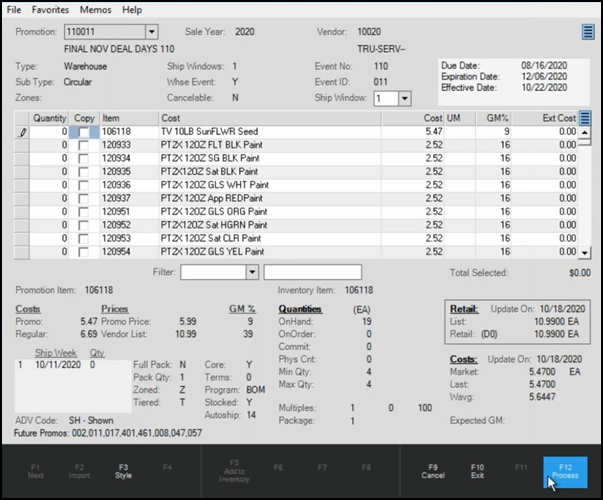
3. To add items in the list to your order, enter the item quantity in the Quantity column and click the Copy check box.
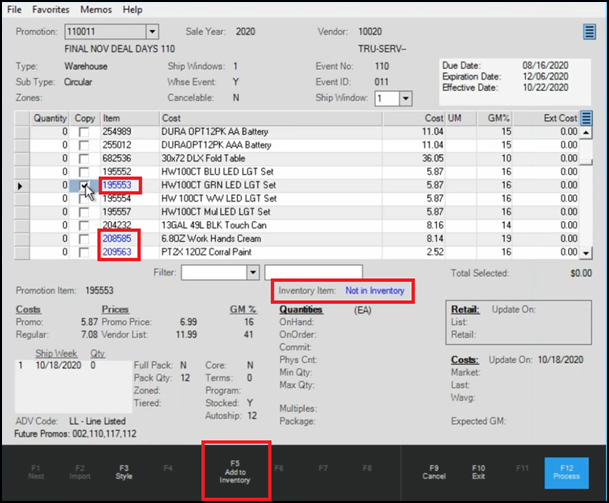
Note: Item IDs in blue are not currently in your inventory but are in the True Value catalog.
To add the item to your inventory, enter the quantity you need, select the Copy check box, and click Add to Inventory (F5).
4. When you have completed your promotional order selections, choose Process (F12) to complete the order list.
Now, you are ready to place the order through the Purchasing process.
Completing the Promotion List Order
Now that the promotion order list is complete, you are ready to complete the order.
To import the promotion order list and send the order to True Value:
1. From the Main Menu, choose Purchasing > Order Entry. The Order Entry form displays.
2. From the PO# list, choose the next PO ID, and from the Vendor list, choose the True Value ID.
3. Click the Ordering (F5) key and choose the Vendor Promotion option from the context list. The Vendor Promotion Selection list displays.
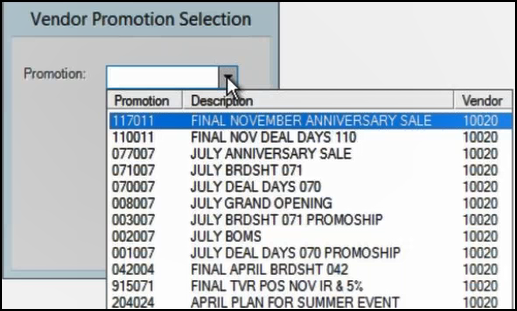
4. Choose the vendor promotion from the list.
The items you selected in the previous section display in the data grid.
5. Check the list to ensure all the items you selected display and the quantities are correct for your order.
6. When you are ready to place the order, choose Process (F12). The Purchase Order Document form displays.
7. Choose the Transmit > EDI tab.
8. In the Promotion/Bulletin field, enter the True Value-specific promotion information. True Value needs this to apply the promotional pricing for this order.
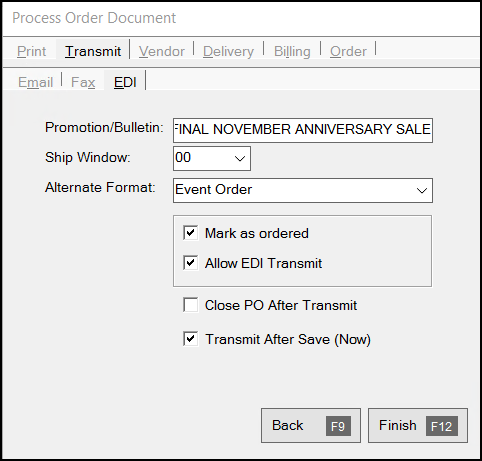
9. From the Alternate Format list, choose the type of order you are placing. Typically, this is Event Order, but this can depend upon the type of promotion you are working with.
10. Choose the Mark as Ordered check box.
11. Choose the Allow EDI Transmit check box.
12. Choose the Transmit After Save (Now) check box.
13. Return to the other order tabs to ensure the delivery, printing, and billing information is correct.
14. Choose Process (F12) to transmit the order to True Value using the EDI process.
To check to see if the order is processed, continue using this process:
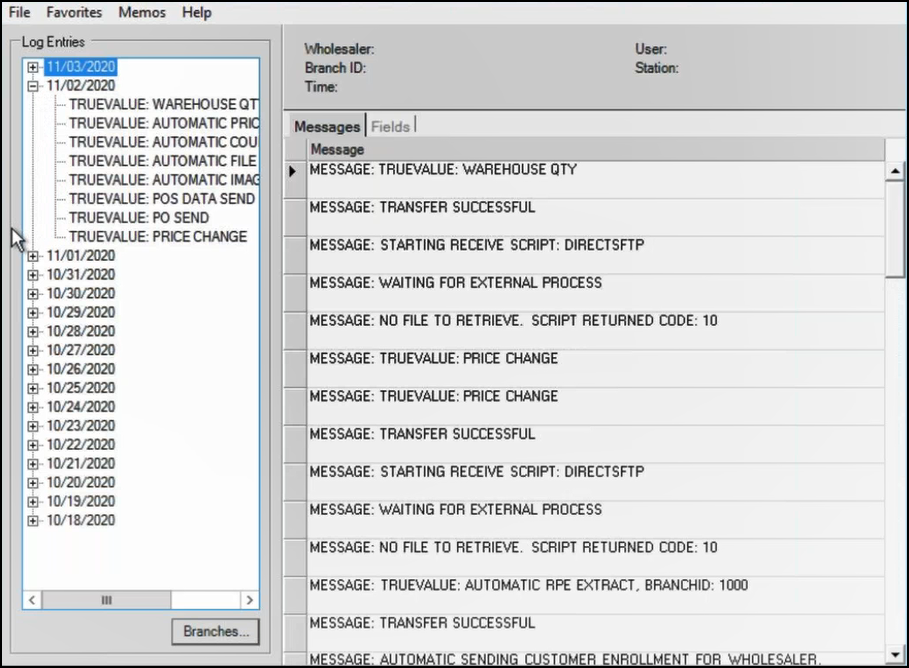
1. From the Main Menu, choose Purchasing > Inquiry > EDI Log. The EDI Log Inquiry form displays. The date fields display the current date by default.
2. Choose View (F5) to display the list of EDI processes completed for the current day.
Preparing the Promotional Items for the Sale
After you receive the promotional items into inventory, use the following process to define the sale period and apply the promotional pricing to the items you purchased.
1. From the Main Menu, choose Inventory > Price Updates. The Price Updates form displays.
2. Choose Sale Item Setup to display the price update settings for the promotion.
3. Choose Import (F2) and choose Vendor Promotion from the context list.
The Vendor Promotion Selection list displays.
4. Choose the promotion you are importing from the list and click Accept.
The application fills in the date fields based on the file you imported, and the Promo ID displays.
5. Choose the Auto Apply check box.
6. Choose Process (F12) to apply the promotional prices to the selected items in inventory for the specified duration.