Functions
The following activity specific functions are provided with the Receipts transaction: receiving, adjust, reconcile, and reprice.
The Receiving (F5) function is used to enter or select a purchase order for receiving. Purchase orders are created from the Order Entry activity in the Purchasing application. Once a purchase order(s) has been selected, the items from that order will be displayed in the grid where changes may be made prior to processing (F12). For an alternate method of receiving, see the "Reconcile" function below.
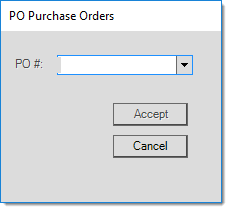
PO Purchase Orders (Selection)
As in many other activities, there is a standard function name Import (F2). This function also offers a "purchase order" option (as well as a "document" choice) and appears very similar to the Receiving (F5) function; however, there is a difference. Importing a purchase order will not mark that order as received; no linkage is created. Import is simply a "copy" function that duplicates an existing document's items without actually updating the document type copied from.
Adjust (F6)
The Adjust (F6), Adjustment Entry dialog is used to specify positive or negative dollar adjustments to the receipt. Up to three (3) adjustments can be associated with a purchase order (or receipt). Vendors can be assigned one (1) or two (2) default adjustment codes. If a vendor's default codes are "purchasing" type adjustments, they will automatically be added to the order when the vendor is associated with the PO (Purchase Order). Receiving type adjustments aren't added until time of receipt. Adjustments either increase or decrease the cost of the items when received and change the amount due to be paid the vendor. Freight, fuel charges, and discounts are some examples of adjustments.
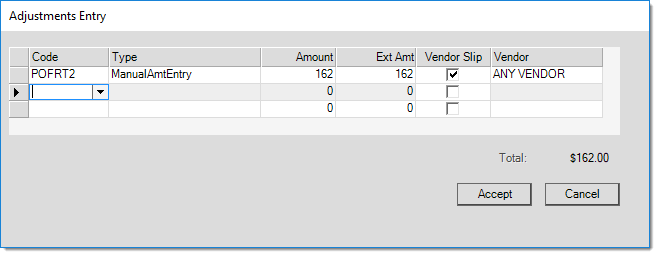
Order Entry: Adjust (F6), Adjustment Entry
When processing an adjustment, select or enter the adjustment code from the drop down. The "type" field determines how the extended amount for the adjustment will be determined, but not how the adjustment is to be applied to item costs. Choices include: manual entry, percent of sub-total, and per MBF/MSF (thousand board or square foot).
Regardless of the "type" selected, adjustment amounts are applied to the cost of all items on the receipt based on the item's percent of the sub-total (extended cost). Adjustments do not re-calculate their extended totals when items are added or removed after the adjustment is saved.
The "percentage of sub-total" type calculates an extended amount based on the percentage entered in the "amount" column and the current sub-total of the receipt.
The MBF/MSF type only applies when the purchase order includes items with a measure of thousand board (or square) feet. Despite the fact that the amount entered calculates an extended amount based on the per MBF/MSF amount, the adjustment will still be applied to the cost of all items (even those with no MBF/MSF measure) based on the extended amount of the item as a percentage of the sub-total. In other words, items with a larger extended cost will receive larger adjustments than those with a lower extended cost.
Check the "vendor slip" box if the adjustment should create a separate A/P item. When done, both items will appear with the same receipt document number in A/P but as 2 separate entries. They can be invoiced independently or together at that time. If left unchecked, the amount of the adjustment will be included along with that of the receipt document.
Where are Adjustment Codes Setup?
There is a database for Adjustment Codes that can be accessed from the "Database" drop down menu on both the Purchasing and Point of Sale application areas.
The Reconcile (F7) function is used to compare the items current status in the Receipt transaction's grid to those on a purchase order you select for comparison. This allows a receiver to do one of two things: (1) in place of receiving from a purchase order directly, they can scan or enter the items to be received into the grid then compare the results with an existing PO, or (2) they can still use the receiving function, but after making changes to the receipt, they can go back and compare the current contents of the grid with the original PO for review.
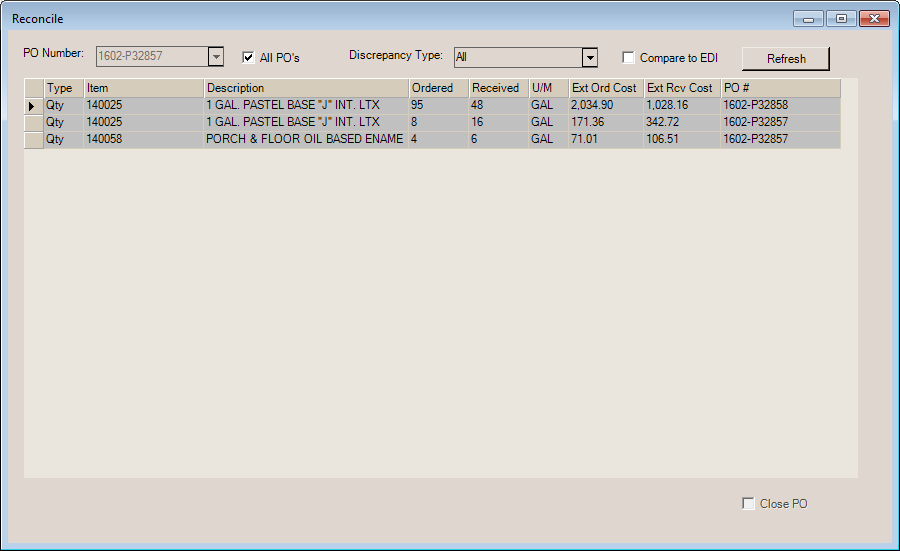
All PO's
If the receipt involves more than one purchase order, the "All PO's" check box can be used to provide discrepancies for all the purchase orders involved rather than require individual selection. The "close PO" check box is disabled in this case since the close code is not designed to handle the close of more than one purchase order.
Discrepancy Type
Use the "discrepancy type" field to select the type of differences to be viewed. Choices include: all, quantity (qty), cost, and items with no purchase order # (No PO). Only items representing a variance from the PO (or EDI figures) will be shown. If any records meet both the conditions for both a cost and quantity discrepancy, they will only be listed as quantity discrepancies.
Compare to EDI
The "Compare to EDI" check box determines how the ordered quantity ("Ordered") and extended order cost ("Ext Ord Cost") columns are populated. EDI means "Electronic Data Interchange" and refers to automated or semi-automated processes that update your Purchase Order electronically. EDI is only available with specific vendors and may require additional software and services. Additional setup and/or support fees may apply in some cases.
•If the "Compare to EDI" check box is not checked, the ordered quantity is the quantity for the item from the Purchase Order converted to the item's BASE quantity unit of measure. In this same case, the "extended order cost" column is the "final" cost of the purchase order (includes adjustments) less the total extended cost that was previously received.
•If the "Compare to EDI" check box is checked, the quantity in the "ordered" column is reset to match the EDI Quantity reflected using the item's BASE unit of measure. Added to the EDI Base Qty is any quantity for the item that was previously received (so back orders would affect this figure). The "extended order cost" column is the EDI extended cost less the total extended cost for any previously received amount of the item on the same PO.
•In both cases, the Received and Ext Rcv Cost columns are the quantity and cost currently designated for the item in the Receipts grid area. These don't change based on the check box selection.
Close PO
If checked, the purchase order will be closed upon processing of the receipt. This only applies in the case of a single purchase order selection, not the "All PO's" option.
Note: if your vendor is assigned to a "receipt" terms code, most extended costs on the receipt will be different from the original PO because "vendor" terms are not added until receiving. This can cause the reconcile to report all or most items as cost differences.
Reprice (F8)
This function is available for both Order Entry and Receipts transactions in the Purchasing area and is used for making adjustments to cost pricing using a variety of methods. Repricing can be applied to either all items or just those selected (highlighted in the grid) by the user. Some fields are hidden/shown based on the radio button (option) selected.
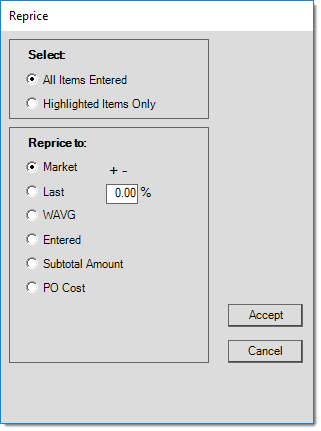
Market (Current Market Cost)
This option reprices the unit costs of the selected items by a percentage (+/-) using the items' current market cost. Market cost is the default entry cost for new purchase orders and receipts. Negative (-) percentages reduce costs, positive percentages increase costs. Using this method with a percentage of zero essentially provides the closest option to a "reset" when done on a new purchase order (unless market cost has changed for any items in the interim).
Last (Last Receipt Cost)
This option reprices the unit costs of the selected items by a percentage (+/-) using the items' last receipt cost. Negative (-) percentages reduce costs, positive percentages increase costs.
WAVG (Weighted Average Cost)
This option reprices the unit costs of the selected items by a percentage (+/-) using the items' weighted average cost. Negative (-) percentages reduce costs, positive percentages increase costs.
Entered
This option allows you to adjust the unit costs on the selected items by a percentage (+/-) using the current unit costs displayed in the data grid (includes any "entered" or manual changes to the item costs made by the user). Negative (-) percentages reduce costs, positive percentages increase costs.
Subtotal Amount
Specify a subtotal amount for either all items or the item rows currently selected in the data grid (use the "Select" panel to designate the method). The item or items indicated will be adjusted so that their extended (cost) amounts sum up to the subtotal specified. The subtotal amount is prorated by the percentage of each selected item's extended amount compared with the total of all the extended amounts for those same selected items. Adjustments (aka. adders) are not included.
PO Cost
This option provides the ability to select an existing Purchase Order document matching the current vendor to be used as a basis for repricing the selected items using the costs from that document.