Purchasing > Close Receipts Utility
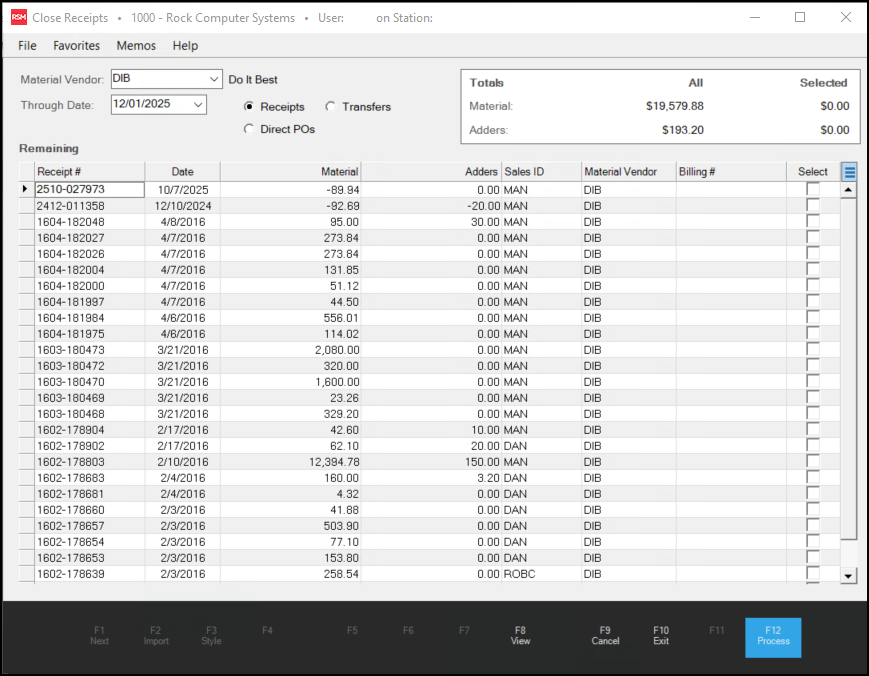
Use the Close Receipts utility to change the status of inventory purchases (based on receipts) so that they no longer appear in
When would I use this Utility?
There is one reason you might use this utility:
-
Use this utility to close a receipt that was invoiced and has already been paid or partially paid.
Automatically Closed Receipts
Some receipts are generated automatically by other types of processing in the application. A few operations that can generate "closed" receipts are item merges, manufacturing, and item returns. These typically use the vendor "MISC."
Using this Utility to Close Receipts
1. From the Main Menu, choose Purchasing > Utilities > Close Receipts. The Close Receipts form displays.
2. From the Material Vendor field, choose the vendor you want to close receipts for or to find open receipts for all vendors, leave this field empty.
3. In the Through Date field, select an ending purchase date. The Receipts field is selected by default.
4. Choose the View (F8) function to display the matching open receipts in the grid.
5. After the receipt documents are listed in the data grid, use the Billing # column to associate the payable receipt with the original vendor invoice.
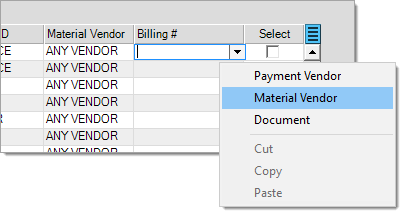
In this list, all open invoices display and they are sorted in descending order by the document ID (the newest documents appear first). You can filter the selection list by right-clicking the Billing # down arrow anc choosing the Payment Vendor, Material Vendor, or Document option to choose a different sort order.
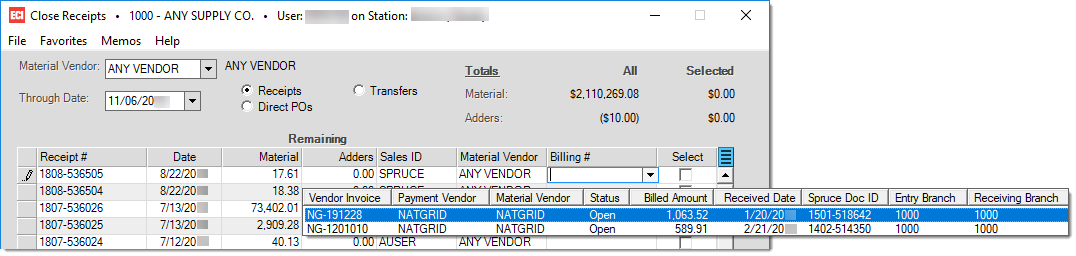
Based upon your selections, if any, a listing of invoices matching your criteria displays.
6. After you choose the matching payable invoice, choose the Select check box in that row.
Note: Only those receipt rows with the Select check box enabled will be closed upon processing.
7. Repeat steps 5 and 6 for each receipt you want to close in this session.
8. Select Process (F12) to mark the selected receipt documents from the grid as closed.
Use the Cancel (F9) function to clear the grid without processing or choose Exit (F10) to close the form window (or just click on the "X" button).
Locating Receipts that were Closed Manually
If you are looking for manually closed receipts, there is a Custom Report in the Purchasing area called Closed Receipts by Vendor. You can download this report for free from the Customer Portal. After you download this report, you can run it using the instructions below.
1. From the Main Menu, choose Purchasing > Reports > Custom Reports. The ActiveReports tab displays.
2. Choose the Closed Receipts by Vendor report row by double-clicking the box to the left of the report. The Report Parameters display.
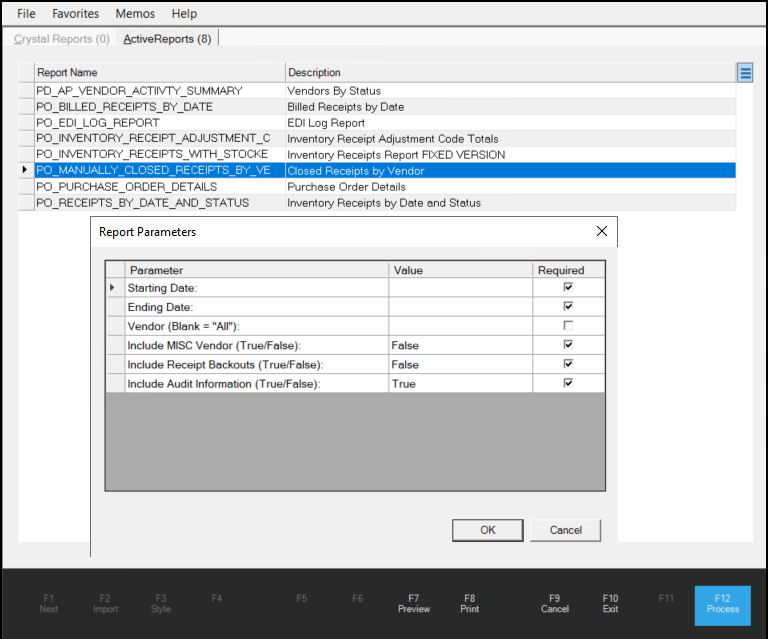
3. In the Value field of each parameter, enter the date range and vendor ID of the receipts you are looking for. The required entries are specified in the Required column.
4. When you have completed your entries, click OK to generate the report.
You can use this report to find receipts that were closed manually using this utility.