Using the Private Supply Network for EDI Transmissions
The Private Supply Network (PSN) is ECI's own Private Value-Added Network product that receives, stores, and transmits EDI messages both securely and efficiently. The Private Supply Network offers services beyond basic data transmission, such as message tracking, error detection, and data translation. The on-boarding process is more streamlined and simplified, which reduces the time and effort required to establish new Vendor EDI connections. Your business will now have a centralized and scalable system to manage EDI communications as well as provide better support for issues typically associated with EDI connections. We have updated the PSN with the data required for all customers to use this process as your vendors come online. Support can set up the PSN for you as described here.
The first implementation of this Private Supply Network (PSN) technology is for retrieving and updating your database with the Ace Hotsheets, promotions, and purchase order updates, but we will be migrating our EDI vendor processes to this platform over time. After you set the PSN infrastructure up, the data retrieval process will work as it did before, but you will have more retrieval options, they will be more efficient, and there will be new features in place to prevent errors, which we will discuss below.
Using the PSN Endpoint
We have updated the application’s EDI processes to download ACE Hotsheets using the PSN endpoint and we will continue to add new endpoints until we can support all vendor EDI processes using this platform. Hotsheets contain the changes in item pricing that are built over the course of a single day, so each day, ACE builds a new hotsheet containing that day’s changes. To ensure you receive a full day of these changes, this endpoint provides access to the previous day’s hotsheet only.
We have added a new Date field to the Vendor EDI Communications form for ACE Hotsheet and Purchase Order Update transmission requests. This field lets you specify the date the hotsheet or invoice was generated.

The Date field defaults to the previous date. The application ensures the transmission accounts for any server offset hours that may apply to the transmission request.
Note: You cannot retrieve data for the current date because the vendor can add new information all day; making a request before the day ends could result in an incomplete list of updates.
For invoices, we have added an Invoice Action Flag to ensure that you do not download the same invoice twice. However, if you request it, you may download the same Hotsheet twice.
Retrieving and Transmitting Data using the PSN Process
After you enable the PSN parameter settings and the branch and vendor settings are complete, you can send and retrieve vendor information using largely the same process as before. For the PSN-based transmissions, we have added a Date field to allow you to specify the date for these EDI requests. When you select a date in this field, the vendor sends the records you requested for the previous day.
Note: If the vendor sent you the current day’s records, any records that change after the time you send the request would not reach you; therefore, they send the complete records for the previous day.
It may be possible to retrieve data from another day. Contact your vendor’s customer services team to see if they can respool your data so you can download it again.
This is an example for using the PSN process to retrieve data from a vendor.
To retrieve ACE Hotsheets and Promotions using the PSN process:
1. From the Main Menu, choose Purchasing and from the Left Menu choose Vendor EDI. The Vendor EDI Communications form displays.
2. From the EDI Interface list, choose the vendor’s name, in this case, ACE.
3. From the Vendor list, choose the vendor’s vendor ID, in this case, ACE.
4. Choose the Hotsheets button in the list.
5. In the Date field, leave the previous date selected.
6. Select the Include Items With No Price Change check box if you want to include all items or leave this check box blank to retrieve items with price changes only.
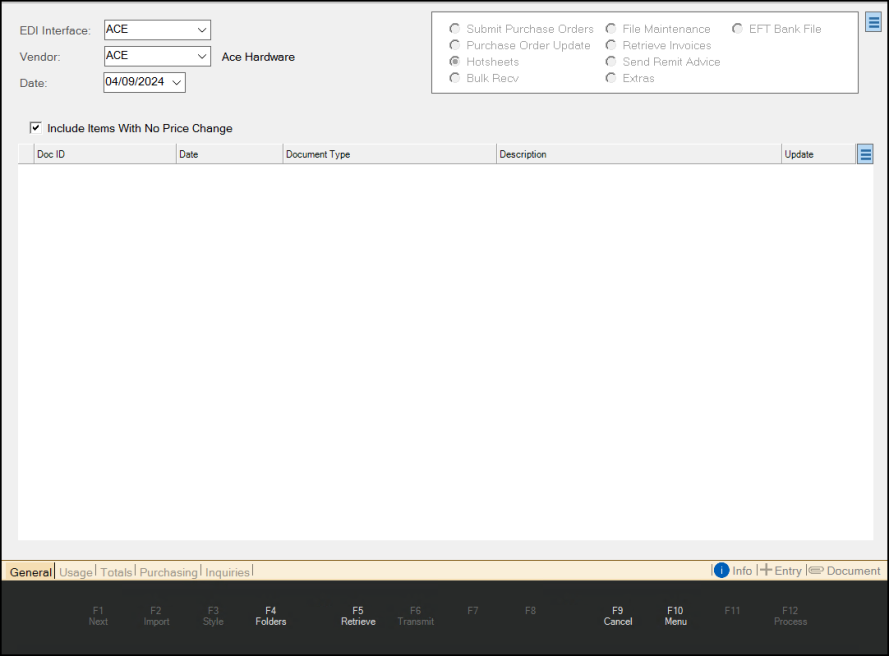
Vendor EDI Communications with ACE PSN Entries
7. Choose the Retrieve (F5) key. The Retrieve File confirmation message displays:
-
Scripting is enabled, meaning the software may connect externally to your vendor when you press OK. Press OK to Continue Retrieving.
8. Choose OK to continue. The Open box displays.
9. In the Open box, choose a folder for the new file and enter a file name in the Filename field. Then, choose Open. The application retrieves the hotsheets and promotions that are available.
The application retrieves the file(s) you requested and saves it/them to the folder you specified. A confirmation message displays when the retrieval process is complete. The application also reports if the retrieved file(s) contain(s) no new data.
Importing/Processing Purchase Order Invoices using PSN
PSN also allows you to import and process purchase order invoices as you did before. This process assumes you have set up the Branch EDI settings for the vendor as discussed above. The results of this process are the same, they just use a different endpoint. Currently, this process is supported for ACE Purchase Orders, but eventually, you will use this process to retrieve all vendors purchase orders.
To retrieve purchase order updates and create invoices:
1. From the Main Menu, choose Purchasing and from the Left Menu choose Vendor EDI. The Vendor EDI Communications form displays.
2. From the EDI Interface list, choose the vendor’s name, in this case, ACE.
3. From the Vendor list, choose the vendor’s vendor ID, in this case, ACE.
4. Choose the Purchase Order Update button in the list. The Date field displays the current date.
5. From the Date list, choose the invoice date of the purchase orders you want to retrieve.
6. Choose the Retrieve (F5) key. The Retrieve File confirmation message displays:
- Scripting is enabled, meaning the software may connect externally to your vendor when you press OK. Press OK to Continue Retrieving.
7. Choose OK to continue. The Open box displays. The application updates the data grid with the invoice(s) you requested, when they are available.
8. In the Doc ID column of the data grid entry, click the down arrow and choose New to create a new invoice document for the downloaded purchase order. Complete this step for each entry in the data grid.
9. Choose Process (F12) to create the invoice documents.
After you complete this step, you can receive the purchase order(s) in receipts.
10. From the Main Menu, choose Purchasing and from the Left Menu choose Receipts. The Inventory Receiving form displays.
11. From the Vendor list, choose the ACE vendor ID.
12. Choose the Receiving (F5) key to display the context list.
13. Choose Purchase Order. The PO Purchase Orders box displays.
14. From the PO# list, choose the new purchase order (invoice) you just imported and click Accept. The Inventory Receiving data grid updates to show the item associated with the purchase order invoice.
15. Choose Process (F12). The Process Session Document box displays.
16. Choose Finish (F12) to complete the document import process.
Transitioning from X12 EDI to PSN to Improve Security
The PSN API will provide a translation layer between Spruce/RockSolid MAX and your vendor’s platform if they use the X12 EDI specification, which is more secure than the existing platform. If your vendor sends and receives data (Purchase Orders, File Maintenance information, Pricing, etc.) using the X12 transmission process, you will be able to use PSN for those transmissions. We are initially implementing this change for two buying groups (BMR and RONA) in Canada, but we will expand these settings to other vendors using the X12 transmission format.
Contact your Aftermarket Salesperson to discuss this feature. The ECI Implementation and Support teams must complete some parameter settings before you get started.
Setting up a Vendor’s EDI Configuration
When the parameters for the new PSN system have been completed, you can add the new vendor records in the Vendor Maintenance form. Then you can link the vendor’s records to a wholesaler EDI ID type using the instructions below.
Initially, this will be for the BMR and RONA buyer groups (vendors) only.
To add the vendor’s PSN EDI setting in the application:
1. From the Main Menu, choose Purchasing > Database > Vendor. The Vendor Maintenance form displays.
2. Add the new vendor record (initially, either BMR or RONA) using these instructions.
3. In the Codes tab, review the entry in the Wholesaler ID field.
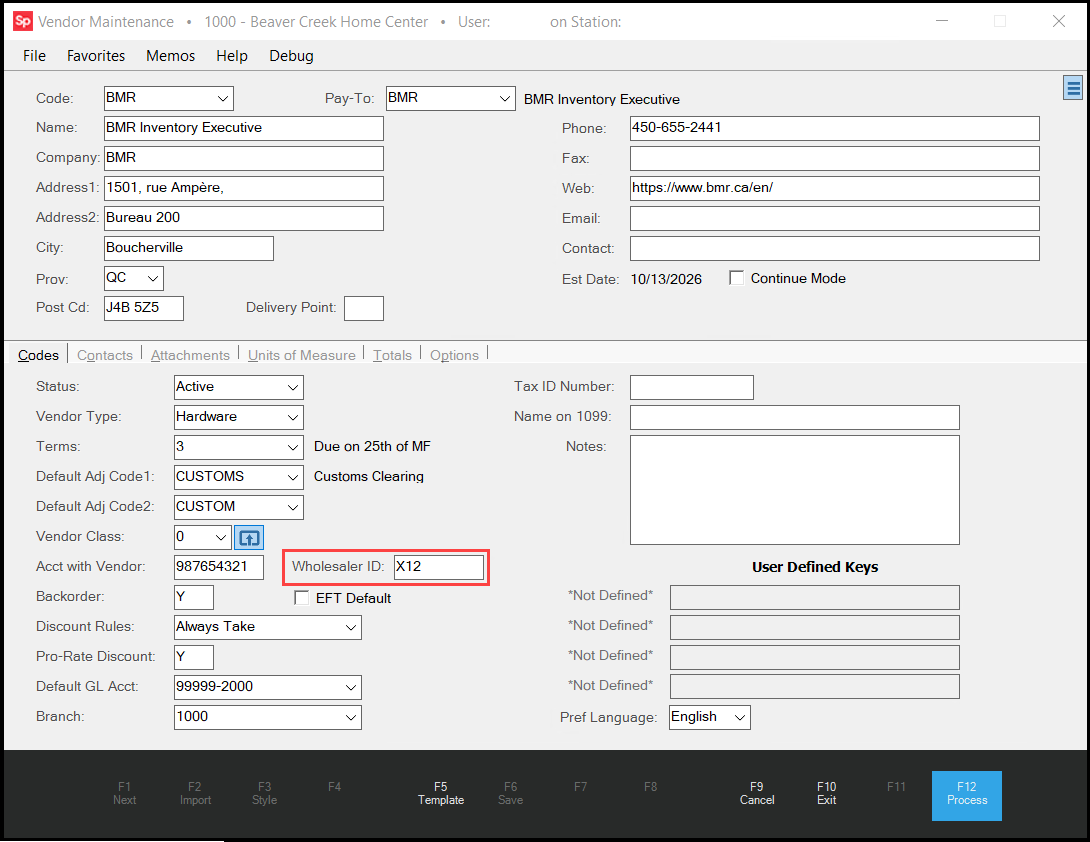
4. Enter X12 in this field when the customer’s vendor is going to transmit EDI data using the PSN network.
5. Choose Process (F12) to save this entry to the database.
After you complete these settings, you can set up branches to send and receive X12 transmissions from this vendor configured using the PSN API.
A Note about Template Item Settings
The application uses a standard item as a template for importing new inventory. The transmission process uses this template item as shorthand to import the data correctly into your system. Most vendors include the same information, but it doesn’t hurt to check.
Configuring the Branch for PSN Communications
These settings are required to configure each branch that will use the new X12 settings in the PSN for EDI X12 transmissions. Initially, this will apply to BMR and RONA buying groups in Canada, but we will expand it to other vendors that use the X12 transmission method in the future. PSN assigns each X12-based vendor an X12 identifier to manage the routing to the vendor’s file server (FTP, FTPS, S3, API, etc.).
Note: You will need to create a template item for the BMR and RONA items using these instructions.
To configure a branch to use the PSN/X12 communication settings:
1. From the Main Menu, choose Maintenance > Database > Branches. The Branch Setup form displays.
2. Select the branch from the Branch ID list and press Enter.
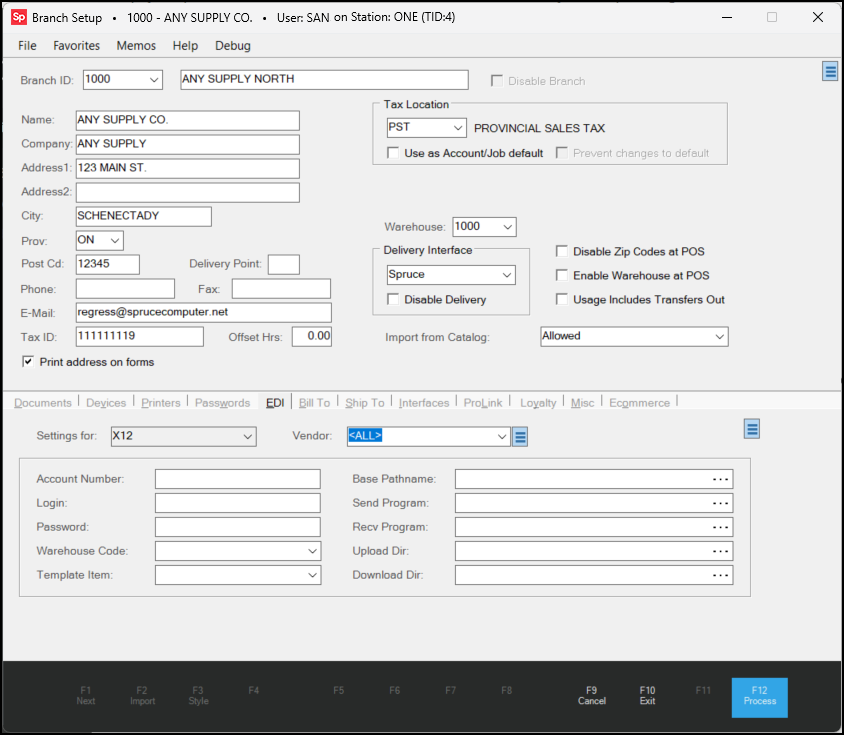
Branch Setup > EDI Tab > Settings for PSN
3. Choose the EDI tab and in the Settings for field, choose X12.
4. Beside the Vendor list field, right-click the Menu Marker to display a list of options.
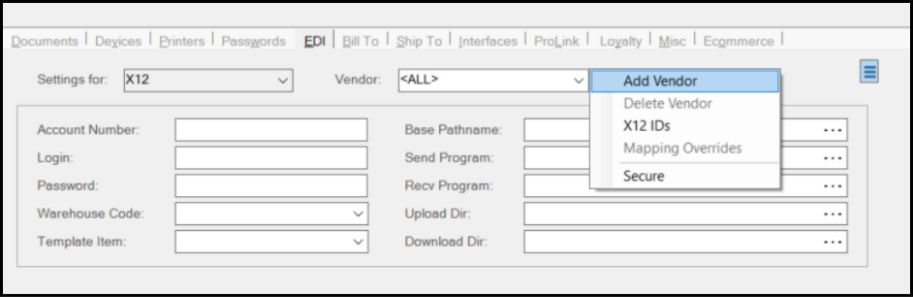
5. Choose Add Vendor from the list. The Add Vendor Settings box displays.
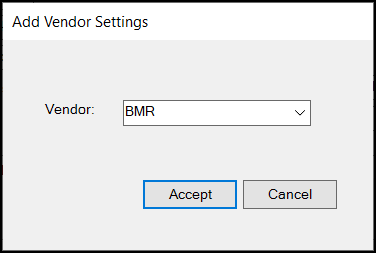
6. From this list, choose the vendor ID you created for the new vendor and click Accept.
The X12 Vendor Settings box displays.
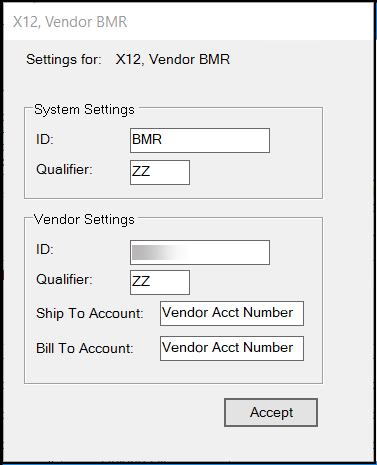
Branch EDI Vendor Settings > System and Vendor Settings
7. Complete the X12 vendor’s System Settings as described below to tell the PSN system where the data is coming from.
-
ID
Enter the Destination ID used internally to identify the vendor, such as BMR, RONA.
There may be separate entries for QA and Production environments.
-
Qualifier
This entry isn’t required, but you can set ZZ as the default.
8. In the Vendor Settings section, you are identifying the customer and vendor settings for the PSN to use to complete the transmission. Add the settings below to identify the customer and the vendor and click Accept.
-
ID
Enter your company's NetSuite ID, which is considered the Source ID.
-
Qualifier
Not currently used, but you can enter ZZ as a default.
-
Ship To Account
This is the branch's account number and must match the Account Number entry in the X12 EDI tab.
If these account numbers don’t match, the EDI tab account number will overwrite this entry.
-
Bill To Account
This entry should match the Ship To Account entry.
9. After you click Accept, you return to the EDI tab.
Here you set up the branch settings for the vendor’s X12 transmissions, including the store’s account credentials (provided by the vendor).
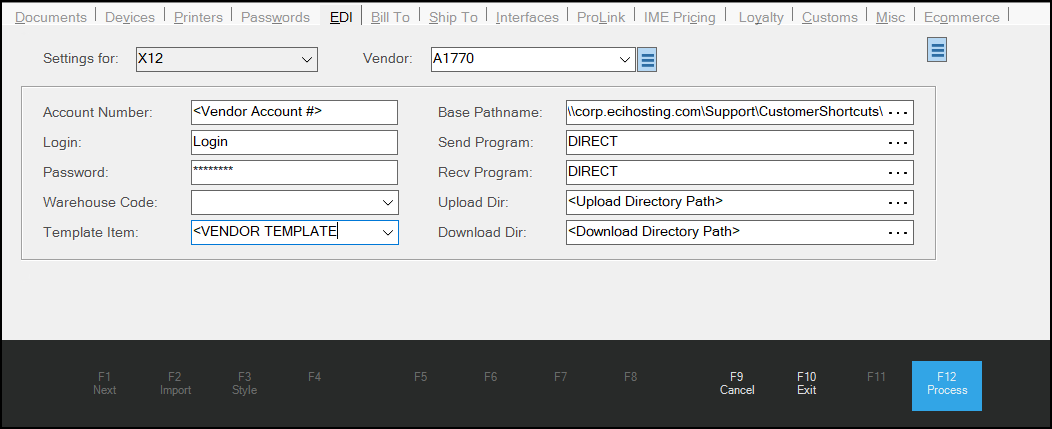
Branch Setup > EDI Tab (X12 Alias Configuration)
The application uses these settings to access the PSN system.
-
Settings for
The entry X12 should already be selected.
-
Vendor
Choose the vendor ID record you added in step 5. This is considered the Destination ID.
-
Account Number
Enter the vendor's account number for the branch, which should match the Ship To Account number discussed above.
-
Login
Enter the login ID PSN will use to access the vendor’s system.
The vendor provides these login and password credentials.
-
Password
Enter the branch password that PSN will use to access the vendor’s system.
-
Warehouse Code
Optional. Enter the warehouse code if it is relevant to this branch’s delivery settings.
-
Template Item
Choose the item you want to use as this vendor’s inventory template item.
-
Base Pathname
Click the Ellipsis button and choose the path to the EDI’s working folder for transfer files.
-
Send Program, Receive Program
Initially, enter DIRECTTEST in these fields. When the process goes to Production, update these settings to DIRECT.
-
Upload Directory, Download Directory
Click the Ellipsis button and navigate to the remote directory paths the SFTP/scripts need. Customers can use the Archive file entries to reprocess a transmission if needed. They can also open the transmission files to see the vendor ID, if they need to look up this information.
10. Next, right-click the Menu Marker again and choose the Mapping Overrides option. The Mapping Overrides box displays:
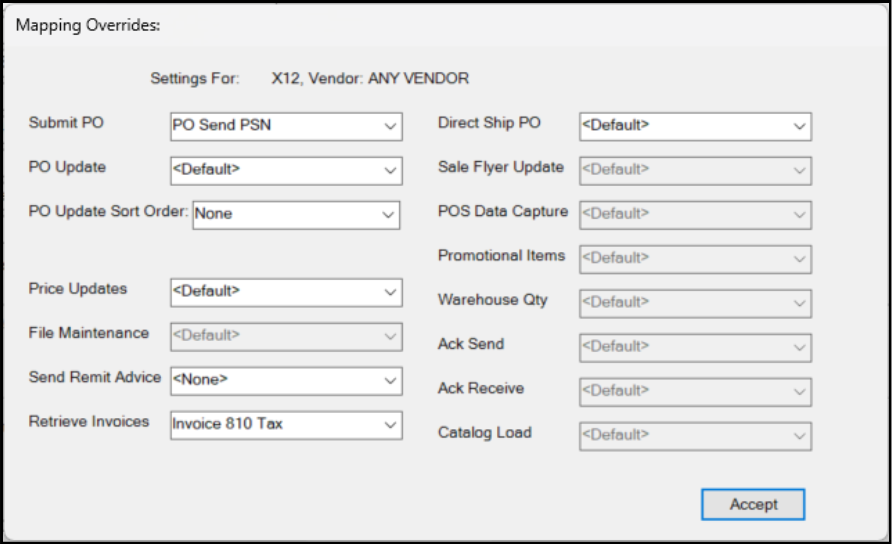
Branch Setup > X12 > Mapping Override Settings
11. Use these settings to specify the X12 overrides required for the branch’s PSN communications. In some situations, you may need to design custom document override types, or for some transmission types (Price Updates, File Maintenance, etc.), you can select existing PSN settings. Initially, for BMR and RONA use the defaults below for the purchase order send process.
-
Submit PO
Choose PO Send PSN to send the PO document transmission.
-
Retrieve Invoices
For BMR and RONA, choose Invoice 810 Tax for the Retrieve Invoices mapping. The Invoice 810 Tax override is specific to Canada and allows the branch to receive and process tax information for Payables.
12. When you complete these settings, click Accept.
13. Choose Process (F12) to save them to the database.
Repeat this process for each branch for which the PSN will be processing X12 transmissions.