Global Payments (Cayan) > Surcharges for Credit Card Transactions
Businesses that use Global Payments (Cayan) devices can now apply a credit card surcharge to RockSolid MAX transactions, starting with U.S. merchants. Surcharges let merchants pass a portion of the credit card acceptance cost to the cardholder on eligible transactions. Surcharge fees are subject to a 3% card-network cap or the percentage allowed by your local or state rules, whichever is lower. Surcharges apply when customers pay with a credit card (or the credit card portion when using split bank card options) during checkout. The merchant chooses the rate, and Global Payments (Cayan) sets that rate on the account. The Surcharge rate cannot exceed your cost of acceptance.
We are adding Surcharges as an alternative to — not a replacement for — the existing Convenience Fee feature, so you cannot use both features at the same time. You can apply surcharges when customers pay with a credit card or use split bank card options when paying on a transaction. Although only US businesses can use this feature currently, businesses can still process multi-currency transactions using the Surcharge feature. Surcharge feature support is not currently available for other merchant systems.
After you sign up for this feature (as discussed here), beginning on November 1st, 2026, the Cayan terminal will display the words: Surcharge may apply before the customer applies the credit card, allowing them to cancel the transaction. We recommend updating your GL account records (Sales > Bankcard Surcharge and MiscPayments > Bankcard Surcharge) (as described
Surcharges are an alternative to — not a replacement for — Convenience Fees; you cannot use both features at the same time. Global Payments (Cayan) enables surcharging for each branch you enroll.
Checklist for Setting up Global Payments (Cayan) Surcharges
A System Administrator with full permissions should complete these steps, which should take about 15–20 minutes.
1. Confirm your go-live date with your ECI Account Manager. Complete steps 2 - 4 before that date.
(By November 1st for most states)
2. Map your Surcharge GL accounts (takes about 10 minutes).
-
Go to Maintenance > Utilities > GL Account Mapping > System Journals > Point of Sale.
-
Enter an Income (or Other Income) type GL account for Sales > Bankcard Surcharge and MiscPayments > Bankcard Surcharge.
-
Choose Process (F12). See here for steps.
3. Turn on the Surcharge feature (takes about 5 minutes).
-
Go to Maintenance > Database > Parameters > Setup > BankCards.
-
Select Surcharge.
-
Enter a Description. We recommend Surcharge. Do not enter card brand names.
-
Review and update the Receipt Message, if needed.
Note: Colorado and Oklahoma branches: change “up to 3%” to “up to 2%”. -
Choose Process (F12). See here for steps for all branches.
4. Post your surcharge signage at the entrance and at each register. See here for more.
5. Brief your Cashiers on returns and phone order handling:
-
POS returns: Process returns against the original transaction, and answer Yes to returning the payment to the original card;
-
Phone and mail orders: Tell the customer about the surcharge before taking the card.
Getting Started in applying Global Payments (Cayan) Surcharges
We recommend reviewing the Surcharge rules and laws in your area to understand the terms and conditions that affect your implementation of the Surcharge feature, particularly how these rules may vary by branch location. Then, to sign up for the Surcharge feature for each appropriate branch, contact your ECI Account Manager. This process includes a DocuSign package with a Platform Agreement, a Surcharge Acknowledgment, and a Rate Change Form. ECI handles communication with the Global Payments (Cayan) team on your behalf.
Credit Card Networks require 30 days' notice before you can go live with this feature.
You must post signage at the entrance of each branch and at each register stating that you will apply the surcharge to credit card (not debit card) transactions. Surcharges also do not apply to prepaid cards, cash, check, or ACH payments.
Surcharges are banned in some states, including Connecticut, Maine, and Massachusetts, and are capped at a lower rate in other states, such as Colorado and Oklahoma.
After you complete this process with your ECI Account Manager and wait 30 days before going live, review the steps below to prepare for this change.
Important Note about Setting Up Surcharges
Stay in touch with your ECI Account Manager to confirm the start date for the Surcharge feature and complete your Surcharge settings and GL journal mapping before that date. If Global Payments (Cayan) enables surcharges for your business, including on your Cayan devices, before you complete this setup, the application switches to the Surcharges setting automatically. This means the first time a transaction comes back eligible for a surcharge, the application turns on Surcharges for the current branch, turns off Convenience Fees for all branches, and sends the System Administrator a Notification Queue message.
If the initial transaction includes a Convenience Fee, the application voids the card authorization and displays this message on the cashier's screen:
-
This bankcard authorization was voided because the processor returned a surcharge of [amount] and a Convenience Fee was on the transaction. Enable Surcharge was turned on and Convenience Fee was disabled. Retry the payment without a Convenience Fee.
The Cashier can then reprocess the payment, and the application applies the Surcharge to the credit card transaction. After this automatic switch, any branch that has not set up the Global Payments (Cayan) surcharge will not collect a surcharge or a Convenience Fee. To avoid this, we recommend enrolling all of your branches.
Enabling the Global Payments (Cayan) Surcharge Feature for all Branches
System Administrators can enable the Surcharge permissions in the application. You cannot enable the Surcharge feature if you are not using Global Payments (Cayan) for credit card transactions. These settings will apply to all branches that you have signed up for the surcharge process.
Note: If you enable the None option in the Payment Fees box, the system does not apply surcharges or convenience fees to your transactions.
To enable the Surcharge feature:
1. From the Main Menu, choose Maintenance > Database > Parameters. The Parameter Settings form displays.
2. In the Setup tab, choose BankCards to display the Payment Fee options.
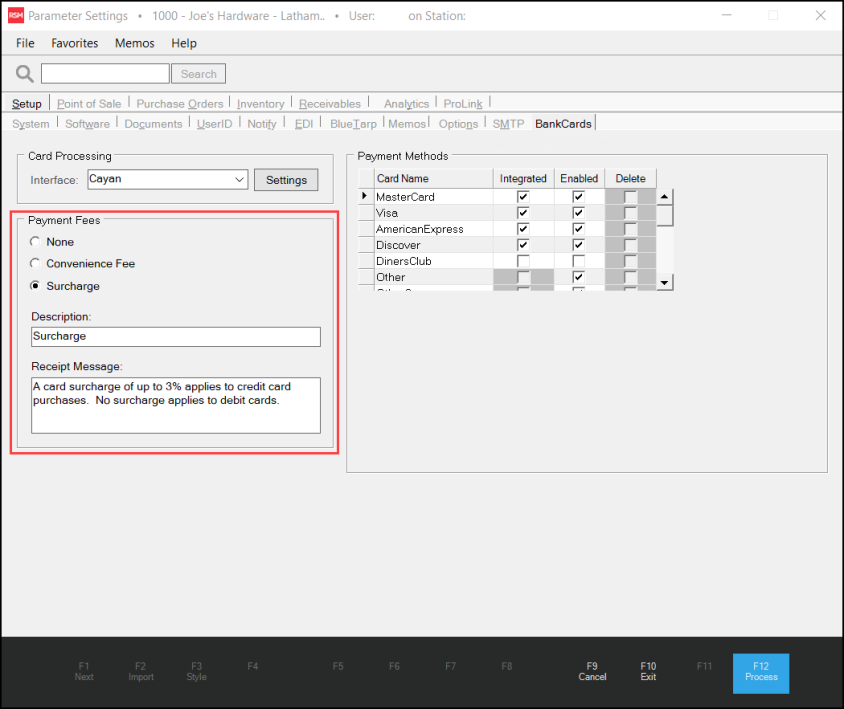
Parameter Settings > Setup > BankCards > Payment Fees Options
Note: The Surcharge or Convenience Fee options in this parameter form are mutually exclusive. There is no warning message when you change these settings.
3. To configure the Surcharge feature, choose the following settings:
-
Payment Fees
Choose the Surcharge button. -
Description
Enter the surcharge name as you want it to display on the receipt / ticket. We recommend Surcharge in this field for spacing reasons.
Note: Do not include the name of a particular credit card provider (Visa, Mastercard, etc.) as this is not part of the Surcharge Acknowledgment agreement -
Receipt Message
This message displays by default, but you can modify it if you need to:
A card surcharge of up to 3% applies to credit card purchases. No surcharge applies to debit cards.
Note: Branches in Colorado and Oklahoma should change "up to 3%" to "up to 2%, based on state laws.
4. Choose Process (F12) to save these settings to the application.
These settings apply to all branches, so you only need to complete them once. Global Payments (Cayan) determines which branches collect surcharges. Each branch has its own merchant ID, and only branches you enroll in the feature will apply a surcharge.
Note: Do not enroll a branch located in a state that prohibits Surcharges. Because enabling Surcharge turns off Convenience Fees for all branches, those branches will not collect either fee.
Next, complete the General Ledger mapping for surcharge fees to ensure that the system journals balance. This is required for both Spruceand RockSolid MAX.
Next, complete the General Ledger mapping settings below for surcharge fees to ensure that the system journals balance.
This is required for both Spruce and RockSolid MAX transactions.
Adding GL Mapping for Global Payments (Cayan) Surcharge Fee Tracking
As with Convenience Fees, we recommend mapping surcharges to dedicated GL accounts, separate from sales and tax accounts, so surcharge amounts do not inflate revenue.
Note: In the near future, we will be adding a new feature exclusively for RockSolid MAX businesses that will export your system journals to your QuickBooks Online account. If you are considering this approach please select the appropriate system journal carefully.
If you are exporting this data to some other platform, it is equally important that you review your GL account mapping to ensure that surcharge mapping is added to a specific account for tracking these amounts.
To map your surcharge fees to your general ledger journal account:
1. From the Main Menu, choose Maintenance > Utilities > GL Account Mapping. The GL Mapping Setup form displays.
2. Select the System Journals radio button.
3. From the Journal Type list, choose Point of Sale. The Point of Sale journal list displays.
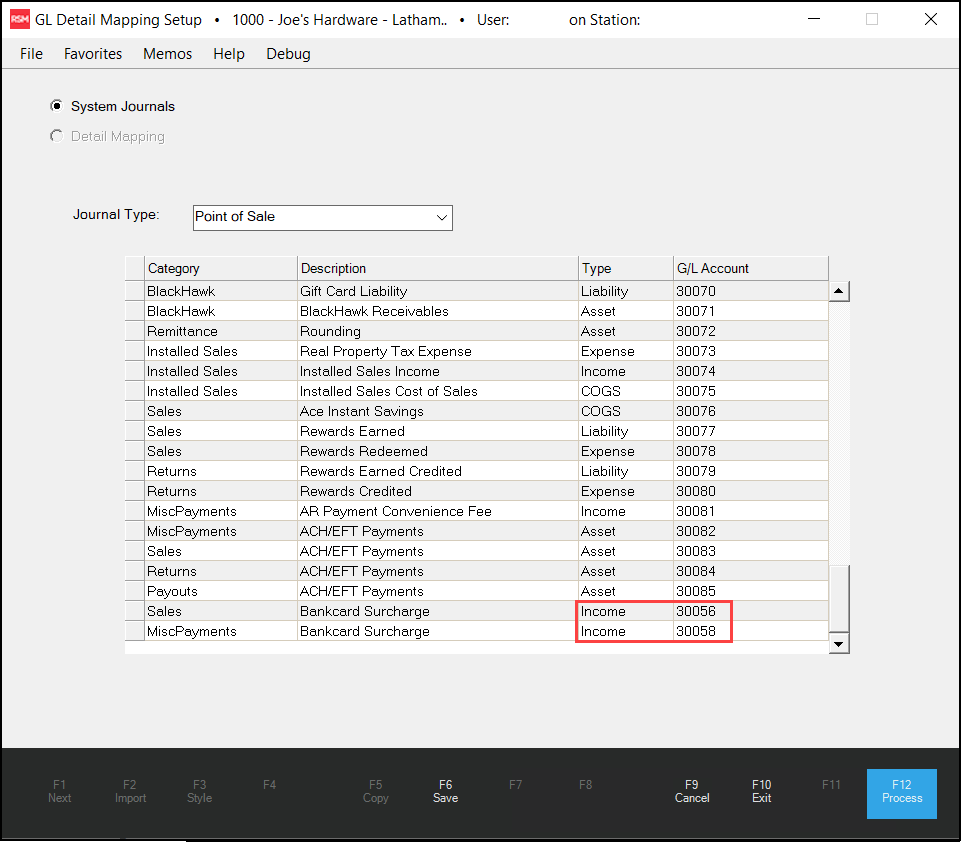
4. Scroll to the bottom of the list and find the Sales > Bankcard Surcharge entry. In the G/L Account column, enter the Income (or Other Income) type GL account ID to track surcharge amounts for sales transactions.
5. In the MiscPayments > Bankcard Surcharge row, in the G/L Account column, enter the Income (or Other Income) type GL account ID to track the Surcharge amounts for Point of Sale transactions other than sales.
6. When you complete these entries, choose Process (F12) to save them.
How Surcharges Display in Point of Sale Documents
After you enable the Surcharge feature, you will see the surcharge value reflected in Point of Sale documents (and all related default formats) that include the charge, including invoices and receipts. This includes other Miscellaneous Payment documents, such as order invoices, order deposit transactions, payouts, reverses, and voided transactions. These documents have the same settings, so they display the same values and messages.
Here is how the surcharge displays on your supported document types:
-
Surcharges are applied to transactions paid by associated credit cards, including cash and receivable account invoices, tickets, account payments, order deposits, direct order, and other order transactions.
-
Surcharge amounts may apply to transactions but do not display on related documents with the following formats: Dispatch, Yard, Pick Ticket, Delivery Ticket, Packing Slip, and No Price. Surcharges are not relevant to these document purposes.
-
Surcharges are not calculated for each item in the transaction individually, but rather on the transaction total amount.
Note: Global Payments (Cayan) calculates the surcharge amount not the application. The application applies the surcharge amount to the transaction documents. -
Invoices display the Surcharge amount after the Subtotal and Sales Tax entries.
-
The Surcharge message you added in the parameter settings displays at the bottom of the invoice documents and tickets.
-
The Surcharge amount appears in the final total, and the required disclosure messages display in both the default invoice document and the receipt ticket.
-
For On-Order documents, the surcharge displays under the Payment Methods, not in the Total.
-
Only the base amount is applied to the account or order balance; the surcharge does not reduce it.
Credit cards that are not associated with the Global Payments (Cayan) program are not subject to the surcharge feature.

Invoice and Ticket with Surcharge Entries Highlighted
A Note about Transaction Refunds that Include Surcharges
To refund a surcharge, process the return by token or reference to the original credit card transaction. When you process a return:
-
Full return: Global Payments (Cayan) refunds the full transaction amount, including the surcharge. If the original transaction token or reference is not available, add a negative adjustment for the surcharge amount to the refund. Use a non-taxable surcharge adjustment code so sales tax is not applied. The refund can't exceed the original total plus surcharge.
-
Partial return: Only the returned items' amount is refunded. No portion of the surcharge is refunded.
Important: If you process the return by presenting the card again instead of by reference, the surcharge is not refunded automatically. When processing a return, the Cashier should answer Yes to returning the payment to the original card. This allows the surcharge to be refunded.
A Note about Card Not Present (MOTO) Transactions
For mail or telephone orders, you must tell the customer about the surcharge and the total amount before processing their card and offer another payment method. Surcharge eligibility is based on the branch's location, not the customer's, so check the rules for customers in states that prohibit surcharges.